
*Internal* System Release Notes August 14, 2026
Update: Lots Assigned to Sellers Now Appear on Seller Settlements Before an Auction Closes
To improve usability and provide better visibility for auction staff, lots assigned to sellers will now appear on Seller Settlements as soon as the lot is assigned to said seller.
Previously, assigned lots did not populate on Seller Settlements until after the lot had closed. With this update, you can view which lots are assigned to each seller throughout the auction process.
How to View Assigned Lots
- Navigate to the Sellers tab within the auction.
- Locate the seller you want to review.
- Click the Seller Settlement hyperlink.
.png?width=1903&height=382&name=Screenshot%202026-08-10%20at%2011.28.00%20AM%20(2).png)
.png?width=1897&height=425&name=Screenshot%202026-08-10%20at%2011.28.03%20AM%20(2).png)
The Seller Settlement will now display the number of lots currently assigned to that seller. Selecting the settlement will show all lots associated with the seller, even if the auction is still in progress.
What You'll See Before the Auction Closes
Because the lots have not yet been clerked or sold, the Seller Settlement will display red validation messages, such as "Not Clerked." This is expected behavior and indicates that the lots are still pending. At this stage:
- No sale information is available.
- Seller proceeds have not been calculated.
- Seller payments cannot be processed.
- Settlement not available for email or printing
.png?width=1891&height=738&name=Screenshot%202026-08-10%20at%2011.27.39%20AM%20(2).png)
-1.png?width=960&height=375&name=Screenshot%202026-08-10%20at%2011.27.35%20AM%20(2)-1.png)
Once the auction has concluded and the lots have been clerked, the settlement will update with the appropriate sale and payment information.
This update will help ensure that you do not perform any seller payments for a seller when all of their items have not yet been closed in an auction.
Seller Catalog Report
The Seller Catalog report, available under the Catalog and Accounting tabs within the auction, is still available and functions as before. This report remains a useful Excel export for cross-referencing lots and the sellers assigned to them.
.png?width=1910&height=402&name=Screenshot%202026-08-10%20at%202.55.40%20PM%20(2).png)

FEATURE – Option to Show or Hide Payment Card Fees on Bidder Invoices
Auction houses now have the flexibility to choose whether Payment Card Fees are displayed on the PDF version of bidder invoices.
When enabled, the applicable Payment Card Fee amount will appear near the top of the bidder's invoice, below the Balance Due. This gives bidders an accurate idea of what their total would be if they choose a payment method with an associated fee, such as a credit card with a surcharge.
Because displaying this additional amount could potentially be confusing to some bidders, auction houses can now choose whether or not it is visible. This setting is OFF by default.
How to Enable Payment Card Fees on Bidder Invoices
To display the fee:
- Navigate to the Master Accounting tab.
- Select Payment Card Fees.
- Click Edit on the applicable Payment Card Fee. If multiple fees have been created, update each fee as needed.
- Select the "Visible on Bidder Invoices" checkbox.
- Save your changes.
.png?width=1903&height=340&name=Screenshot%202026-08-13%20at%202.19.56%20PM%20(2).png)
.png?width=1896&height=228&name=Screenshot%202026-08-13%20at%202.20.06%20PM%20(2).png)
.png?width=1898&height=514&name=Screenshot%202026-08-13%20at%202.16.03%20PM%20(2).png)
.png?width=801&height=643&name=Screenshot%202026-08-13%20at%202.21.05%20PM%20(2).png)
Important Notes
- If a Payment Card Fee has been configured, the fee will continue to appear on the Admin side, regardless of whether Visible on Bidder Invoices is enabled.
.png?width=1892&height=734&name=Screenshot%202026-08-13%20at%202.20.26%20PM%20(2).png)
- If the setting is turned OFF, the fee will not appear on the bidder-facing invoice.
.png?width=817&height=549&name=Screenshot%202026-08-13%20at%202.20.40%20PM%20(2).png)
- This update does not change how Payment Card Fees are calculated or applied.
- Existing Payment Card Fees will continue to function as they do today, including within the Card (Ext.) field when creating a payment.
.png?width=858&height=704&name=Screenshot%202026-08-13%20at%202.29.34%20PM%20(2).png)
- The Fee Taxable feature is still undergoing testing and has not yet been deployed. More information will be shared once that feature becomes available.
.png?width=559&height=453&name=Screenshot%202026-08-13%20at%202.35.14%20PM%20(2).png)
UPDATE – New Sorting Options for Bidder Invoices + Seller Settlements
To improve organization and make invoice/seller settlement management easier, clients can now sort bidder invoices in three different ways:
- Invoice/Seller Settlement # – The original/default sorting method
- Bidder/Seller Last Name – Sorts invoices alphabetically by the bidder's last name
- Balance Due – Sorts invoices/settlements by balance, with the largest balance due appearing first
How to Sort Bidder Invoices
- Navigate to the Invoices landing page for the applicable auction.
- Click the Sort By button.
- Select one of the following:
- Invoice #
- Bidder Last Name
- Balance Due
.png?width=1906&height=491&name=Screenshot%202026-08-13%20at%202.50.42%20PM%20(2).png)
.png?width=1889&height=219&name=Screenshot%202026-08-13%20at%202.37.24%20PM%20(2).png)
How to Sort Seller Settlements
- Navigate to the Seller Settlements landing page for the applicable auction.
- Click the Sort By button.
- Select one of the following:
- Settlement #
- Seller Last Name
- Balance Due
.png?width=1902&height=293&name=Screenshot%202026-08-14%20at%209.43.44%20AM%20(2).png)
.png?width=1900&height=296&name=Screenshot%202026-08-14%20at%209.43.47%20AM%20(2).png)
Using Sort By with Payment Status
The Sort By option can also be used at the same time as the Payment Status filter.
For example, you could filter the page to show only Outstanding invoices/settlements and then sort those invoices/settlements by Balance Due to quickly identify bidders with the largest outstanding balances.
.png?width=1889&height=205&name=Screenshot%202026-08-13%20at%203.54.28%20PM%20(2).png)
.png?width=1895&height=515&name=Screenshot%202026-08-13%20at%203.54.35%20PM%20(2).png)
Important Notes
- If multiple bidders/sellers have the same last name, their invoices/settlements will be ordered based on their first name. If they have ALSO have the same first name, the invoices/settlements will be ordered according to when their bidder accounts were created/seller checked in (or by bidder/seller #). This can be identified by the Bidder / Seller Number—the lower the Bidder/Seller Number, the earlier the account was created.
.png?width=1897&height=197&name=Screenshot%202026-08-13%20at%203.55.56%20PM%20(2).png)
.png?width=1887&height=148&name=Screenshot%202026-08-14%20at%201.35.06%20PM%20(2).png)
- The sorting selected on the Invoices page does not change the order of the downloaded invoices report(s). When exporting invoices as an Excel or PDF file using the green export icon on the right side of the page, the exported file will continue to be organized by Bidder #, regardless of the Sort By option currently selected in the Admin UI.

.png?width=1893&height=268&name=Screenshot%202026-08-13%20at%203.53.51%20PM%20(2).png)
UPDATE – New ZIP Organization Option for Invoices + Seller Settlements
When downloading invoices as a ZIP file, clients now have two options for how the invoices/seller settlements are organized:
- Invoice # / Settlement #
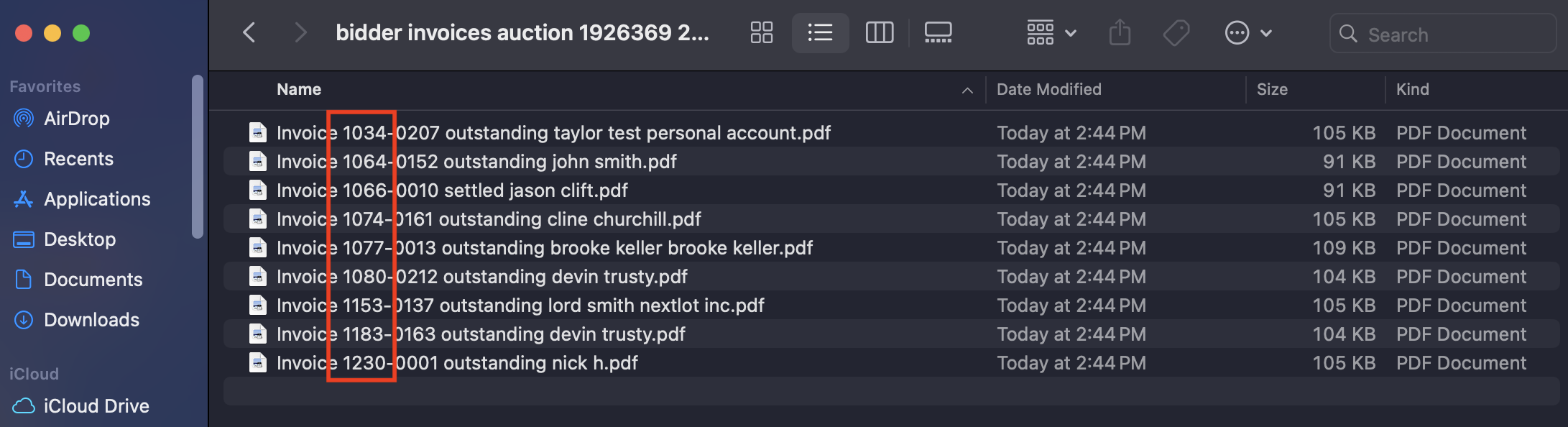
- Bidder Last Name / Seller Last Name
.png?width=896&height=275&name=Screenshot%202026-08-13%20at%202.46.16%20PM%20(2).png)
Previously, invoices within the ZIP file were organized by Invoice #. The Invoice # is based on the bidder number followed by a hyphen and the number of invoices that bidder has in the system. To provide more flexibility and make invoice organization easier, invoices can now also be zipped by Bidder Last Name.
How to download a ZIP Invoices in a particular format:
- Navigate to the Invoices landing page for the applicable auction.
- Locate the green ZIP icon on the right side of the page.
- Open the dropdown menu.
- Select how you would like the invoices organized:
- Invoice #
- Bidder Last Name
.png?width=1900&height=334&name=Screenshot%202026-08-13%20at%202.42.22%20PM%20(2).png)
How to download a ZIP Seller Settlements in a particular format:
- Navigate to the Seller Settlements landing page for the applicable auction.
- Locate the green ZIP icon on the right side of the page.
- Open the dropdown menu.
- Select how you would like the invoices organized:
- Settlement #
- Seller Last Name
.png?width=1907&height=270&name=Screenshot%202026-08-14%20at%209.41.24%20AM%20(2).png)
Important Note
The ZIP organization is independent of how invoices/settlements are currently sorted in the Admin UI.
For example, if you have the invoice/settlement list sorted by Balance Due, the ZIP file will not use that sorting. You will still need to select either Invoice / Settlement # or Bidder / Seller Last Name from the ZIP dropdown.
Similarly, if your invoices are already sorted by Bidder / Seller Last Name in the Admin UI, the system will not automatically use that option when creating the ZIP file. You must still select Bidder / Seller Last Name from the ZIP dropdown.
In short, always select your preferred organization method from the ZIP dropdown before creating the file.