
*Internal* System Release Notes November 11th, 2025
Admin UI Updates Relating to Invoicing
Super Admin Ability to Generate Invoices
Previously, if a client did not have any tax rates created—other than “Exempt”—the invoices would fail to generate after an admin visited the clerking grid for that specific auction. This was designed to ensure that invoicing remained enabled only for clients actively using it, as it’s assumed that any site utilizing invoicing would have at least one tax rate set beyond “Exempt.” The intent was to prevent unnecessary invoice generation for clients who do not use NextLot invoicing (such as real estate–only clients), since unused auto-generated invoices could clutter the database and could eventually lead to performance slowdowns.
However, we recognize that this limitation could cause issues for clients who wish to use invoicing but do not charge taxes. While we strongly recommend these clients consult with an accountant about proper tax collection practices, we’ve implemented a Super Admin feature as a workaround. This new option, available on the Auction Accounting page, allows a Super Admin to manually generate invoices for a client even if no tax rate has been created on their site.
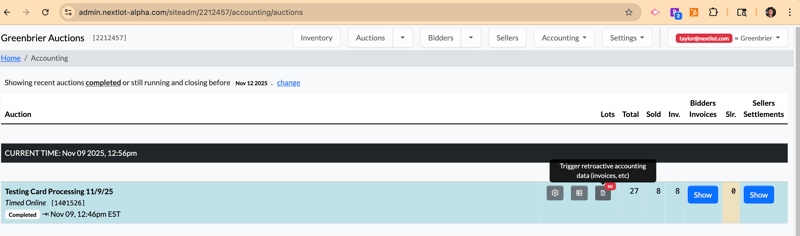
Please note if you add a tax rate, invoices WILL auto-generate going forward EVERY time you visit the clerking grid.
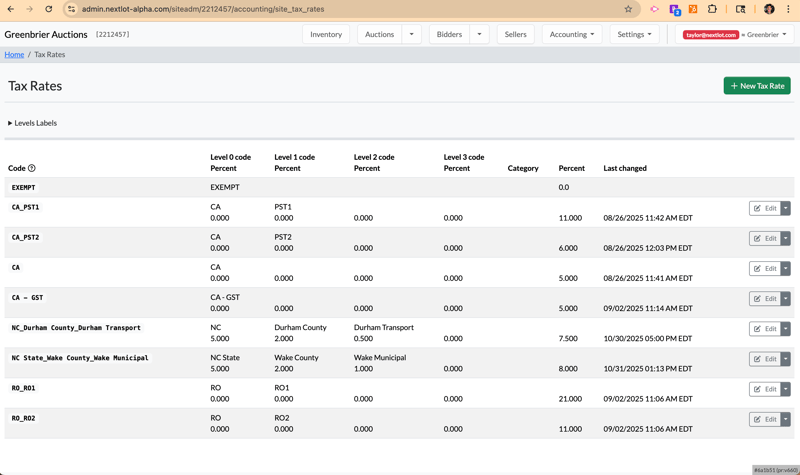
Therefore, to ensure that we don't start generating invoices that we will never need (creating potential balance issues and unpaid invoices listed on bidder's profiles), I would like everyone to visit all their client sites and make sure that you DELETE tax rates for clients who do NOT currently use NextLot invoicing. If the customer has a tax rate on their site that they have used once, unfortunately, we cannot delete it, but if you have any clients who have tax rates they have never used, they should be removed for now.
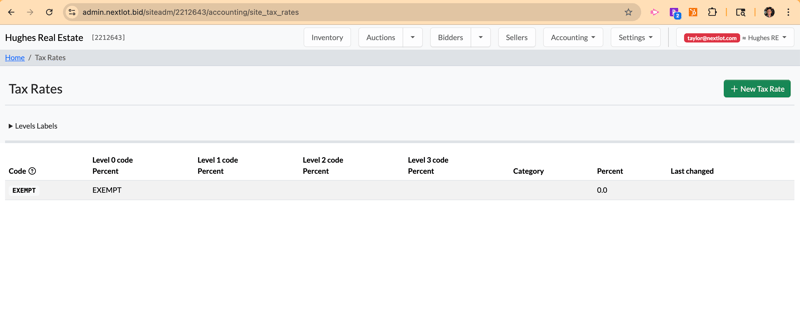
If we start receiving calls from clients concerned about invoices being auto-generated that they do not want we will have to look at going into the code to manually remove that tax rate form their site to prevent the continual generation of invoices. Remember, bidders will not see these invoices in their bidder profiles until they are emailed. As long as the invoices aren’t emailed, the bidders won’t see them. However, if the client later decides to use NextLot invoicing, having a large number of generated but unpaid invoices could create significant headaches with bidder account balances. This is why it is so important to get these taxes removed for sites that won't be using it.
Auctioneer Initiated Card Payments for Individual Invoices
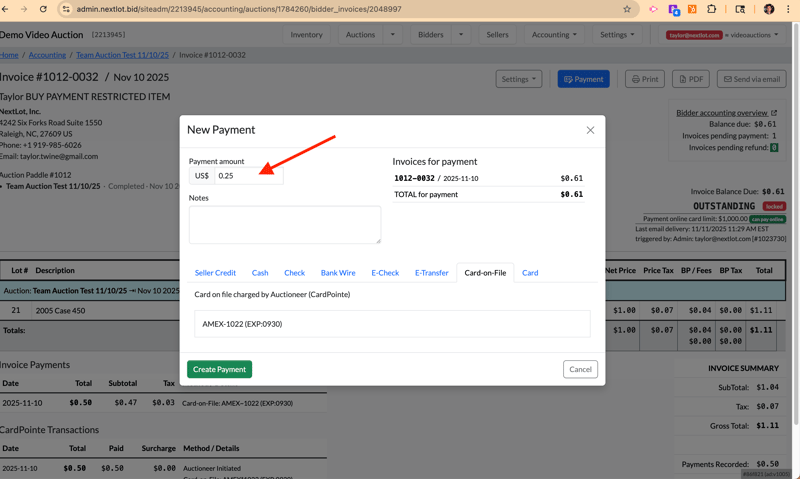
An option to charge individual bidders for their purchases on their card on file has been added to the UI. When you navigate to the Payment options, there is now an option on the far right called "Card on File." When you navigate there, it will list the bidder's card on file (the card name label, last 4 digits and expiration) that you can process for the payment. Simply click Create payment to charge the card. Please see the screenshot and video below.
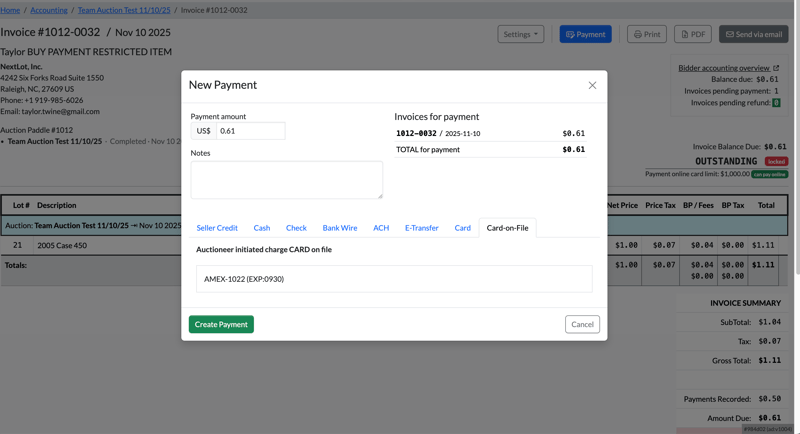
For customers who added their cards to their profile BEFORE the deploy on Monday November 10th, they will NOT have the the Credit Card NAME label attached to their label for their card on file.
Bidders who the auctioneer wants to charge with their card on file do NOT have to abide by the card processing limit set for on the site. That limit only applies to Bidder Initiated Card Payments.
If the auctioneer wants to just charge the bidder a particular amount on their card on file, they can click to charge the card on file and type in the partial value they want to process (see below outstanding balance of $0.61 and we only charge $0.25 on the card on file.
Credit Card Exempt Bidders
There will be instances when the Card-on-File option is disabled for certain invoices (as shown in the screenshot below)
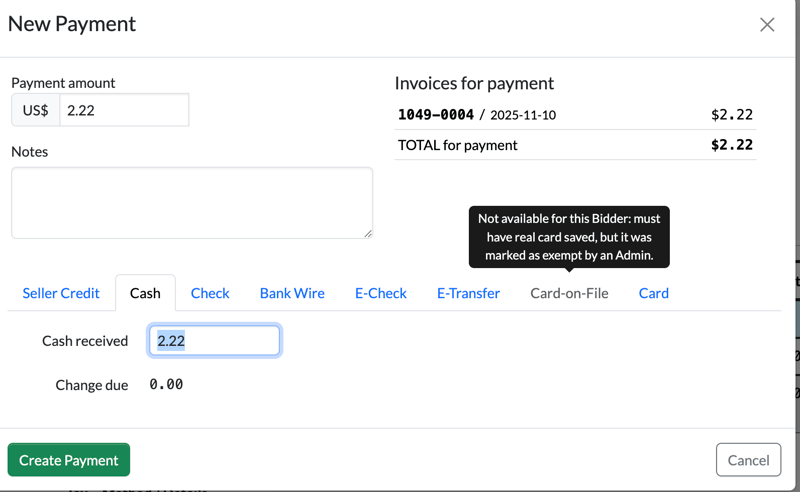
If the option is greyed out, it means either the bidder doesn’t have a card on file (because an admin marked them as exempt) or the site does not use the CardPointe integration, so there’s no option to charge cards. If you hover above the Card-on-file option and it is disabled- it will tell you WHY it is disabled for this particular bidder. Please see the video below showing how an admin cannot charge a card-exempt bidder.
Please note: When you attempt to bulk charge invoices that include a card-exempt bidder, that invoice will not be charged, and its status will remain “Payment Outstanding" for its balance.
Payment Restricted Items
When a lot is marked as payment restricted (meaning any invoice that it is added to will not be permitted to be paid online with a card or ACH payment), bidders are correctly prevented from making an online payment for that invoice. However, when an admin accesses the same invoice and attempts to apply a payment, the “Card on File” option is not greyed out. While the admin can select “Create a Card on File Payment,” the payment will not process, and an error message will appear in red stating:
“Invoice ____ has item(s) that are online payment restricted.”
“Invoice ____ has item(s) that are online payment restricted.”
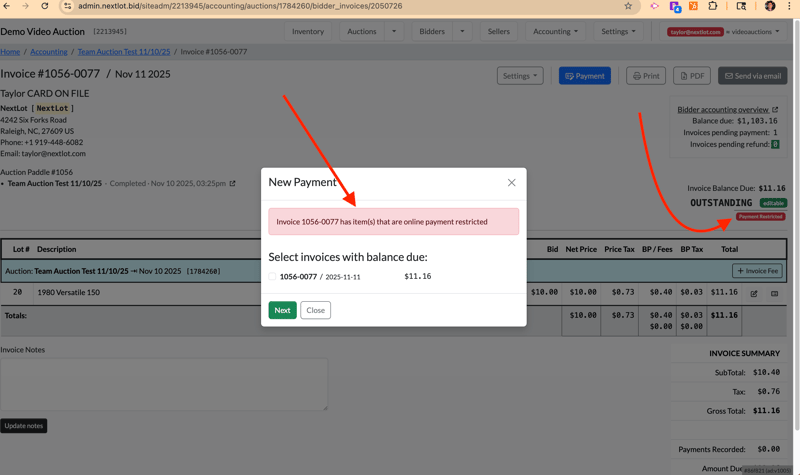
You will also notice on the original invoice it will have a NOTE attached to it by the outstanding balance (see above right hand arrow) indicating that the invoice is payment restricted, so it cannot be paid using an online payment. If a customer sees this notice, they should know that they cannot go in and charge this invoice through online payments.
Please see the video below for reference.
Bulk Charging Invoice Reminder:
Before bulk charging invoices, you must first bulk email them (or email individually the invoices you WANT to bulk charge). To do this, navigate to the “Send Email” button outlined in green. Click it to open a pop-up modal where you can choose to send invoices for that particular auction with either a “Payment Outstanding” or “Settled” status. If you recall, this procedure remained the same in the old invoicing system.
You’ll also see an option labeled “Skip when another email was already sent after” with a dropdown menu (1, 2, 5, or 10 days). This prevents duplicate emails from being sent too frequently. For example, if Jane Smith has an outstanding invoice from four days ago that was last emailed 4 days ago and another from yesterday that was last emailed yesterday, selecting “EOD ~2 Day” will resend only the older invoice and skip the recent one.
Once emails have been successfully sent, a green envelope icon will appear on the right-hand side of the invoice with a time stamp of the most recently sent email, next to the paper and pencil “edit” button (see image below). IF an invoice has NOT ever been emailed the email send portion of that row will remain blank (see top row below for this example).
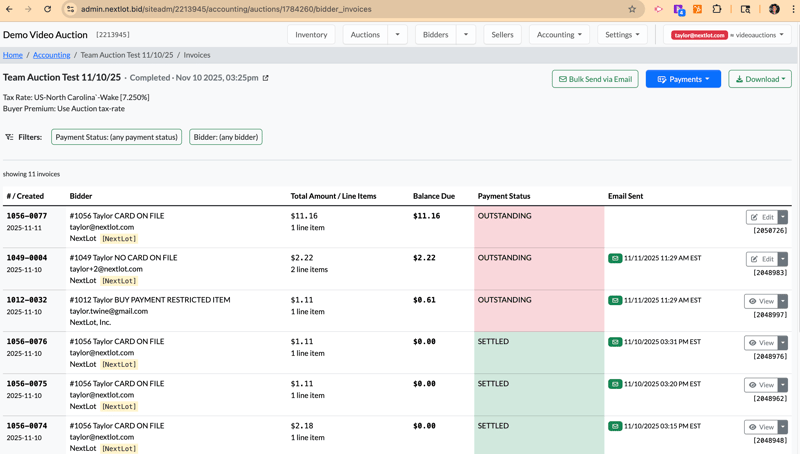
Important: If you attempt to bulk charge invoices before emailing them, you will receive the following error message:
“No invoices are scheduled for merchant-initiated card charges.”
Cardpointe Transactions recorded on Admin Invoice View:
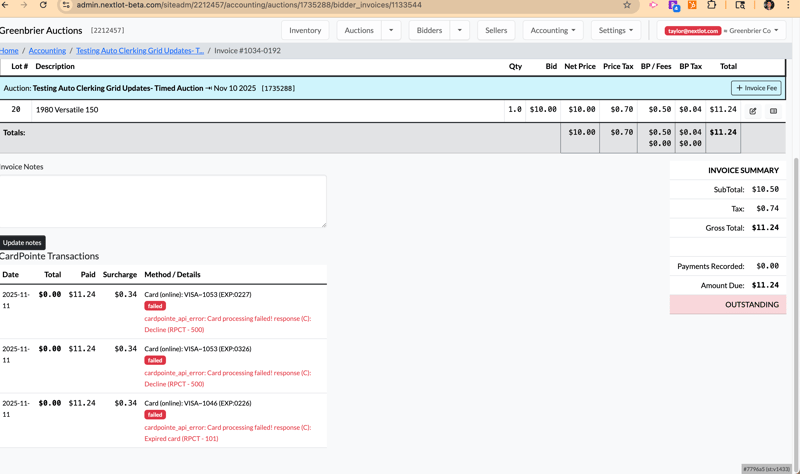
We can now view all of the cardpointe transactions on a given invoice, including failed attempts and the reasons for those failed attempts. This information is located in the bottom left hand corner of the invoice. This information is NOT included on the Bidders copy (or a printed copy) just on the admin UI view of the invoice.
Automated Invoice Updates:
Previously in order for your invoices to update with recently sold items, you had to navigate between the clerking grid and the invoices for the updated information to flow. Now once a lot closes in an auction, its data will push to the invoices area at least every 60 seconds. This means that if you are on the invoices page like so:
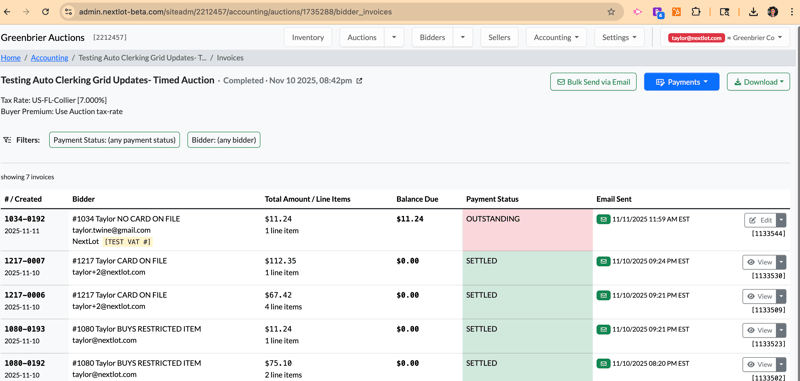
You will only have to refresh your screen to get the new invoicing data to show up for lots that have closed. You will NO longer have to return to the clerking grid and then back to the invoicing page for that auction for the data to pull over.
You will still have to go to the clerking grid to make lot price adjustments, change lots from Sold to Pending or No Sale, or move them to a different bidder #.