
*Internal* System Release Notes October 23rd, 2025
FEATURE- Offer the Ability to Drag and Reorder Image Thumbnails in Custom Order
To make the Catalog App more user-friendly, a new feature has been added that allows users to easily reorder photos or change the main thumbnail image using a simple drag-and-drop function.
How it works:
Once photos are uploaded to the Catalog App, you can press and hold a photo, then drag it between two other images to adjust its position (top to bottom, left to right). The default thumbnail image will display a green outline, indicating it has been set as the default image.
As shown in the video below, when you move a photo into the first position in the catalog, it will become the new default thumbnail and will appear with a green border. However, please note that after making changes and clicking the back arrow in the upper left corner, the thumbnail will not update immediately. The screen will take time to refresh to show you the newly updated Default Lot Image.
If you want the default image to automatically update in the catalog app catalog listing IMMEDIATELY, you will need to instead go into the image you want to be the default and click the Set Default button for that image (see video below)
FEATURE- Ability to Save Photos to Camera Roll from Pending Uploads & UPDATE-Catalog View Showing Red Border Around Default Images if Images Are NOT Uploaded on Lot
To help in situations where images fail to upload from the pending uploads cue, a new feature now allows users to save photos directly to their camera roll.
How it works:
If you DO have a strong internet connection: If you have a strong internet connection, after clicking “Done” when uploading photos for a Lot, you’ll be brought back to the catalog, and your scroll position will be remembered, making it easy to return to the Lot you just worked on. You may notice that the thumbnail doesn’t immediately populate and that, when you open the Lot, the photos appear only as red outlines. To ensure the photos upload properly, pull down to refresh within the Lot. Once the upload completes, the photos will display normally, and the thumbnail will be outlined in green. When you return to the catalog, the updated thumbnail should now appear. Please see the video below for reference.
If you DO NOT have a strong internet connection: After taking photos for a Lot and returning to the catalog, any photos that failed to upload will be outlined in red, and a red circle will appear on the right side of the screen indicating that there are photos belonging to that Lot # that did not get uploaded. From there, navigate back to the home screen, where you’ll see a cloud icon with a red exclamation mark. Tap that icon, then select the affected photos and click the picture icon with the small plus sign to save them to your camera roll.
As shown in the video below, once you’re back on a stable internet connection, go to the Lot, click “Add Photos,” and then select the photo icon with the plus sign in the upper-right corner. This will open your camera roll. A folder will have been automatically created for each Lot — labeled with the Lot name and number — making it easy to re-upload the saved photos later.
UPDATE-App Data Automatically Updates Every 5 Minutes If App Sits Idle, Running in the Background
App data automatically refreshes every 5 minutes when the app is idle or running in the background. This ensures that all users working on the same auction receive updates if multiple admins are taking photos. Even while idle, the app will remember your scroll position within the catalog, helping prevent confusion and improving overall ease of use. See video below where you scroll through the catalog, reverse back out of the catalog to a the list of auctions (even out as far as the list of sites you have access to) and then return to that auction- it remembers your previous scroll position:
UPDATE-After Each Lot is Updated, Screen Will Show Loading to Pull New Data to Show the New Default Image Thumbnail and # of Photos assigned to that lot
It’s worth noting that due to the way caching is configured within the app, updates to the default image or pending images for a Lot may have a brief delay before reflecting the new or edited thumbnail. However, this delay does not apply to updates such as Lot name or Lot number changes. Please see the video below for reference.
UPDATE- Overall Improvement of Speed and Navigation
You can see a significant improvement in the catalog’s loading speed after it’s been cached for the first time, especially for auctions with a large number of lots. In the new version, the catalog loads almost instantly. Please see the videos below with timestamps demonstrating the improved performance when accessing a 2,000-lot catalog.
Current Version:
New Version:
Alt Sort Lot Ordering now showing on Catalog App
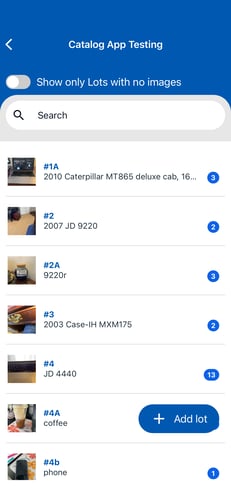
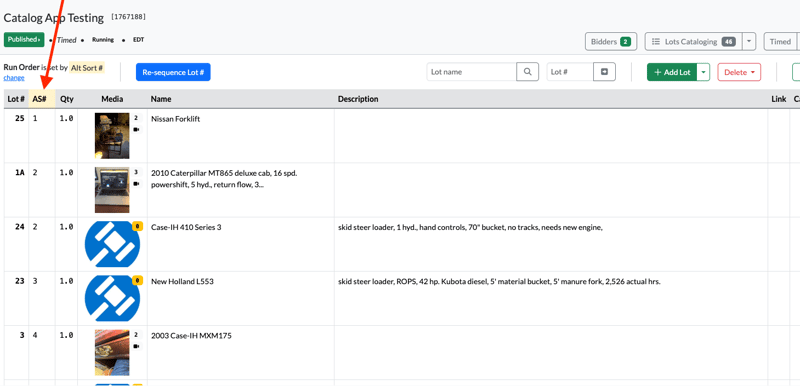
Previous versions of the catalog app did not display the lots in the Alt Sort order when the catalog was ordered according to the Alt Sort Order, instead ALWAYS showing the lots in the order of the Lot #. See the 2 images below with the auction on the admin UI (2nd image) showing the auction in the Alt Sort order, but the catalog app showing the catalog in Lot # Order.
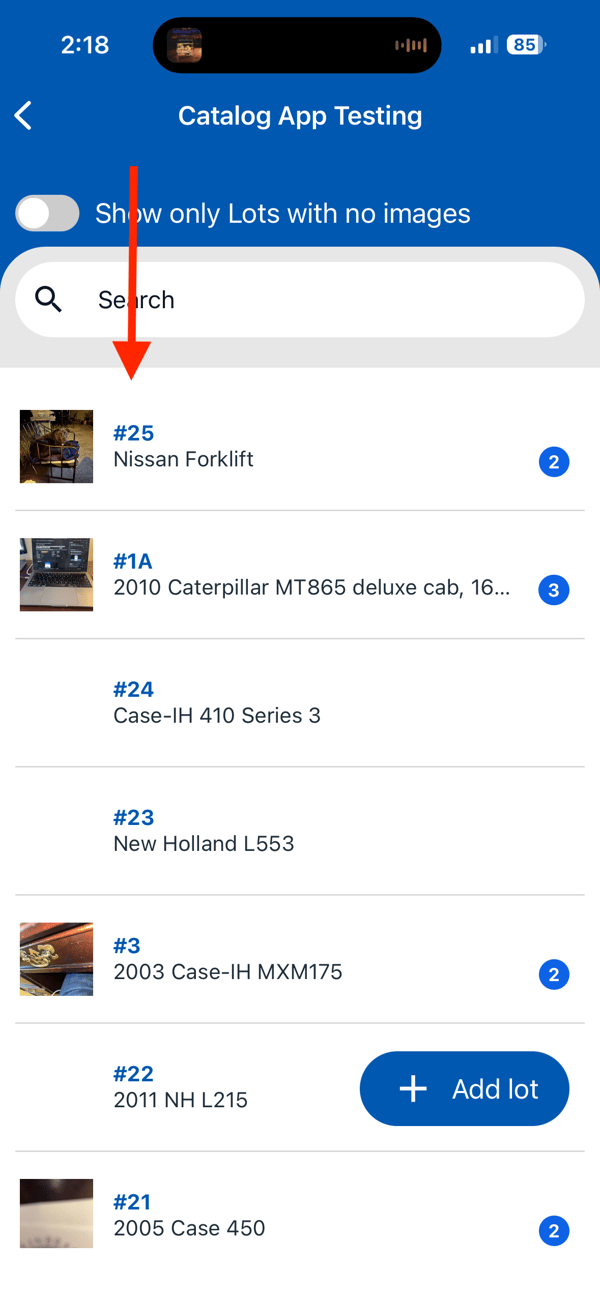
An update has been made in where the catalog on the Catalog app will be reflective of whatever order the auction is set to from the Admin UI. This means that if the auction is set up to be in Alt Sort # order, then it will be reflective of that in the catalog app. See below for example:
Webcast Updates
New Color Scheming on Auctioneer Screen
Previously the auctioneer screen would flash Red anytime ANY online bidder bid in the webcast. This presented a challenge for the auctioneer to easily determine if a if a different online bidder had bid against another online bidder (because both times the screen would flash red). To help create a differentiation between online bidders bidding for the auctioneer, we have implemented multi color flashing cycling through 7 colors to signify a differentiation to help the auctioneer recognize a new online bidder. The cycle starts over after the 7 colors have been cycled through. There is NO flashing color for floor bids.
New Prebid button placement and wording
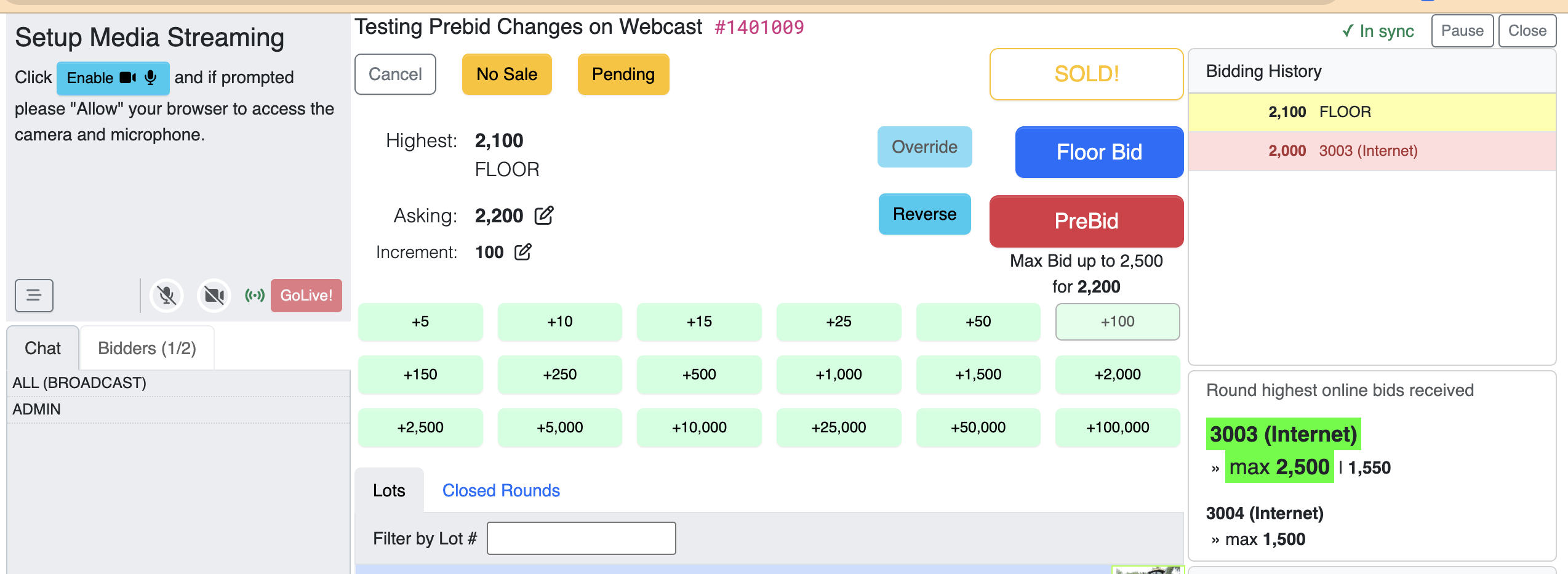
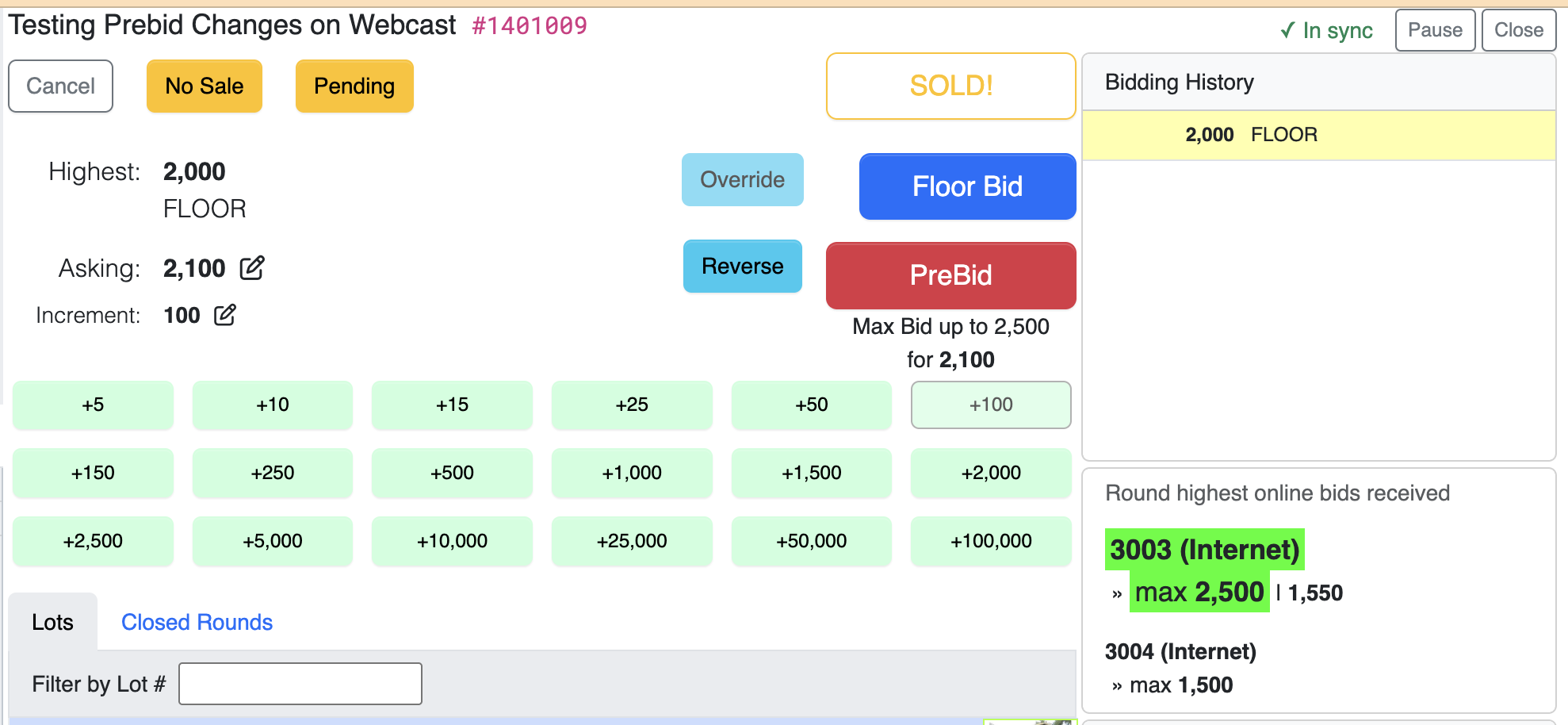
The Prebid Button has been increased in width to make it larger than the Floor button. The information shown below it has also been updated to not just include the bid price that will be placed on behalf of the prebidder (shown below as $2200) but also shows the Max. This helps the clerk better plan their execution of the bidder's prebids to ensure that they get their bid placed on increment at their max. In the below example, with the auctioneer going up by $100, it would be better for the clerk to wait to put the prebidder in at $2300, then the floor at $2400 then the prebidder again at $2500 (their max).
New updated coloring of Prebid information
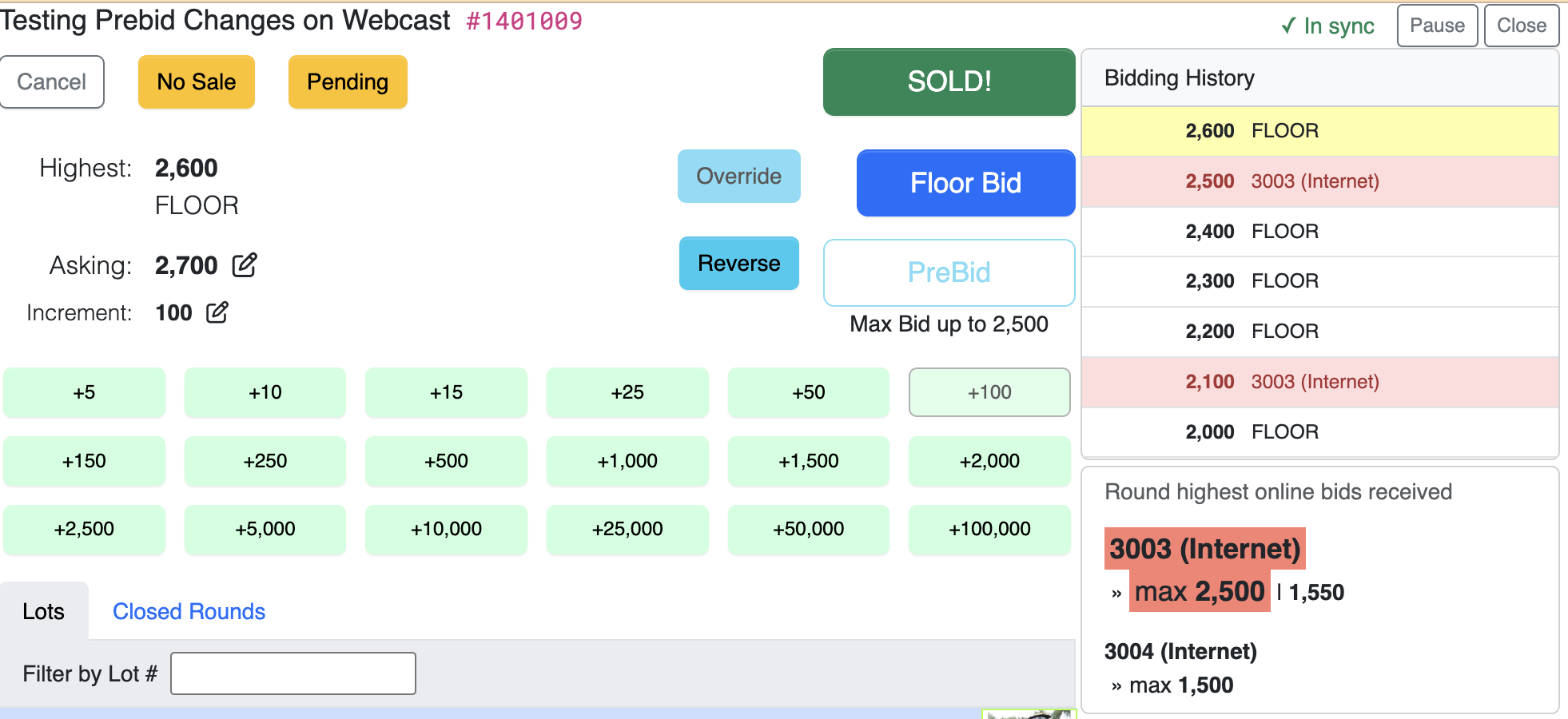
The information in the box on the center right side of the screen has been enlarged to make it easier to read. The coloring of this information has also been updated. As shown above, while the max prebid value is an accepted value to be placed in the auction (meaning the asking price is less than or equal to the max prebid) then the highlighted color of the information will be green.
Once the value of the asking price is GREATER than the max prebid, the highlighted color of the prebid information will change from green to red, indicating that the prebid value has been exceeded. This color change also takes place on the Auctioneers screen which displays the same prebidding information to the auctioneer. See the color change above in the video for New Color Scheming on Auctioneer Screen.
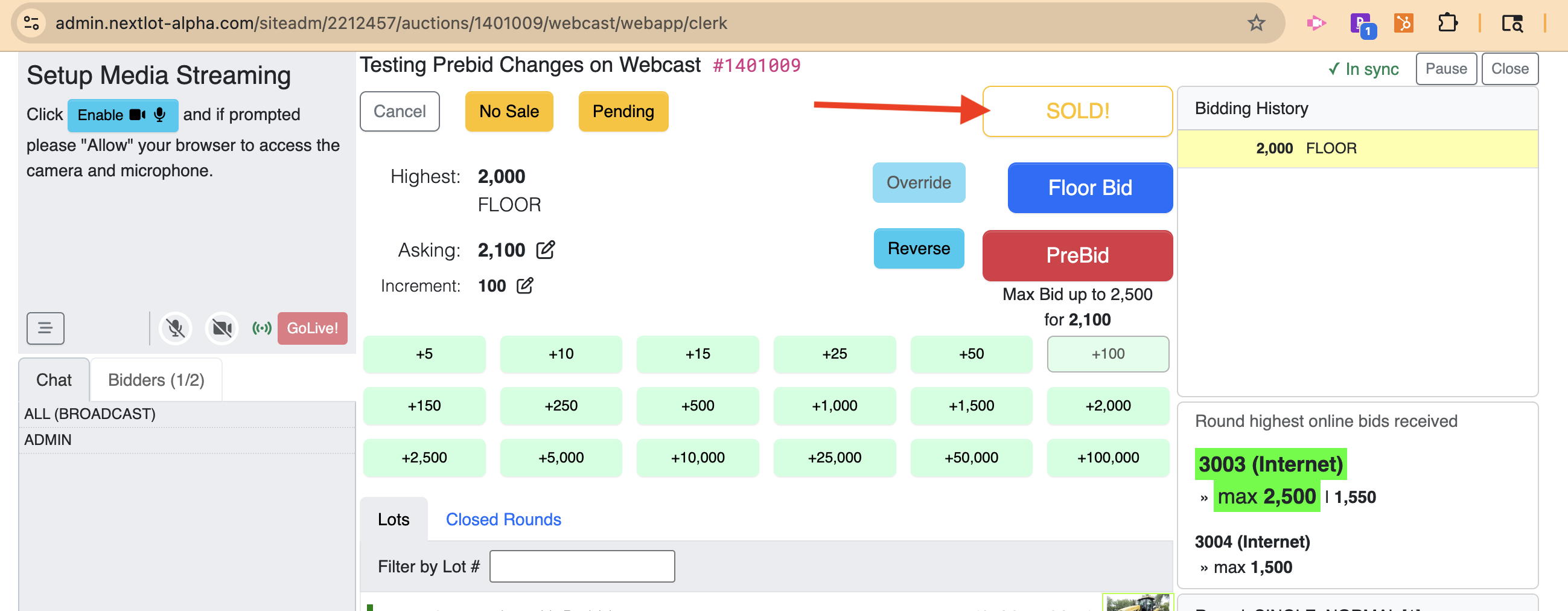
Color Changes for SOLD! button
To further help clerks with the prebidding process, the SOLD! button color has been changed from being a solid green to a yellow with a blank background. This state is designed to signal to the clerk that they shouldn't sell the lot yet as they have a prebid value that could be placed and if they were to sell it now, they would be leaving online bids on the table that were not executed.
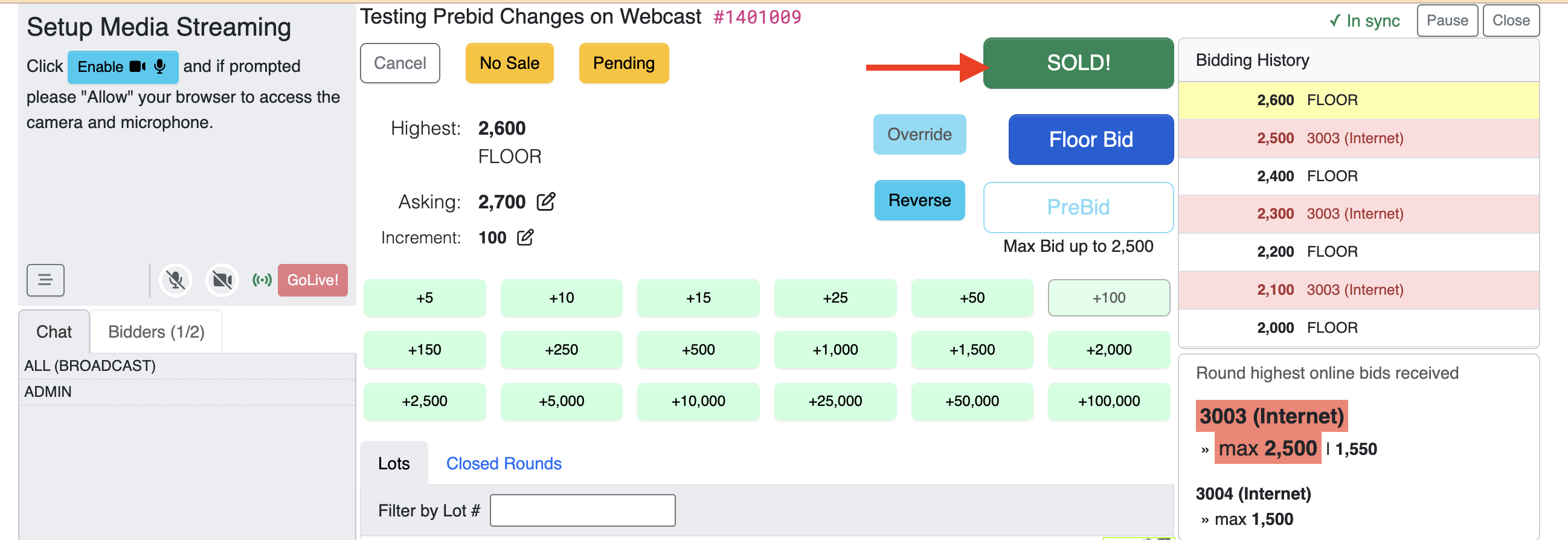
Once the prebids have been exhausted for a given round (the asking price is greater than the max prebid) the sold button will change from yellow to a solid green, indicating that it is safe to sell the lot.
Destroy and Destroy & Complete Options
An additional button option has been added to the Manage Webcast screen once a webcast based auction is prepared. The 2 buttons will now read Destroy and Destroy & Complete.
The Destroy option will just close the webcast and pull it off of the server. Doing this will NOT update the the auction's Closing time and the auction will still list itself in the Active Auctions Area of the admin and public UI's.
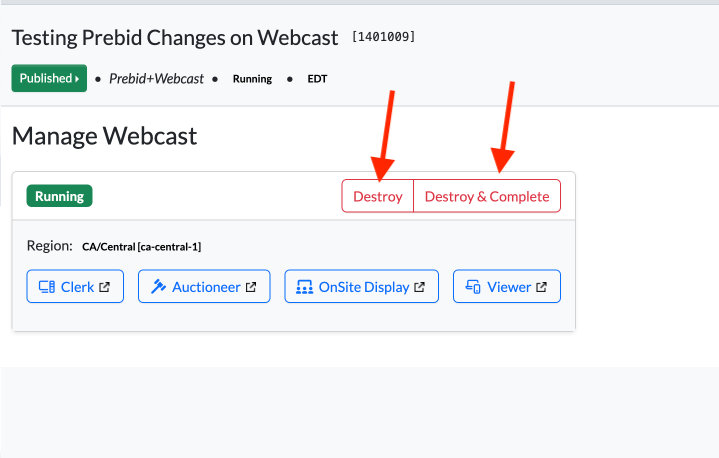
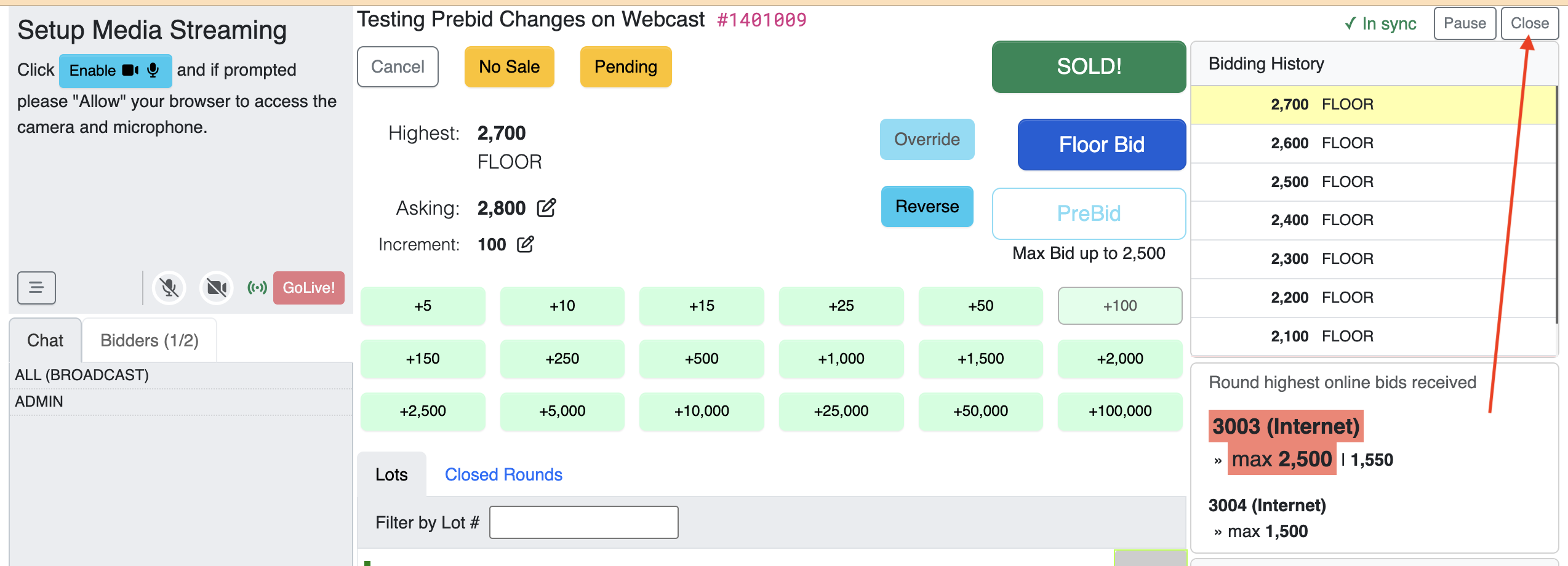
The Destroy & Complete option works the same as as the Close option within the webcast clerk screen (shown below). Clicking this button will pull the webcast off of the server AND update the auction's closing date/time to the time stamp when you click the button. This will remove the auction from the active auctions area on the public UI & admin UI.
Auto Updates for Webcast Closing Times
In the platform if you set the closing time for a webcast for a specific time and the auction ended up running past that time, the auction would disappear from the "Active" area in the Admin and from the "Active Auctions // currently running or upcoming" on the public UI and move to the completed area and bidders would no longer be able to enter into the webcast.
To prevent this from happening, we have instituted a MINIMUM 12 hour webcast window upon webcast preparation. What this means is that IF you set your webcast time frame to be less than 12 hours (see below for a 4 out webcast window) you will be told that the closing time of the webcast will be automatically updated to 12 hours from the time of webcast preparation.
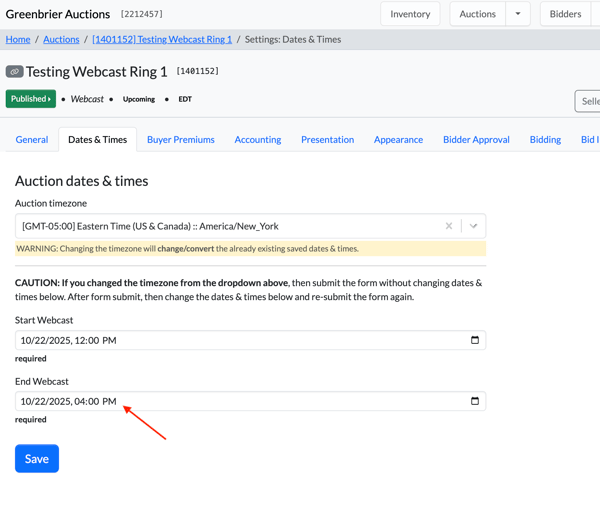
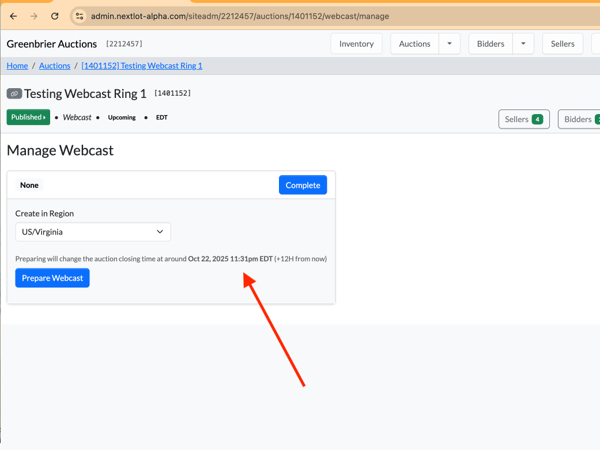
With the webcast starting at 12:00pm, I went into prepare the webcast at 11:31am EDT, so the system tells me that if I go to prepare the webcast, it will update the closing time to that same day PLUS 12 hours (so 11:31pm EDT).
If you have a webcast that has a closing time GREATER than 12 hours from the listed starting time, this note will not appear when going to prepare the webcast AND the dates for the webcast will work as before.
Admin UI Updates
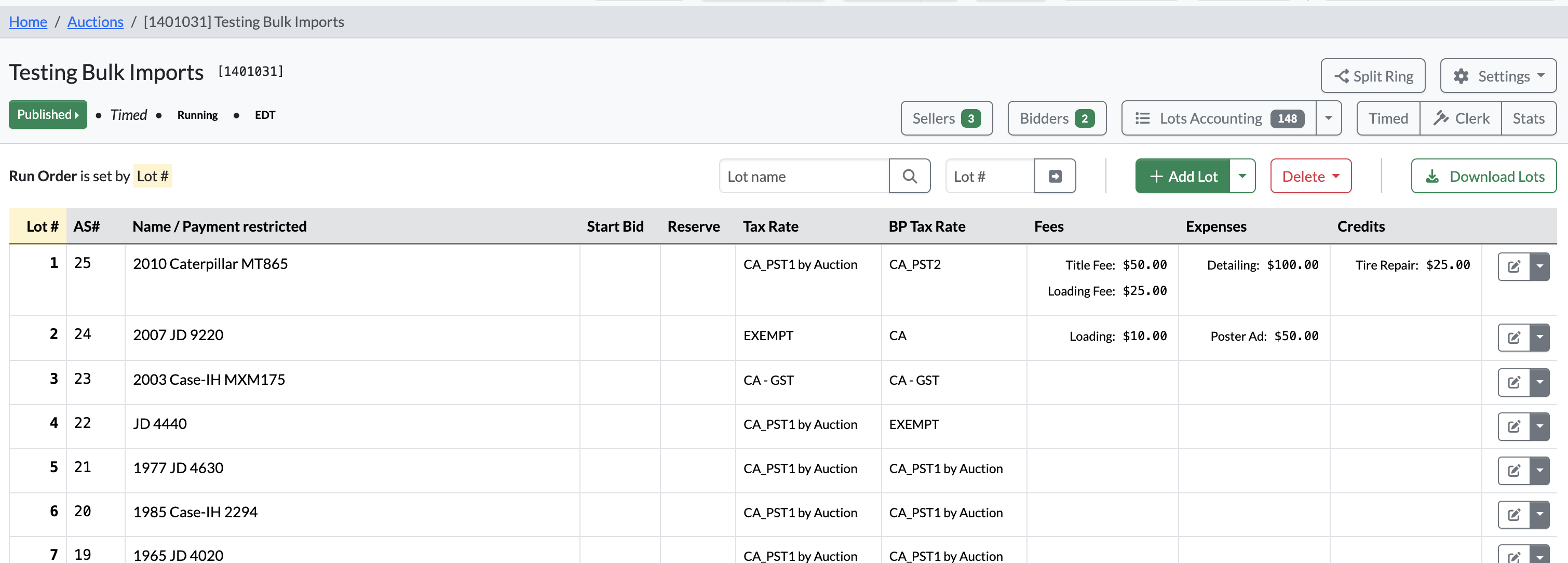
Lot Fees now updatable as a single line item in Lots Accounting Tab
Previously the Lot invoice fees were a component of the full lot editing modal (see below)
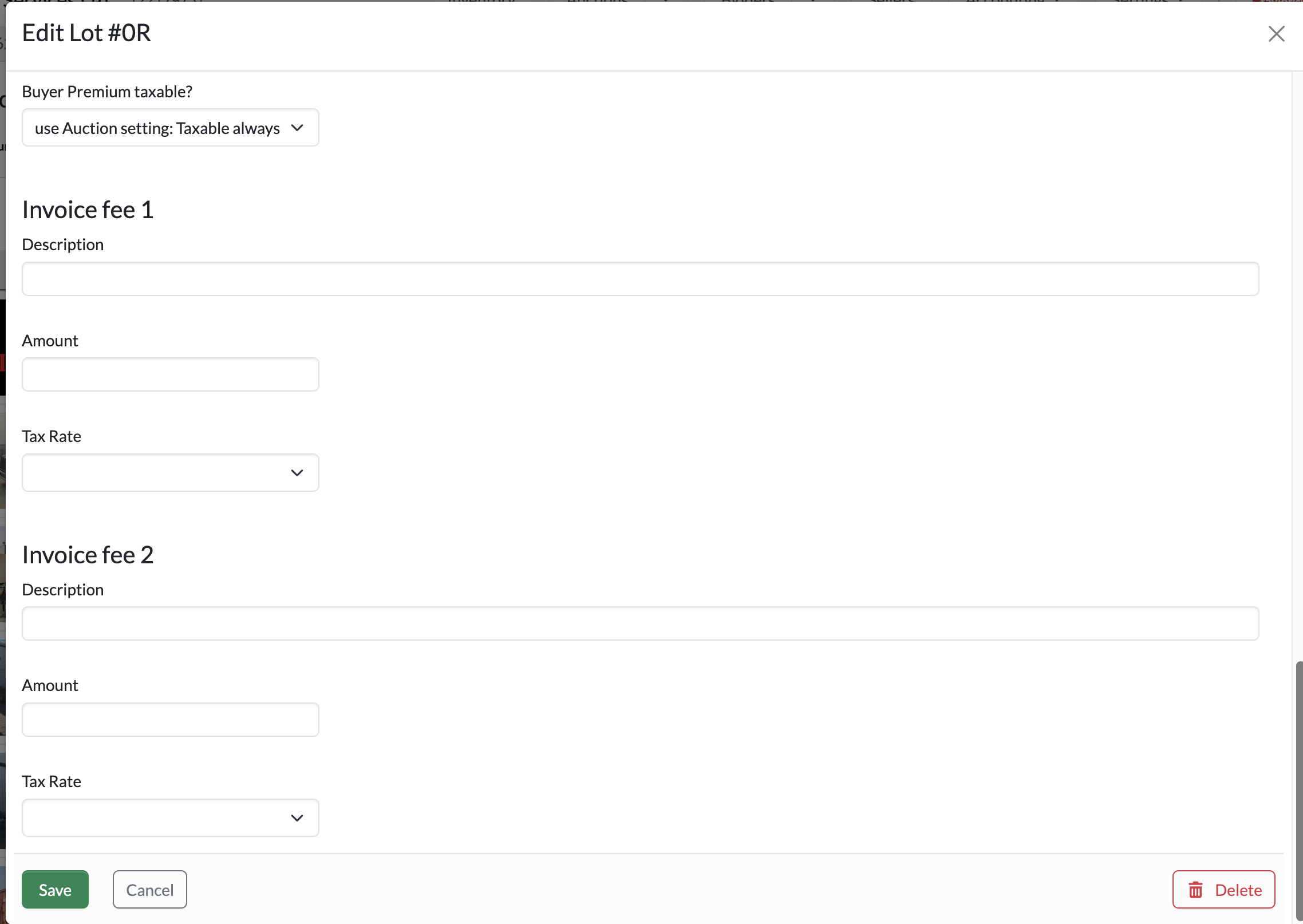
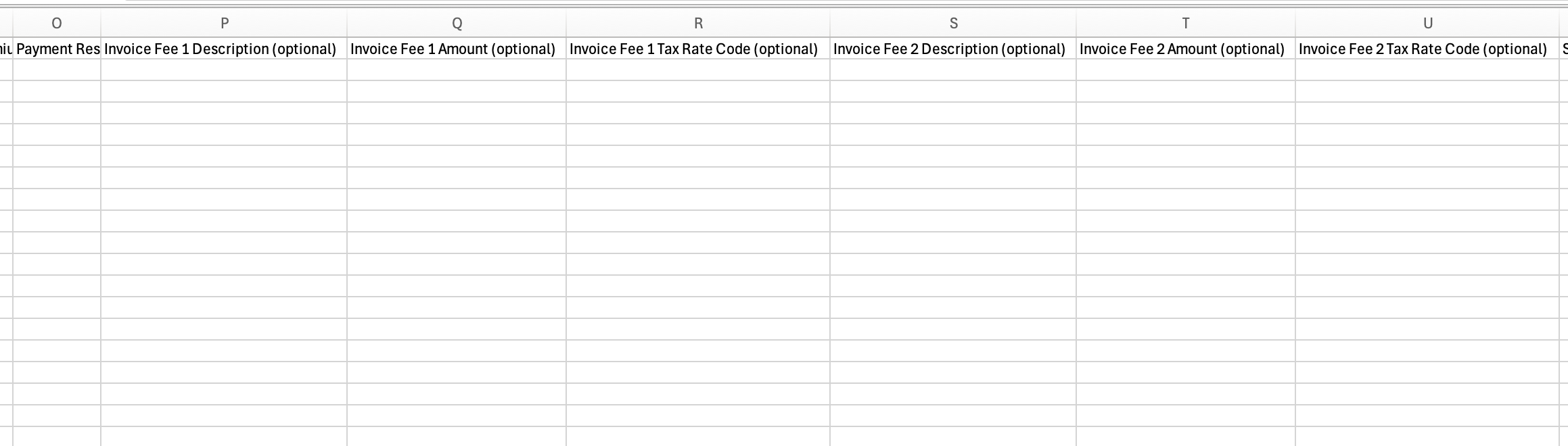
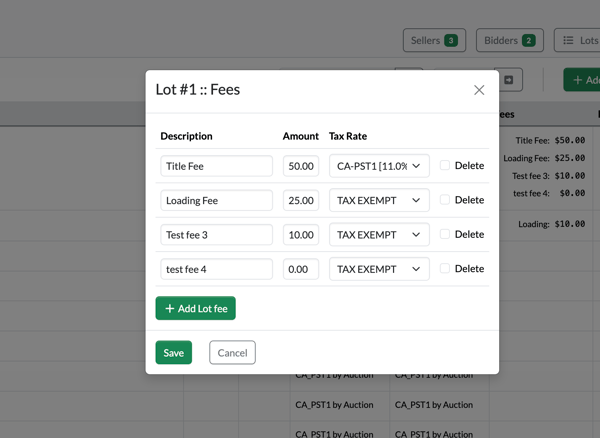
Now the lot fees are their own unique column within the Lots Accounting Page that has its OWN editing modal and there is not a limit to the # of fees you can add to a lot. You can still only upload 2 fees per lot within the bulk lot importer (see limitation in the bulk import spreadsheet image below), BUT within the UI itself, there is not limit to the # of fees you can add to a lot.
Example of the Lot Fee Modal:
Option to set buyer's premium for a Singular lot to a Particular Tax Rate (regardless of the tax rate of the lot hammer price)
There will be times in which the purchase price of the lot will need to be charged 1 particular tax rate while the Buyers Premium will need to be charged a different tax rate. This is now an option within the individual Lot Edit modal (1st image below) and within the bulk lot Import Spreadsheet)
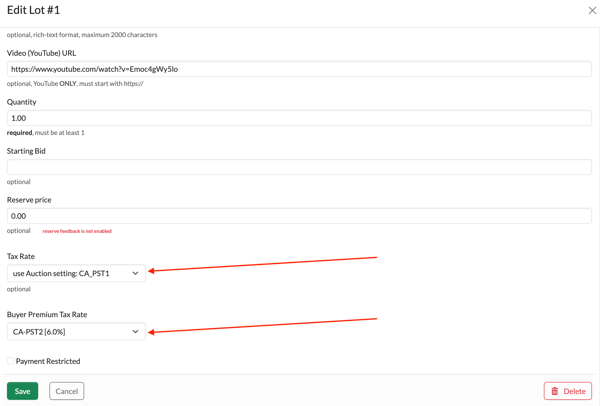
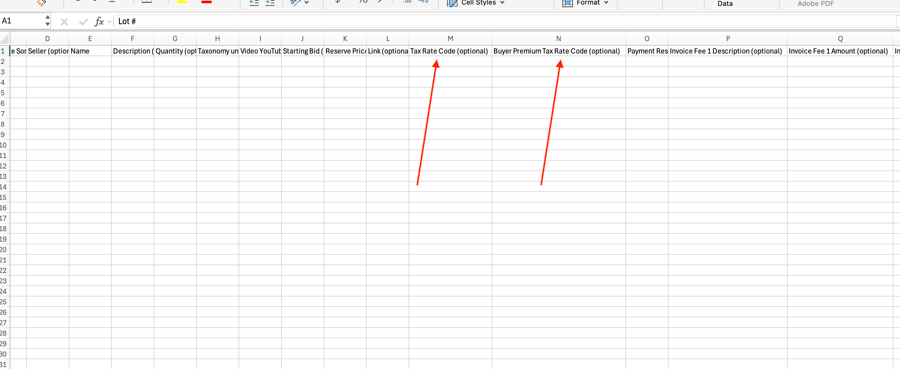
The buyer premium Tax Rate Code (optional) field in the spreadsheet has REPLACED the previous field of Buyer Premium taxable. Now instead of the buyer premium tax rate code being forced to be the SAME as the lot itself, it can now be any of the tax codes within your site or Exempt.
In your SITE settings for Accounting, you can now choose a DEFAULT tax rate to be applied to your auction when it is initially created. This will automatically get applied to your auctions when you create a new Auction.
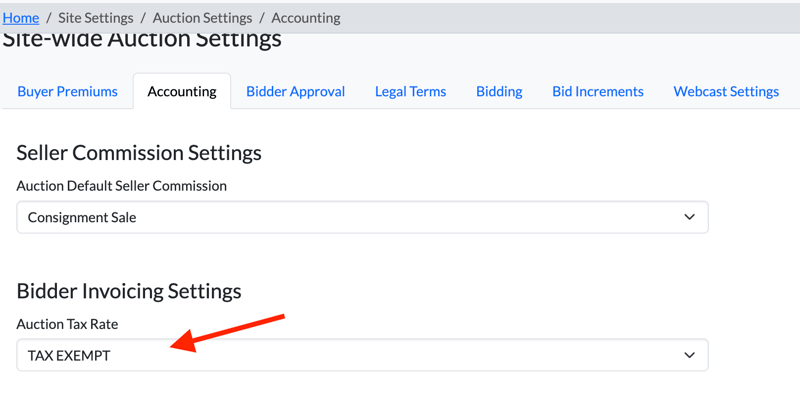 Previously this did NOT exist, so you were required to set your tax rate for EACH individual auction from NOT SET to a valid setting (see below for how it used to look in the Accounting Section of a given auction).
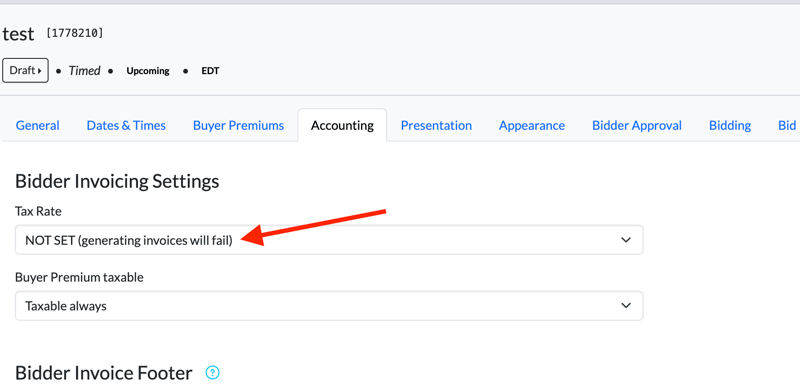
The reason behind this change is NextLot will now have AUTO generating invoices for auctions as lots close and are sold. No longer will you have to go into the invoicing area and GENERATE invoices. The invoices will AUTOMATICALLY be created as lots are sold (for webcast auctions) or close (in timed auctions). Since this generation of invoices is automatic, the auction has to have a pre-defined Tax Rate otherwise the invoices would not generate properly (more to come on this later).
In addition to this, when setting up your auction, you still have an option to choose a particular setting for the taxation on the buyers premium on the auction as a whole. You can still choose from the options of the Buyers Premium taxable Always, Taxable when the Lot is Taxable AND Not Taxable. This will result in lots automatically being taxed at the chosen rate and then the BP being charged tax accordingly.
When you set how your buyers premium will be taxed for a particular auciton, it will AUTOMATICALLY set the buyers premium for EVERY lot to match the tax setting chosen for the hammer prices. Once this setting is applied, you can then do into individual lots and make changes to your tax rate on the buyers premium or the lots themselves.
Once your options are chosen, you can then make adjustments at the LOT level. Once you make a manual change on a lot- it is SAVED so that if you go back into the auction as a whole and need to change your auction's tax settings, any lots where the tax rate was set manually for that lot's hammer price or Buyer's Premium will remain unchanged. See Below:
Changes to Auction Rings/Linking Auctions Together
NextLot no longer has specific Auction Ring Codes to define grouping of auctions. Instead of creating these Codes and adding the codes to auctions, you instead choose a PRIMARY auction to group an auction to. Once an auction has sellers or bidders checked into it- it should always be used as the primary auction. IF you try to try to group 2 auctions together that have bidders or sellers already checked into both of them- it will most likely throw an error if there are bidder or seller conflicts (seller #100 in Auction A can technically be different than seller #100 in Auction B) so this different will result in an error.
When you are creating a new auction there is a dropdown menu where you can choose already pre-created auction to LINK this new auction to. IF there are sellers and bidders already checked into it, they will be copied over.
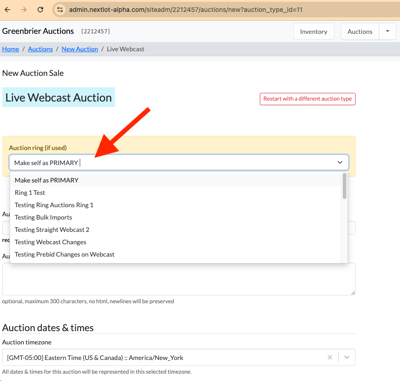 If you choose make self primary (the first option on the list) then this auction will NOT be associated with any of the other auctions and will not be connected in any way. If you DO connect it (as shown below) it will AUTOMATICALLY check in the sellers and bidders from the other sale into this particular one.
In the above example, the you will see we has 2 sellers and 1 bidder checked into the auction Ring 1 Test. If we want to add a 2nd ring to this auction can go and click Create a New Auction and then choose Ring 1 Test as the primary auction and it will automatically copy over the 2 sellers from this auction and the 1 bidder and add them to the new auction. It is important to note that for the online bidders, they must still accept the terms for the other ring before being able to participate online.
You can ALSO create a linked auction directly from a primary auction by going into that auction and clicking on the Split Ring button in the UI.

This will bring to the create new auction page (using the Same auction TYPE, meaning webcast to webcast, timed to timed, etc) with the primary auction already chosen in the UI for you and a prompt to add the auction name.
Once you have created a split ring auction (or make any auction a secondary auction to a primary auction), you will notice that when you navigate to the accounting section of the non-primary auction- the settings are all disabled and you are prompted to make any needed changes in the Primary Auction's accounting section.
Another important note about splitting rings is that whatever bidder approval option you choose from the primary- it WILL be carried across to the secondary auction. This means that if you have chosen Auto Approval, it will ALREADY be selected when you click to split the auction (see this in the above video at the 14-15 second mark).
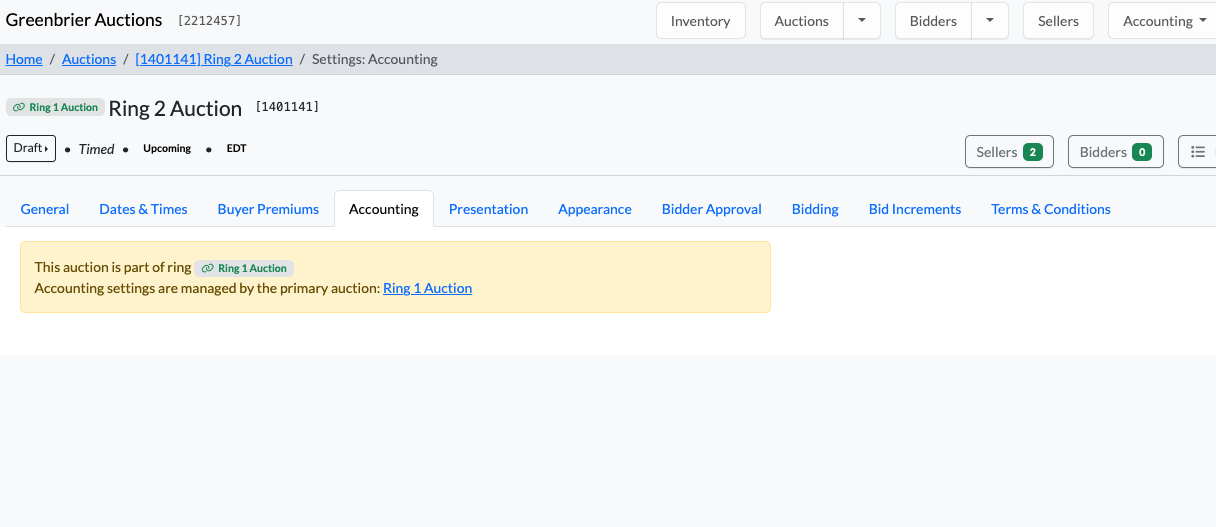
What this means is that all settings for taxes, seller commissions and invoicing settings ring wise are controlled by the Primary Auction. However you are still able to adjust the taxes on a lot by lot basis within the Catalog UI on the admin.
Updated Knowledge Base Articles
1. How To Create a Sealed Bid Auction
2. How to Assign a Clerk Role to an Employee on a Team
3. How to Set up So Bidders Can Pay Their Auction Invoices
4. How to Create a Timed Auction
5. How to Use NextLot's Teams Feature
6. Great! A new client, now what? What To Do When You're Assigned a New Client
7. How to Create a Webcast Auction
8. How to create a Prebid Webcast Auction
9. How to Re-Order your Lots Using Inventory Number
10. How to Re-order your Auction using the Alt-Sort #
11. Bulk Uploading Items with Inventory Numbers
12. ALTCHA Error when Logging In
13. How To Create an Absentee-Webcast