
*Internal* System Release Notes June 30th
FEATURE-Fees Expenses Credits Summary
To help customers better track and document all Fees, Expenses, and Credits applied throughout an auction, we've introduced the new Fees, Expenses & Credits Summary Report.
Accessing the Report
To access this report:
- Navigate to the Accounting tab.
- Select the Auctions page.
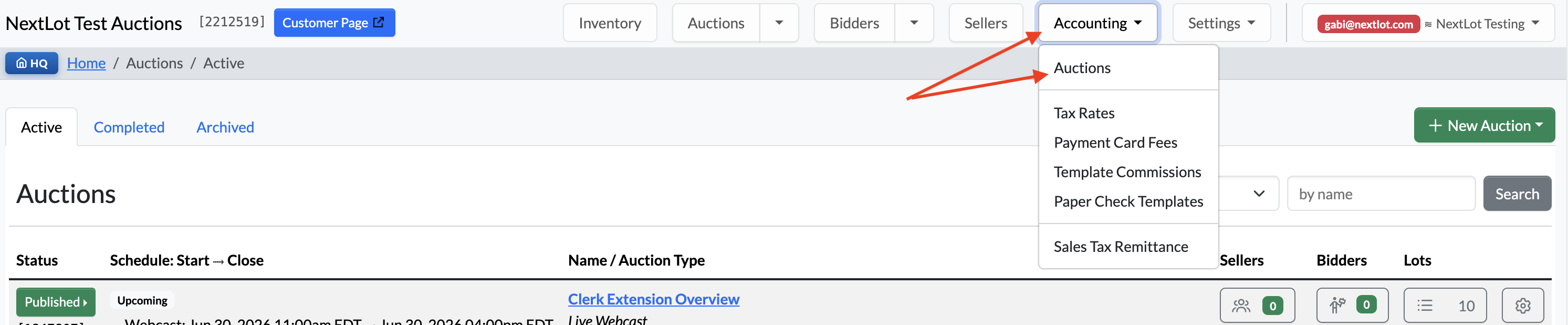
From the Reports menu, you can now choose from the following reports:
- Summary Report
- Bidder Payments Report
- Seller Payments Report
- Fees, Expenses & Credits Summary Report

Report Sections
The report is divided into the following sections:
- Lot Fees
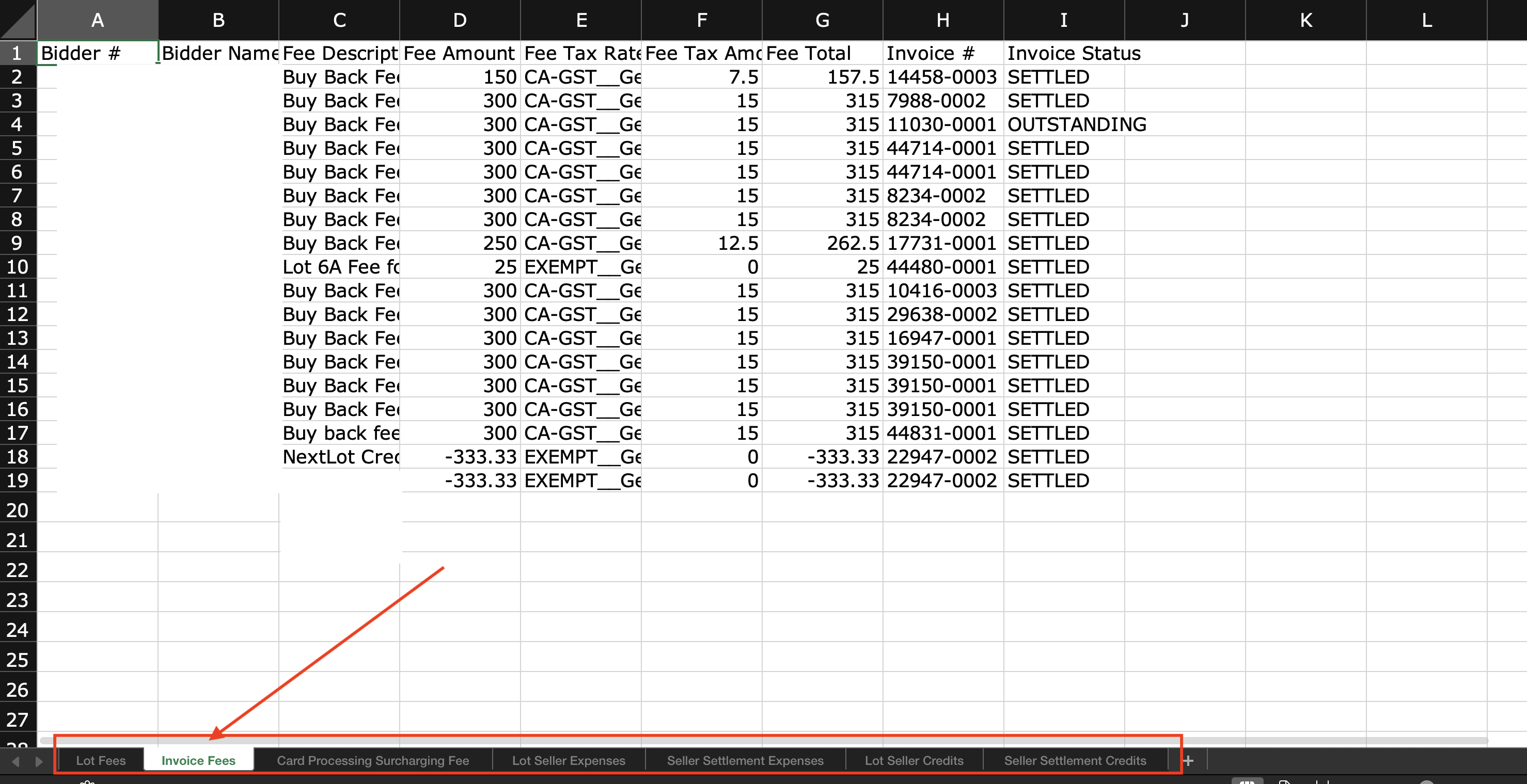
- Invoice Fees
- Card Processing & Surcharging Fees
- Lot Seller Expenses
- Seller Settlement Expenses
- Lot Seller Credits
- Seller Settlement Credits
Note: Sections will only appear if they were used during the auction. For example, if no Lot Seller Credits were applied, that section will not be included in the report.
Lot Fees
The Lot Fees section includes:
- Bidder #
- Fee Description
- Fee Amount
- Fee Tax Rate
- Fee Tax Amount
- Fee Total
- Invoice (hyperlinked)
- Invoice Status
At the bottom of the section you'll find:
- Total Fee Amount
- Total Fee Value (Fee Amount + Fee Tax)

Invoice Fees
The Invoice Fees section includes:
- Bidder #
- Bidder Name
- Fee Description
- Fee Amount
- Fee Tax Rate
- Fee Tax Amount
- Fee Total
- Invoice (hyperlinked)
- Invoice Status
Totals displayed at the bottom include:
- Total Fee Amount
- Total Fee Value (Fee Amount + Fee Tax)
.png?width=1878&height=201&name=Screenshot%202026-06-30%20at%2011.18.09%20AM%20(2).png)
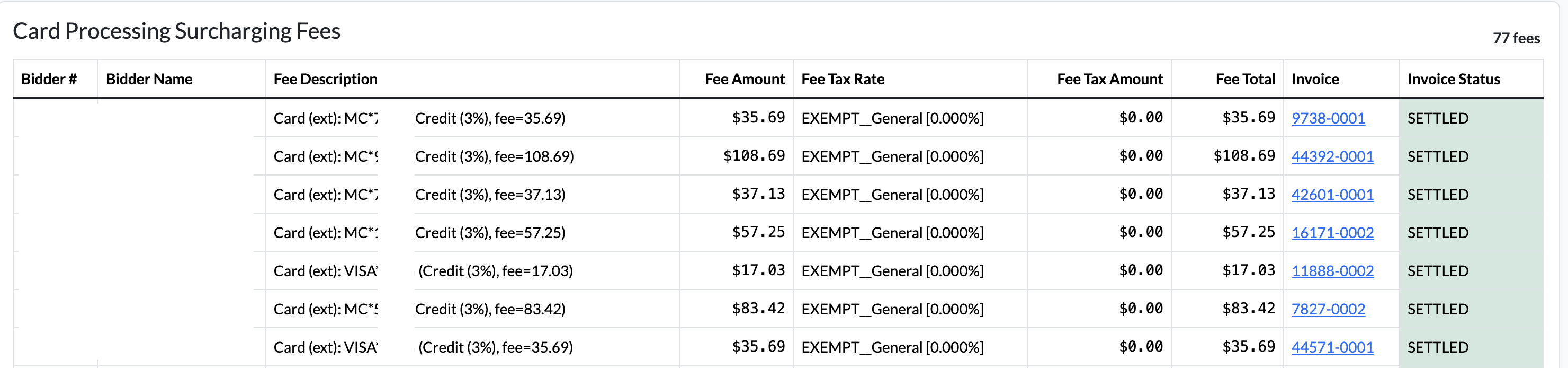
Card Processing & Surcharging Fees
This section includes:
- Bidder #
- Bidder Name
- Fee Description (last four digits of CC and applicable surcharge fee)
- Fee Amount
- Fee Tax Rate
- Fee Tax Amount
- Fee Total
- Invoice (hyperlinked)
- Invoice Status
Totals displayed:
- Total Fee Amount
- Total Fee Value (Fee Amount + Fee Tax)

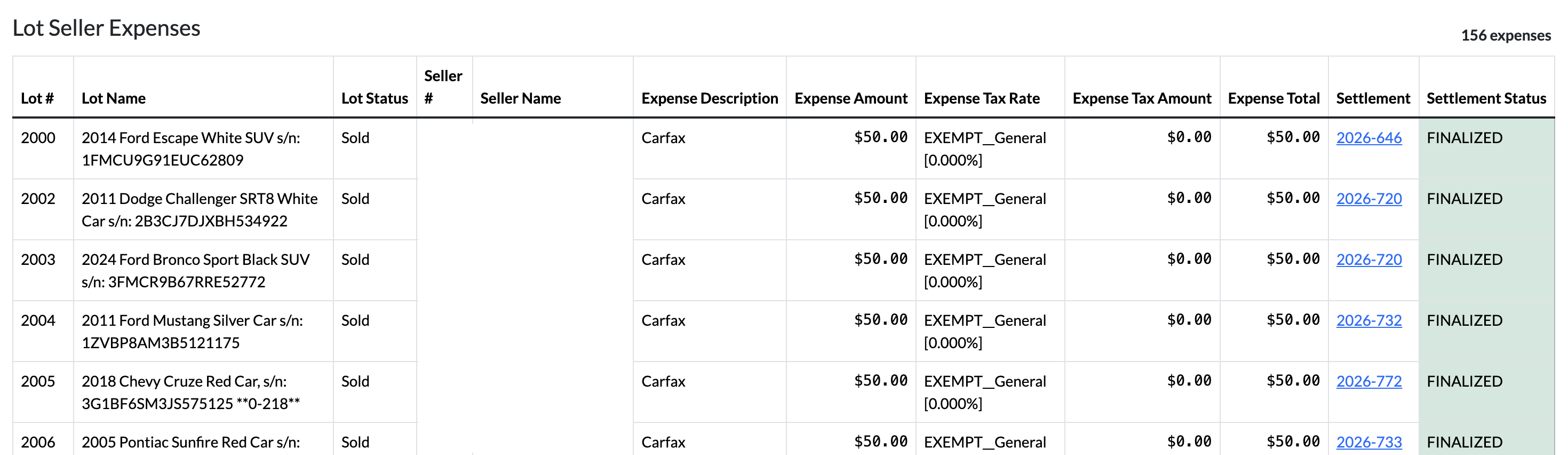
Lot Seller Expenses
The Lot Seller Expenses section displays:
- Lot #
- Lot Name
- Lot Status
- Seller #
- Seller Name
- Expense Description
- Expense Amount
- Expense Tax Rate
- Expense Tax Amount
- Expense Total
- Settlement (hyperlinked)
- Settlement Status
Totals shown at the bottom include:
- Total Expense Amount
- Total Expense Value (Expense Amount + Expense Tax)

Seller Settlement Expenses
This section includes:
- Seller Name
- Expense Description
- Expense Amount
- Expense Tax Rate
- Expense Tax Amount
- Expense Total
- Settlement (hyperlinked)
- Settlement Status
Totals displayed:
- Total Expense Amount
- Total Expense Value (Expense Amount + Expense Tax)

Lot Seller Credits
The Lot Seller Credits section includes:
- Lot #
- Lot Name
- Lot Status
- Seller #
- Seller Name
- Credit Description
- Credit Amount
- Credit Tax Rate
- Credit Tax Amount
- Credit Total
- Settlement (hyperlinked)
- Settlement Status
Totals displayed:
- Total Credit Amount
- Total Credit Value (Credit Amount + Credit Tax)

Seller Settlement Credits
This section includes:
- Seller Name
- Credit Description
- Credit Amount
- Credit Tax Rate
- Credit Tax Amount
- Credit Total
- Settlement (hyperlinked)
- Settlement Status
Totals displayed:
- Total Credit Amount
- Total Credit Value (Credit Amount + Credit Tax)

Exporting the Report
The Fees, Expenses & Credits Summary Report can also be exported to Excel.
To download the report:
- Click the green Download icon in the upper-right corner of the report.
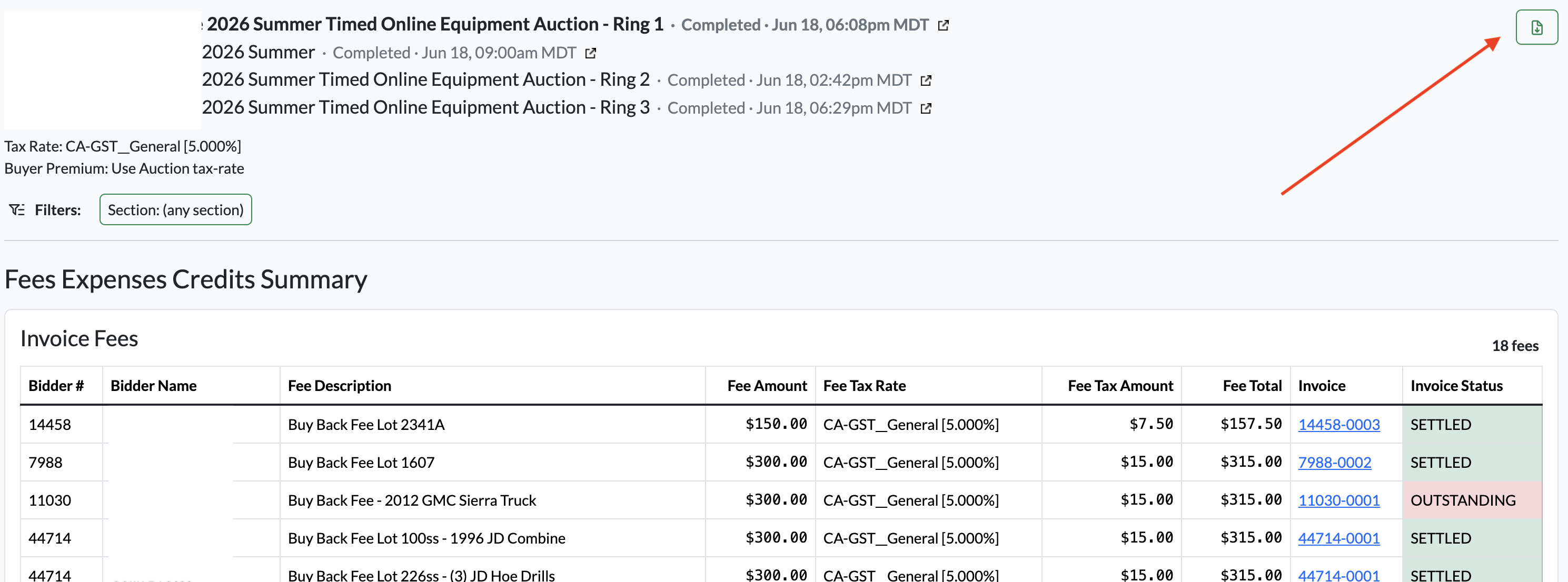
Each report section is exported to its own worksheet (tab) within the Excel workbook, making it easy to review, filter, and analyze the data.
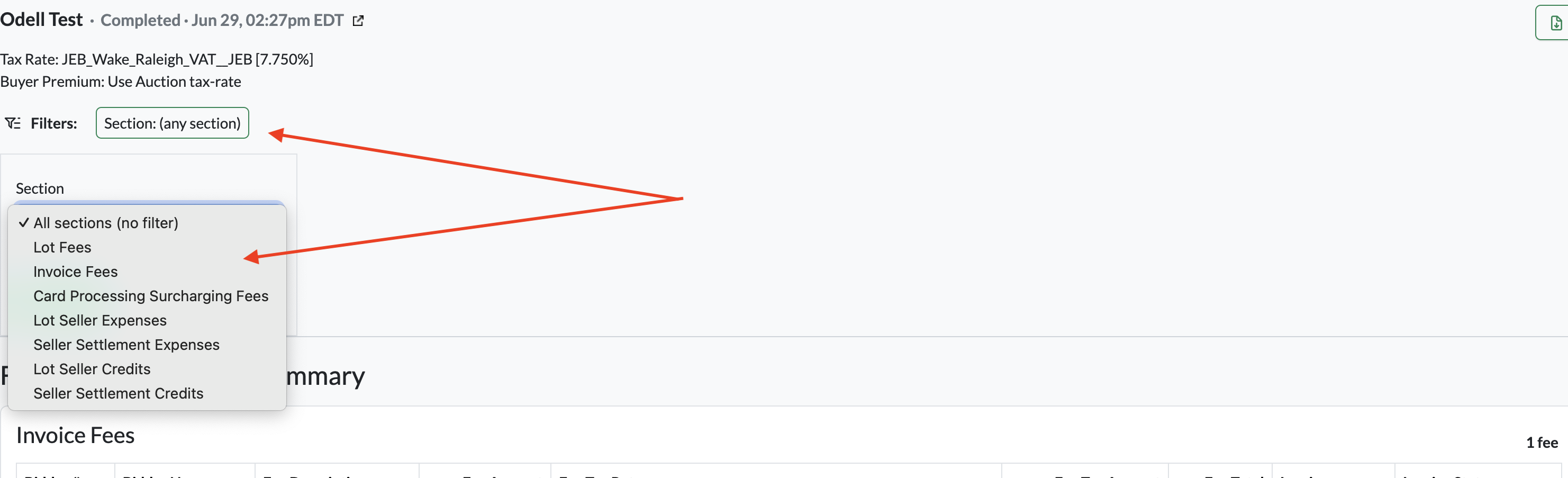
Please Note: You can also filter the report by clicking the Section button in the upper-left corner of the report. From the drop-down menu, select the section(s) you would like to view, then click Apply Filters. The report will update to display only the selected section(s), making it easier to focus on the information you need.
FEATURE UPDATE – Seller Catalog Report
The Seller Catalog Report has been redesigned and is now organized by seller, making it easier to view and share seller inventory.
Each report includes:
- All lots assigned to the selected seller for the auction (or auction rings is using ring linked auctions).
- Seller number.
- Seller commission label.
- Lot number.
- Item name and description.
- Quantity and other applicable lot details i.e. Reserve, Fees, Expenses, and Credits
.png?width=1872&height=735&name=Screenshot%202026-06-29%20at%209.28.15%20AM%20(2).png)
- If a seller has been checked in multiple times using different commission labels, each commission group will appear separately within the same report, as shown in the example below.
.png?width=1861&height=575&name=Screenshot%202026-06-29%20at%209.28.25%20AM%20(2).png)
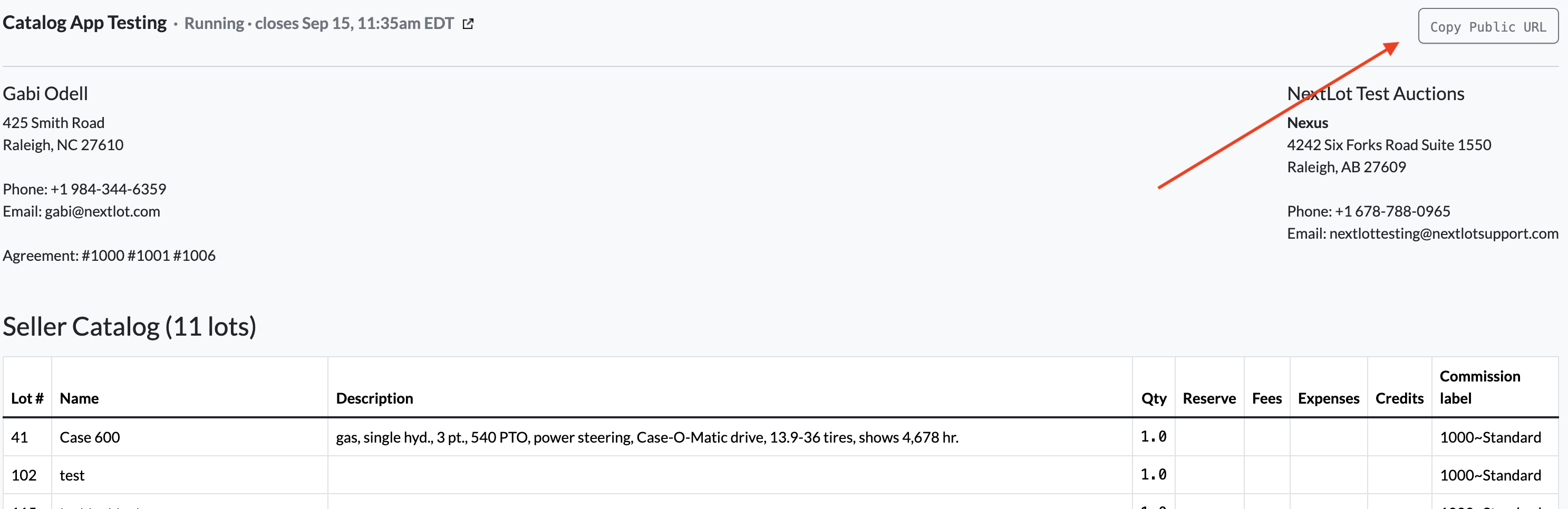
Each Seller Catalog Report also includes its own Copy Public URL button, allowing you to quickly share the report with a seller via email. If you plan to print the report, we recommend printing in landscape orientation for the best readability.
.png?width=1888&height=880&name=Screenshot%202026-06-29%20at%209.28.56%20AM%20(2).png)
Important Notes
- For multi-ring auctions, the Seller Catalog Report includes all lots assigned to the seller across every ring. This eliminates the need to open or print multiple reports when reviewing a seller's inventory.
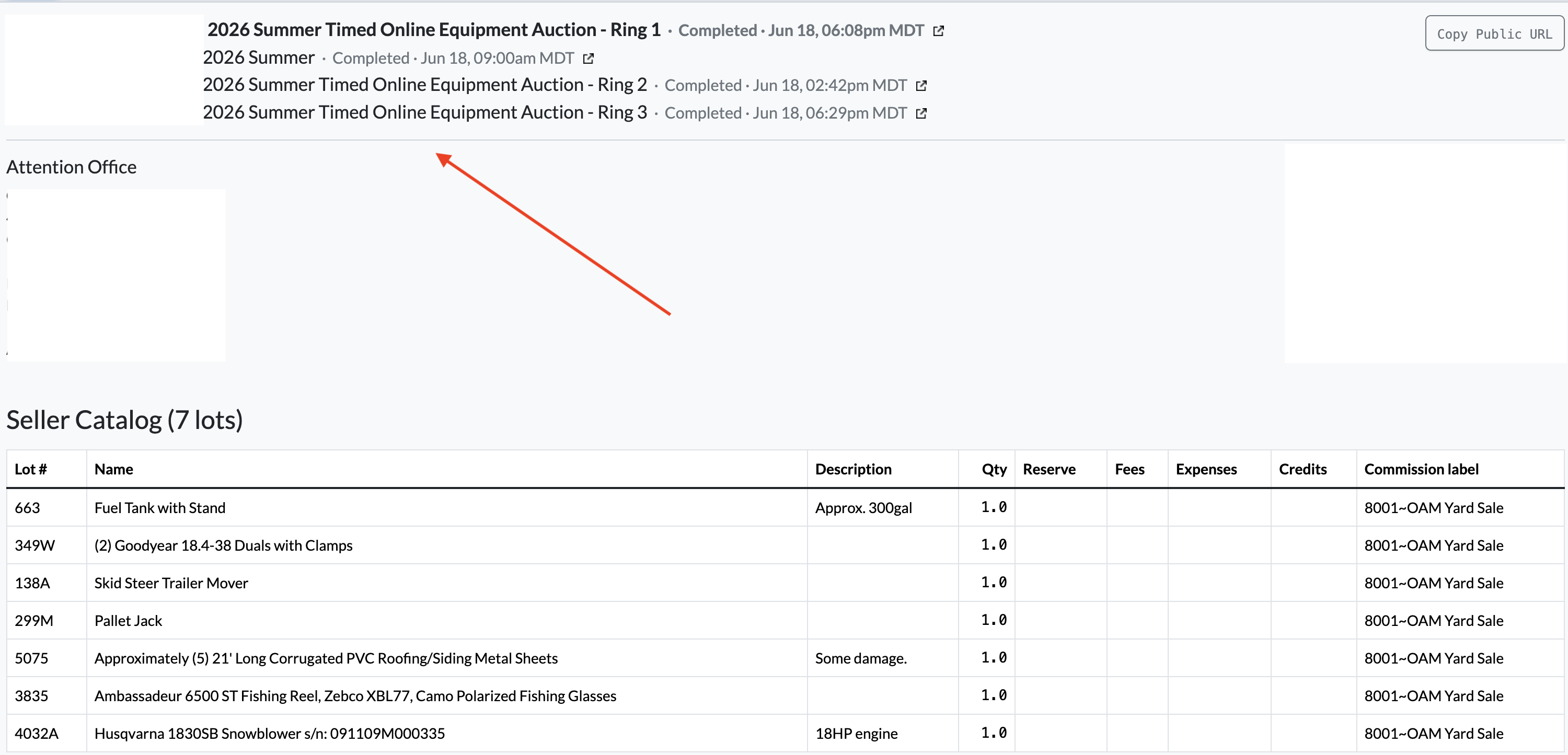
- Sellers with multiple check-ins or commission labels will have their lots grouped accordingly within the same report for easier organization.
- This report is available once lots have been assigned to sellers, so it will be visible both before and after an auction has taken place.
Accessing the Seller Catalog Report
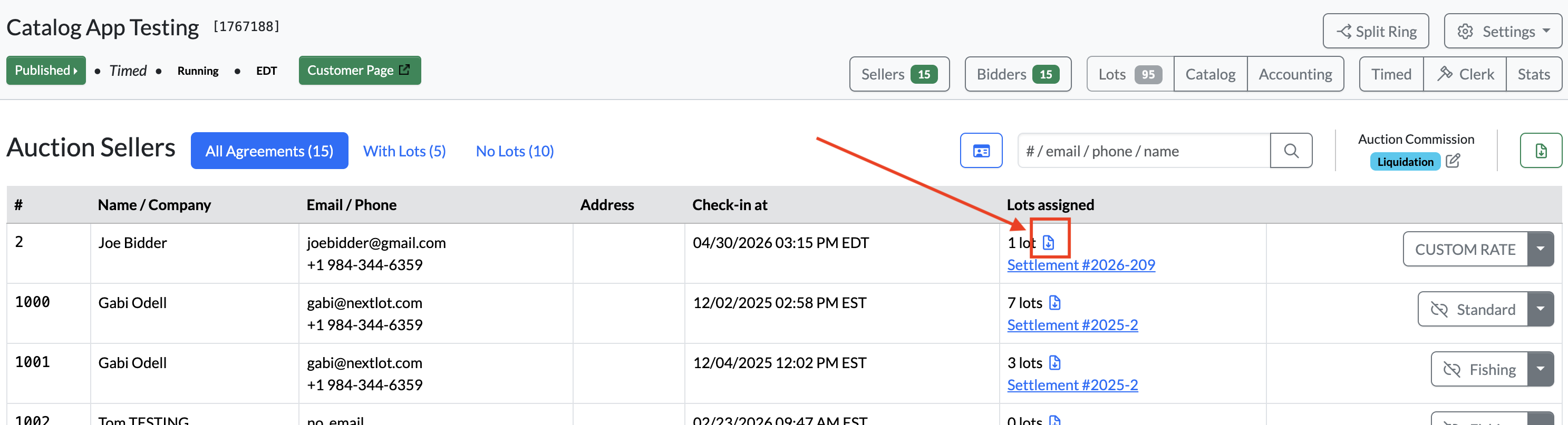
To access the updated Seller Catalog Report:
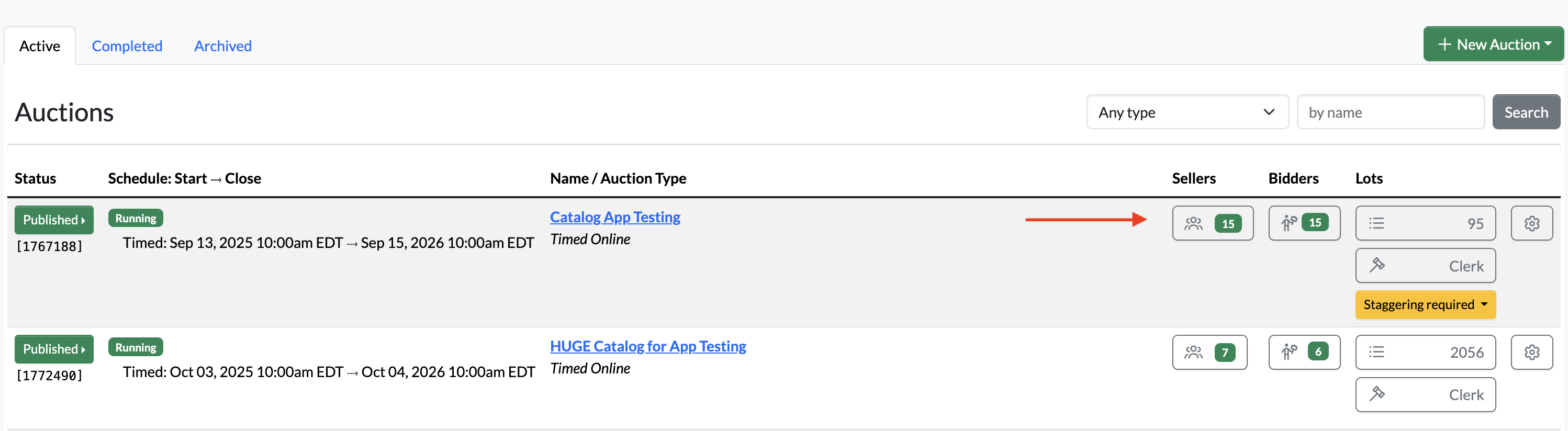
- Navigate to the Sellers tab of applicable auction
FEATURE UPDATE: Track Auctions Using Onsite Bidders & Sellers in Airtable
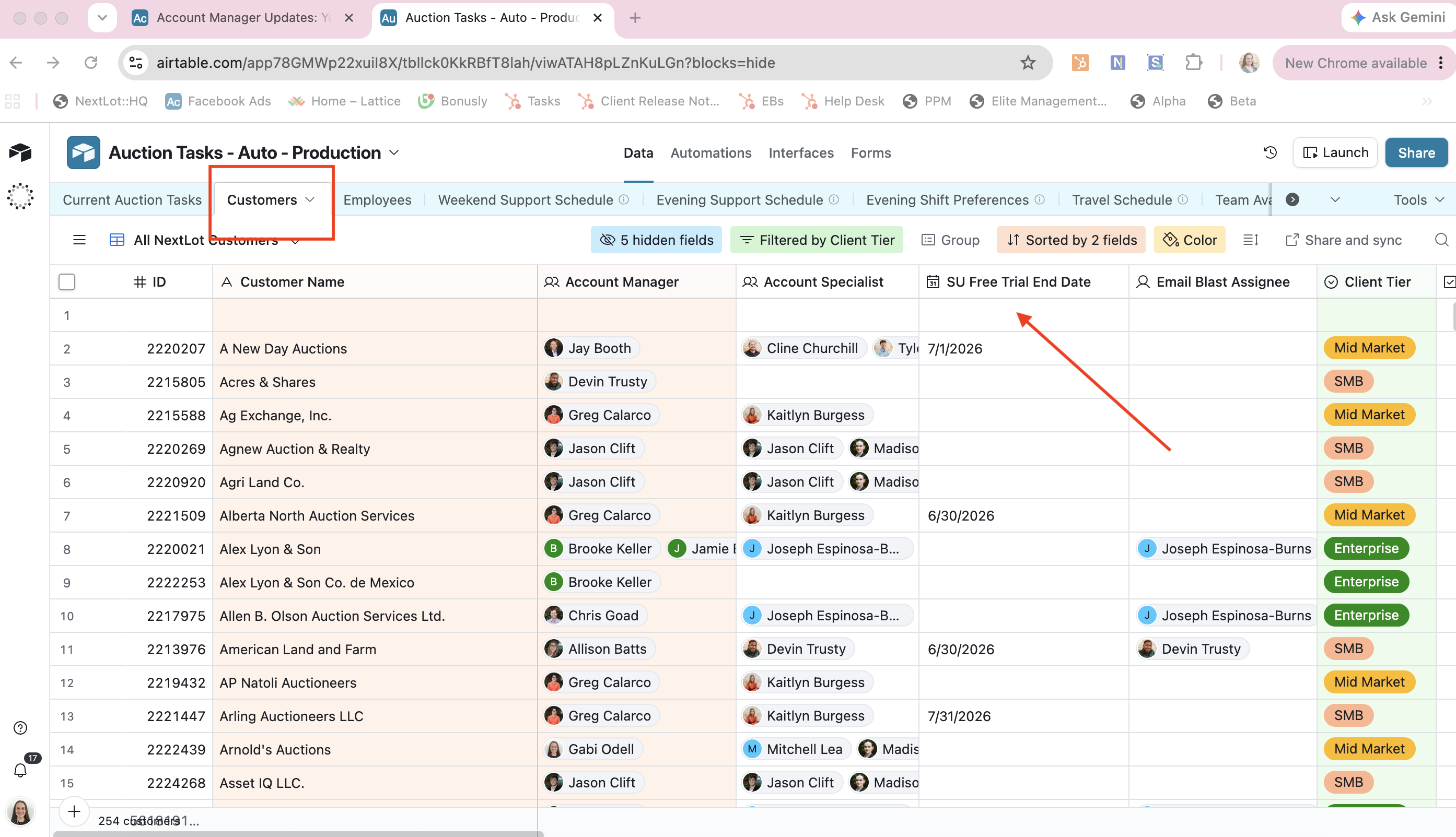
⚠️ Reminder: Many Settle Up free trials are ending on July 1. Please make sure the SU Free Trial End Date field is completed for all applicable customers in AirTable.
You can find this field by navigating to:
Airtable → Customers tab → SU Free Trial End Date column.
New Airtable Tracking Feature
As Settle Up free trials come to an end, we've added a new way to help track clients who are using the Onsite Bidders and Sellers features for invoicing purposes.
Within the Customers tab in Airtable, you'll now find a locked field on the far right labeled # Onsite Bidders.
.png?width=1732&height=818&name=Screenshot%202026-06-29%20at%209.52.48%20AM%20(2).png)
This field automatically tracks the total number of onsite bidders associated with each customer. As onsite bidders and sellers are checked into auctions, the totals update automatically, giving you an accurate count of feature usage for invoicing and reporting.
This enhancement makes it easier to identify which customers are actively using the onsite check-in features and helps ensure accurate billing after free trials expire.
FEATURE UPDATE – "Closing Date/Time" Added as an Auction Data Point in Airtable
A new automated Closing Date/Time field has been added to Airtable to provide better visibility into when auctions conclude.
- Timed Auctions: The field automatically displays the scheduled closing date and time of the last lot in the auction.
- Webcast Auctions: The field automatically updates to the actual completion date and time when the clerk or support team member selects Destroy & Complete.
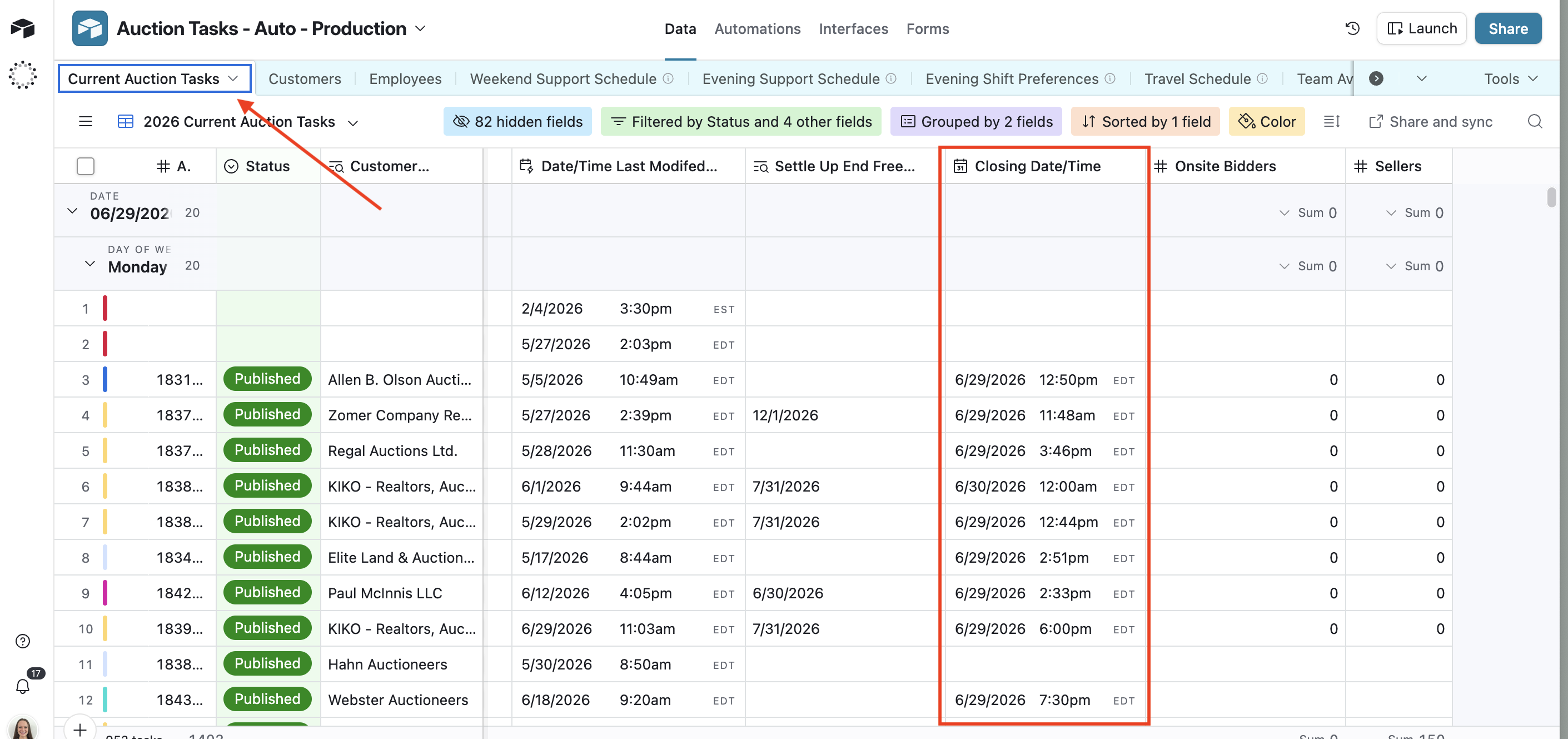
This enhancement provides a centralized reference for auction completion and will help Brent and Chris with both payroll and client invoicing by making it easier to track when an auction is scheduled to end—or, in the case of webcast auctions, when it actually concludes.
Updated Knowledge Base Articles