
*Internal* System Release Notes February 4th, 2026
FEATURE: Option to Show Lot Descriptions on Invoices
To better support auction houses that need lot descriptions to appear on bidder invoices, we’ve added the ability to include lot descriptions on invoices—either site-wide or on an auction-by-auction basis.
Add or remove lot descriptions to all future auctions (site-wide)
To apply lot descriptions to invoices across all current and future auctions:
- Navigate to Settings in the top navigation bar.
- Click Auctions, then select the Accounting tab.
- Under Bidder Invoicing Settings, locate Invoice Lot Description Template.
By default, this field contains , meaning only the lot name appears on invoices (the previous behavior).
- To include lot descriptions, update the field to include both support tags:
-
To remove lot descriptions, simply delete the
tag from the field and save. -
If you want the lot description to appear on a 2nd line within the Invoice, use the <BR> HTML line break in between the name and description like so:
<BR>. If you want to separate the components with a -, just replace the <BR> with a dash.
Add or remove lot descriptions to a singular current and/or upcoming auction (auction-by-auction)
To control lot descriptions for a single auction:
- Navigate to the specific auction.
- Click the gear icon, then select Accounting.
- Go to the Accounting tab.
- Under Bidder Invoicing Settings, find Invoice Lot Description Template.
As with site-wide settings, the default is .
- To add lot descriptions for this auction, enter:
- To remove lot descriptions, delete the
tag and save.
This allows you to fully customize invoice content based on the needs of each auction.
*You will also see from the above video that although the UX will cut off the lot description, when going to Print, Send Via Email, or download via PDF, the full description will be displayed
Feature: Toggle Buyer Information on Seller Settlements (Per Auction or Site-Wide)
Similar to the Lot Description setting, the system now allows auction houses to show or hide buyer information on seller settlements. This feature is designed to better support varying disclosure needs and can be configured site-wide or per auction.
Site-Wide Setting (Applies to All Future Seller Settlements)
To show or hide buyer information across all seller settlements:
- Navigate to Settings in the top navigation bar.
- Click Auctions, then select the Accounting tab.
- Under Seller Settings, locate Disclose Bidder Contact Info to Seller.
- Choose one of the following options:
- No Disclosure – hides buyer information from the seller settlement.
- Full Disclosure – displays buyer information on the seller settlement.
Auction-Specific Setting (Applies to all Current and Upcoming Singular Auctions)
To control buyer information visibility for a specific auction:
- Navigate to the desired auction.
- Click the gear icon, then select Accounting.
- Open the Accounting tab.
- Under Seller Settings, locate Disclose Bidder Contact Info to Seller.
- Choose one of the following options:
- No Disclosure – hides buyer information from the seller settlement.
- Full Disclosure – displays buyer information on the seller settlement.
*Important Note*
Buyer information will still appear within the in-platform seller settlement view.
However, when No Disclosure is enabled, buyer details will not appear in the Print, PDF, or Email versions of the seller settlement.
Feature: Choosing “Pay to the Order Of” on Seller Settlements
When issuing a check to someone other than the seller’s name on file, you now have the ability to customize the “Pay to the Order Of” field using either the seller’s company name or a custom name.
Updating the “Pay to the Order Of” Field
- Navigate to the Seller Settlement.
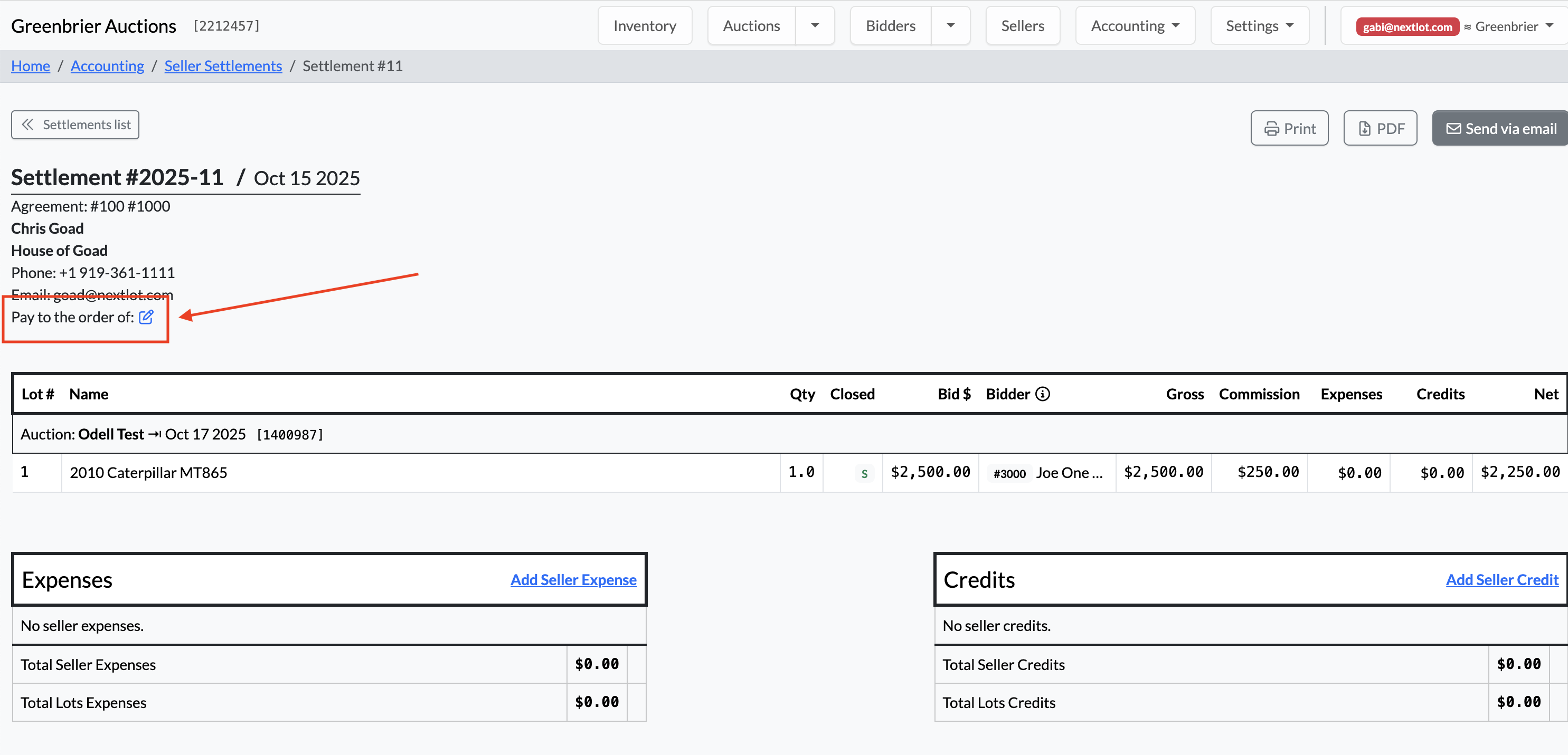
- In the upper-left section of the settlement, under the seller information, locate the “Pay to the Order Of” line.
- By default, this field displays the seller’s name on file.
- To change it, click the Edit button next to “Pay to the Order Of.”
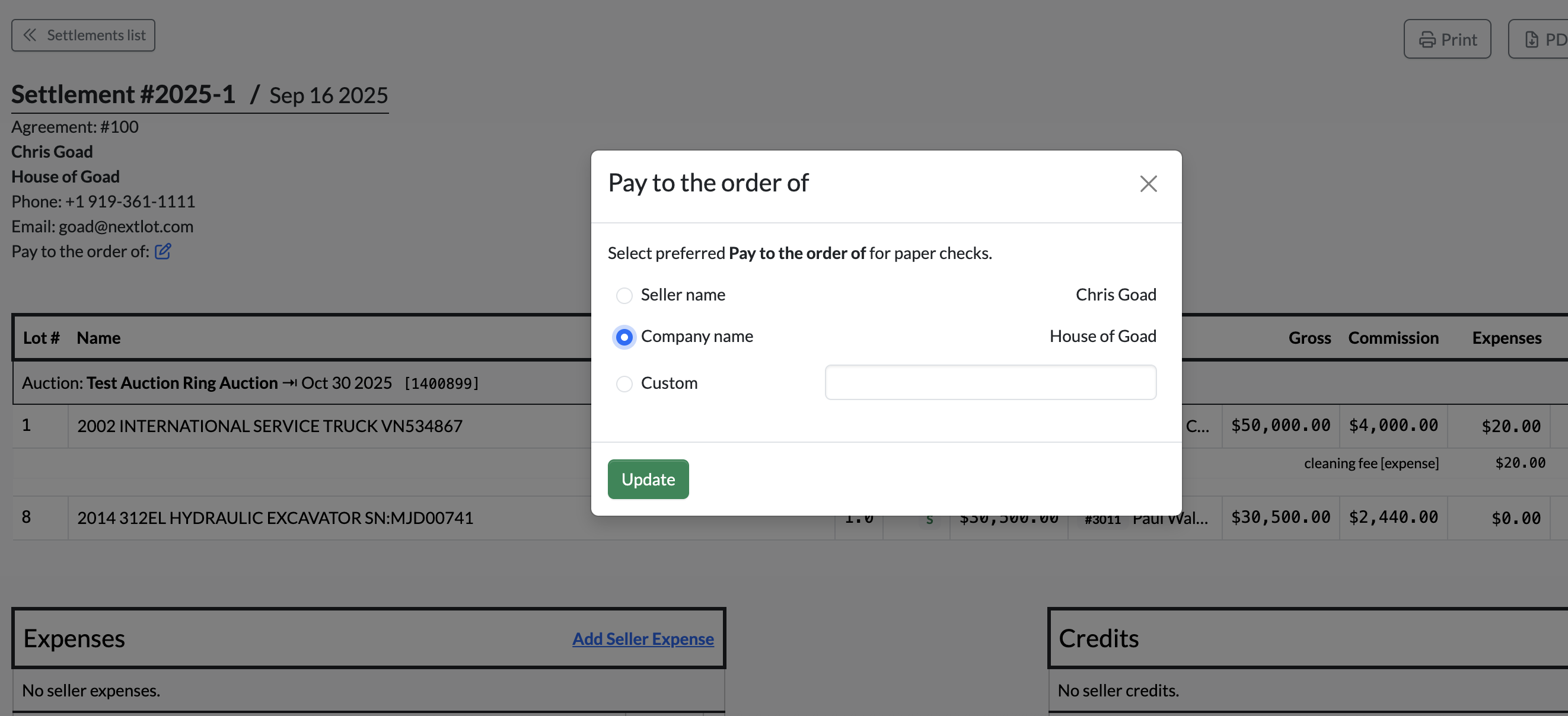
- A modal will appear, allowing you to:
- Select the seller’s company name (if applicable), or
- Enter a custom payee name for paper checks.
- Click the green Update button to save your changes.
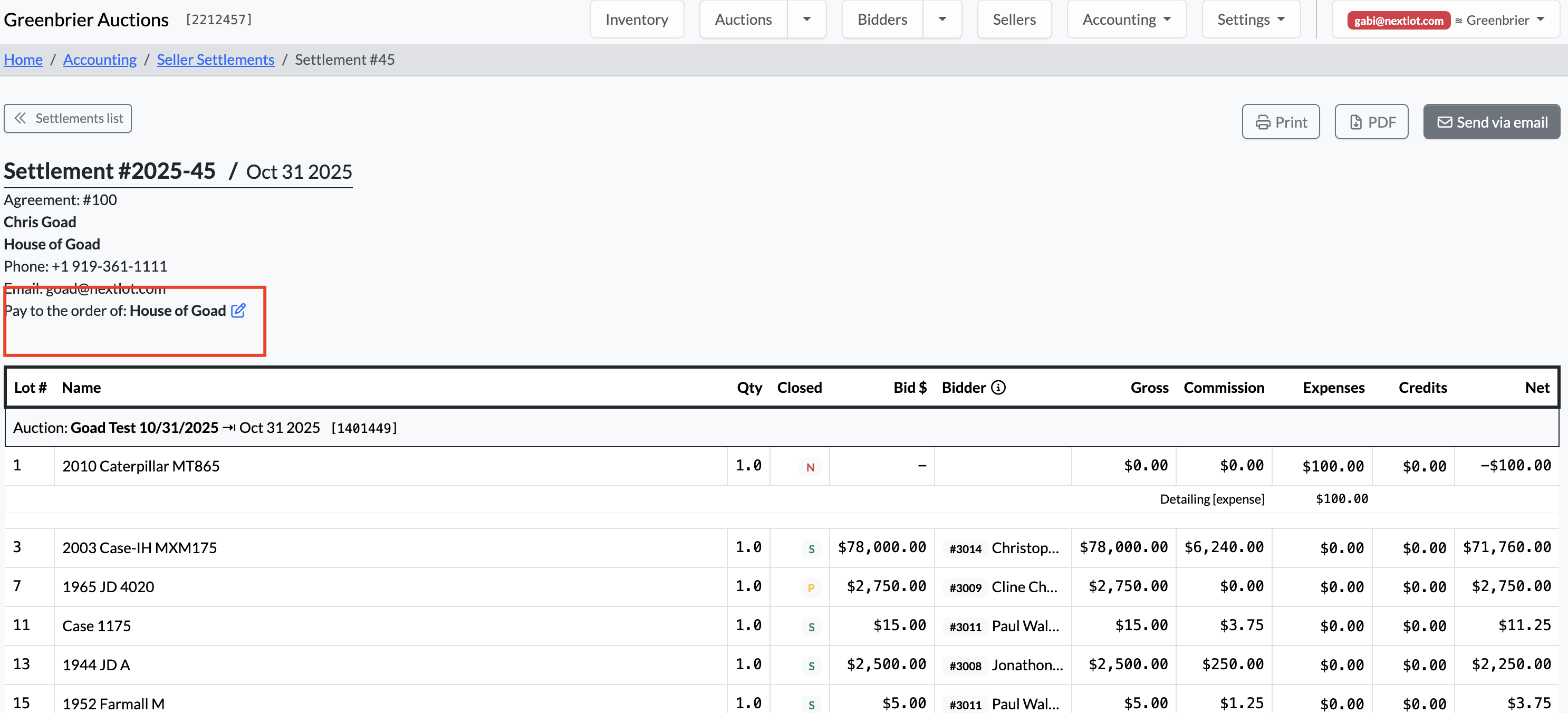
Once updated, the new “Pay to the Order Of” name will be displayed on the seller settlement.
Creating a Payment by Check
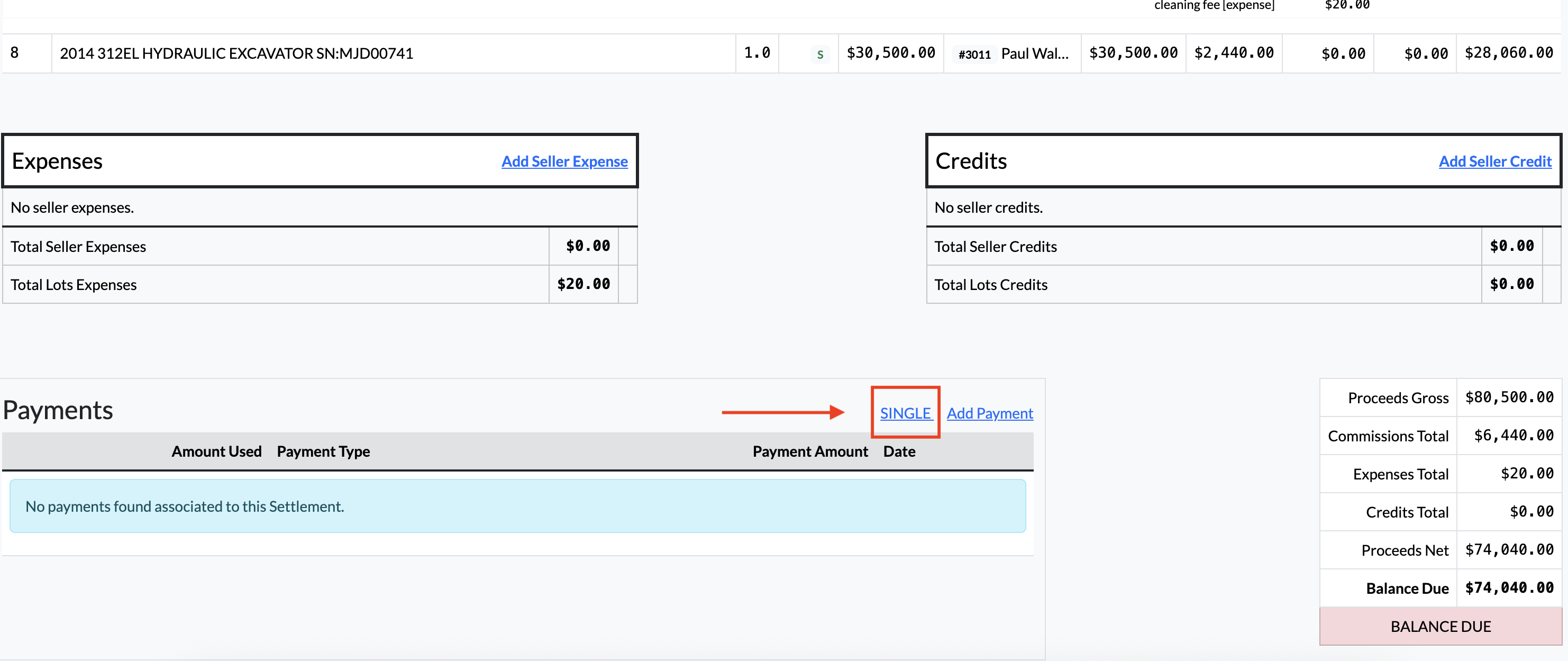
- Scroll to the Payments section at the bottom of the seller settlement.
- Select Single as the payment type.
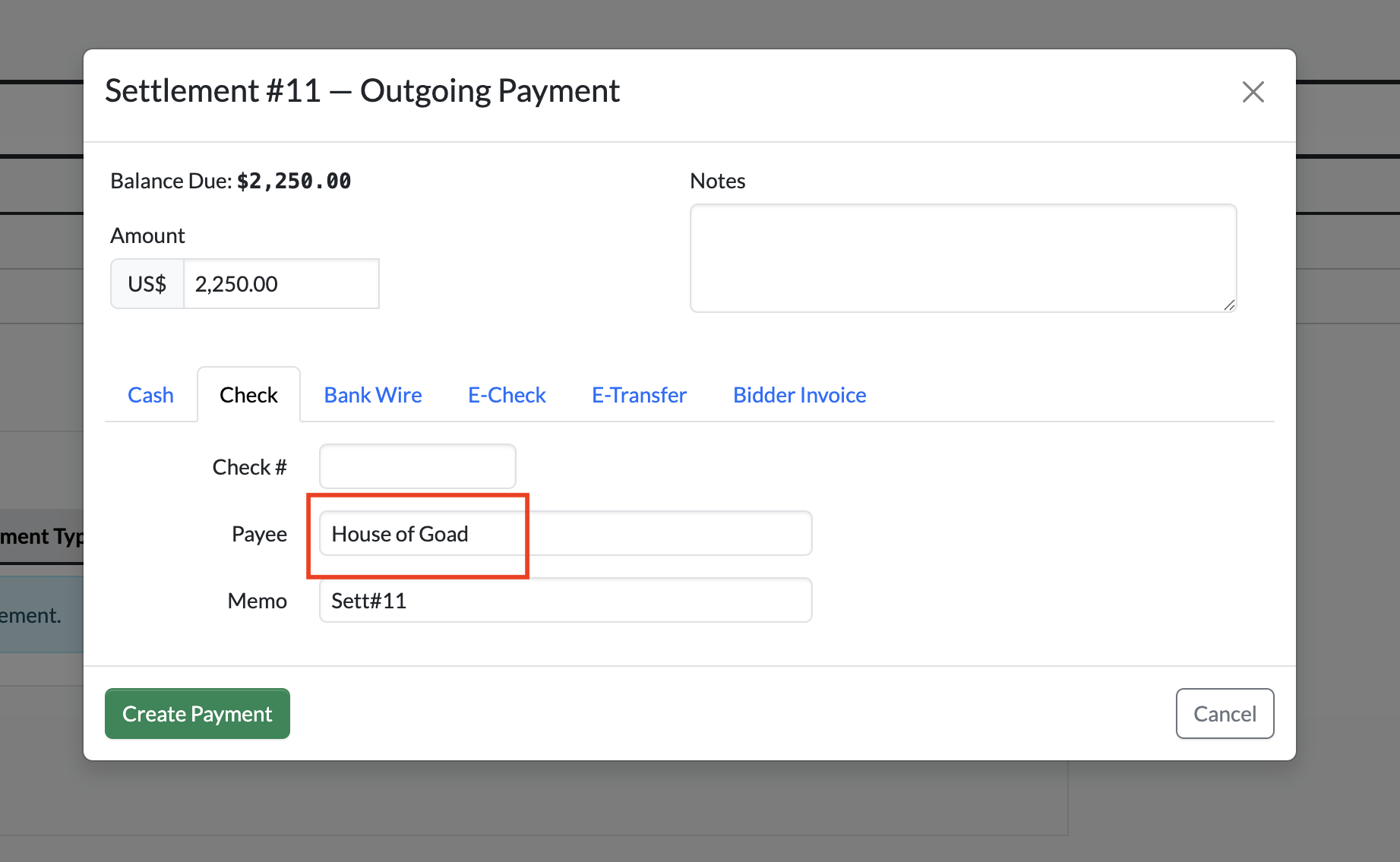
- The payment method will default to Check (other options may be available).
- The Payee field on the check will automatically populate from the “Pay to the Order Of” value.
- Click the green Create Payment button to record the payment.
Generating a Paper Check (NextLot Paper Check System)
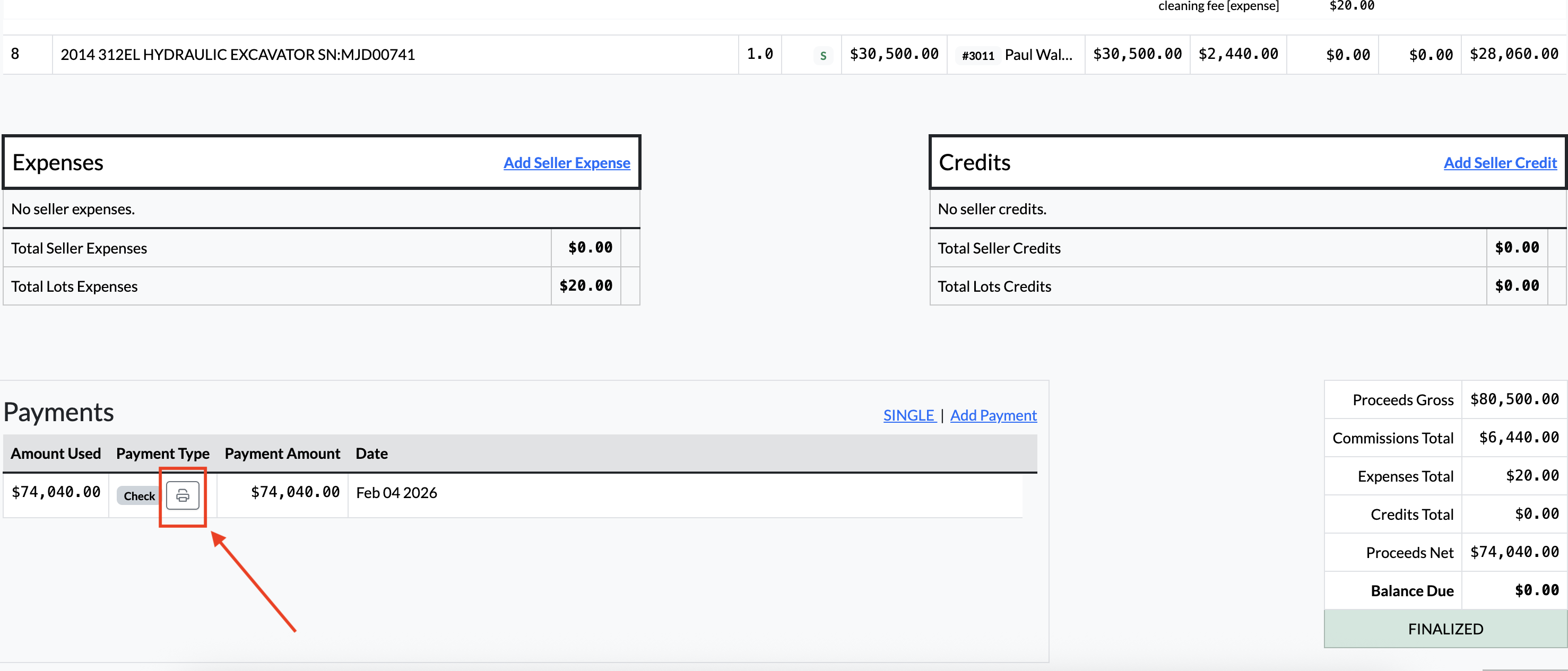
- After the payment is created, locate the payment in the Payments section.
- Click the Print icon next to Check in the Payment Type column.
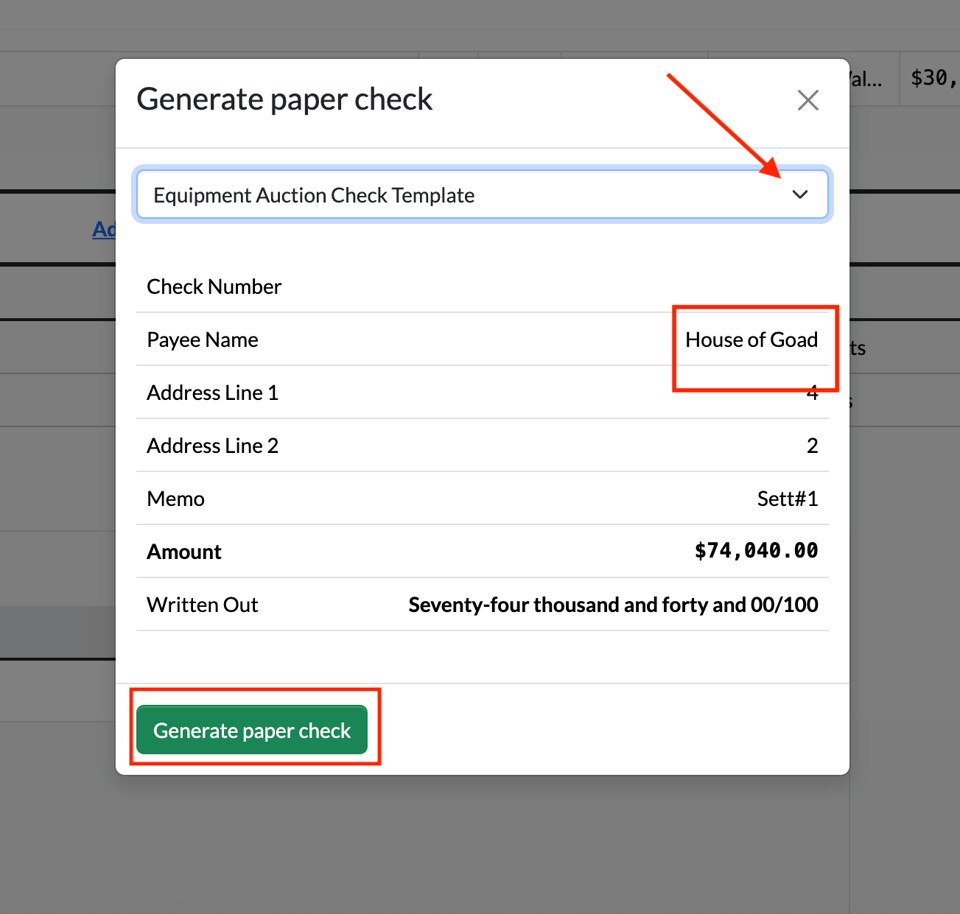
- Confirm the payee name, which is pulled directly from the “Pay to the Order Of” field.
- Select the desired check template (must be created in advance- see instruction here).
- Click the green Generate Paper Check button.
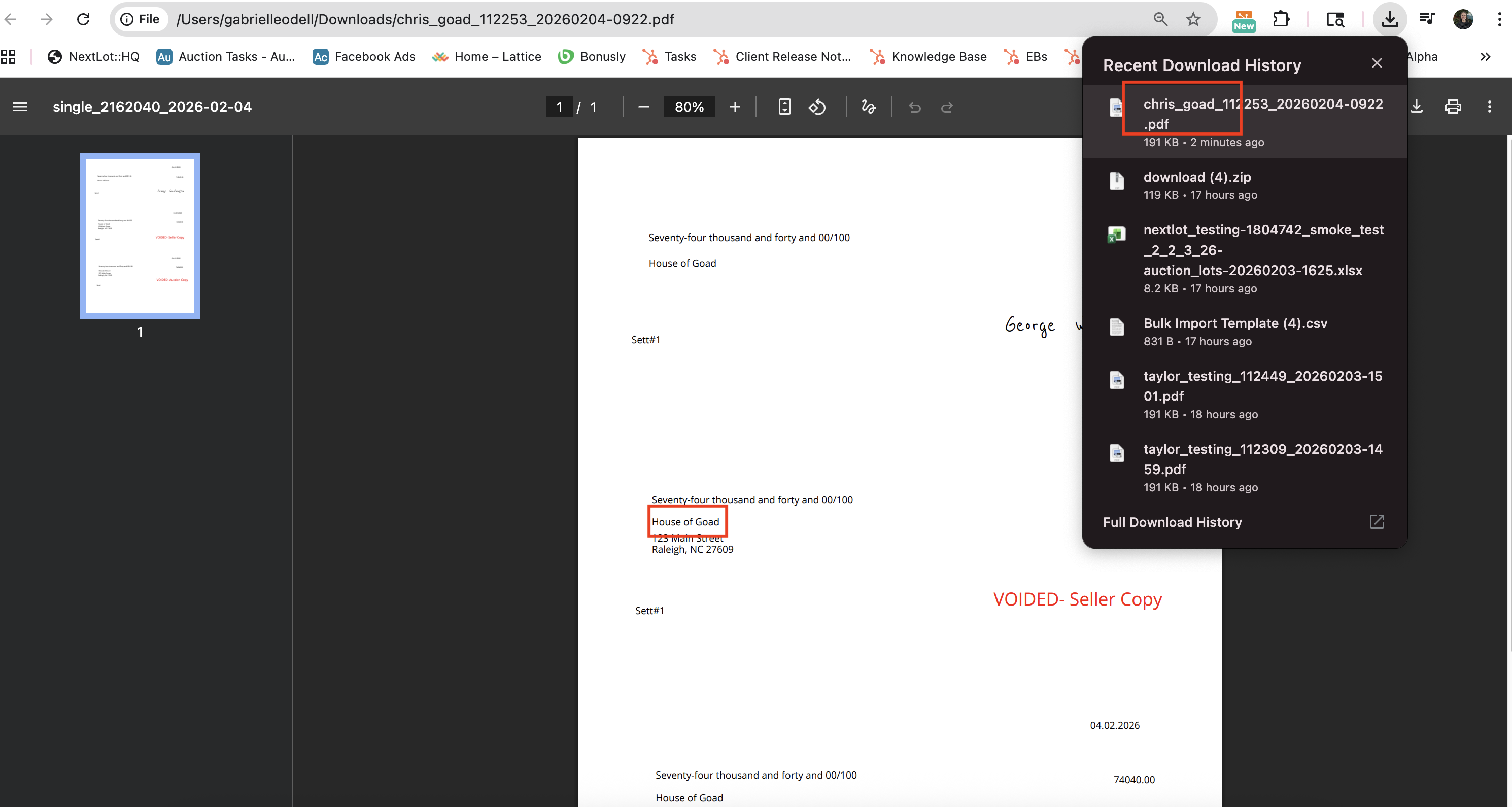
A PDF will download to your device (named using the seller’s first and last name) containing the completed check with all required details, including:
- Payee name
- Payment amount
- Seller address
- Amount due
Best Practice Recommendation
If the “Pay to the Order Of” name differs from the seller’s name, the recommended workflow (for check-based payments) is:
- Check in the seller as usual.
- Right-click the hyperlinked seller settlement assigned during check-in.
- Select Open in New Tab.
- Update the “Pay to the Order Of” field with the appropriate company or custom name.
- Close the tab to return to the seller check-in screen.
- Repeat this process for each applicable seller.
This approach helps ensure accuracy and efficiency when preparing seller payments by check.
Update: EmailVerify
To address the recent increase in disposable email usage and fraudulent attempts to verify stolen credit card information, a new system called EmailVerify has been implemented. This system tracks all new bidder registration emails, allowing visibility into both successful and unsuccessful registration email attempts for bidders trying to create accounts with our clients.
All new bidder registration emails are logged within EmailVerify, making it easier to troubleshoot registration issues and protect against abuse.
When a Bidder Reports Not Receiving a Registration Email
If a bidder calls or submits a support ticket stating they did not receive a bidder registration email, your first step should be to navigate to EmailVerify from the top of the Nexus HQ navigation bar.
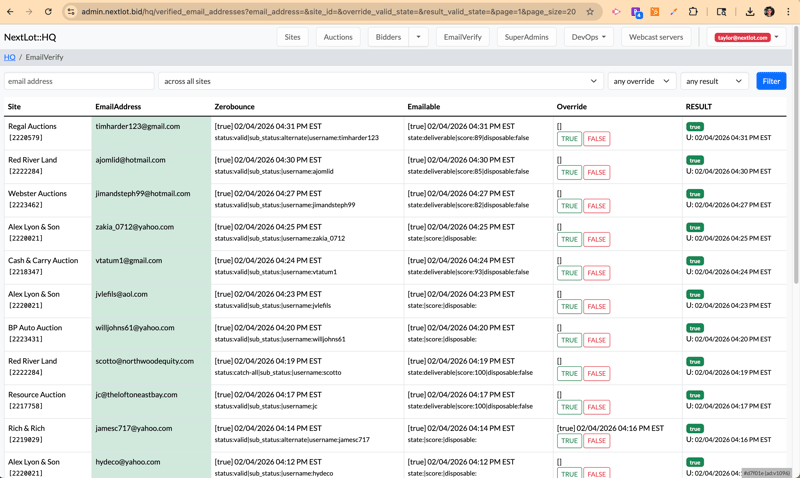
Key details:
- Emails are listed in chronological order, with the most recent at the top.
- By default, the view shows all bidder registration emails across all clients.
- You can:
- Search for a specific email using the Email Address search field.
- Filter by client site using the Across All Sites dropdown menu.
- Filter to show any particular email that has been overridden.
- Filter to show only result (false or true).
Reviewing a Failed Registration Email
Once you locate the relevant email marked False (indicating the registration email did not send), review the following before marking it True:
1. Verify the Email Domain
- Confirm the domain is legitimate and reputable.
- If the email appears to be a company domain (e.g.,
@companyname.com):- Verify the company is real.
- Confirm it is reasonably associated with the client the bidder is attempting to register with.
2. Check the “Emailable” Column
- Ensure Disposable is marked False.
- If Disposable = True:
- Do not override or modify the email.
- If the bidder contacts support, inform them that disposable email addresses are not accepted and that they must register using a valid, non-disposable email address.
.png?width=1853&height=276&name=Screenshot%202026-02-04%20at%2010.41.16%20AM%20(2).png)
3. Confirm the Email Is Not a Typo
-
- Some bidders accidentally mistype their email address.
- If the email appears to be a typo:
- Do not mark the email as True.
- Instruct the bidder to re-enter their email address correctly.
- A strong indicator of a typo:
- In the Emailable column, the score is 0, indicating the email has not been interacted with.

Marking an Email as Valid and Resending the Registration Email
If the email passes all checks and should be allowed:
- Mark the email as True in the Override column.
- Copy the bidder’s email address.
- Navigate to the client’s NextLot registration page.
- Paste the email address, complete the “I’m not a robot” verification, and click Next.
- The bidder registration email should be sent.
Confirming Delivery
To confirm the email was successfully delivered:
- Open Postmark.
- Search for the bidder’s email address in the Activity tab.
- Verify that the registration email shows as successfully delivered.