
*Internal* System Release Notes March 23rd, 2026
BUG-Invoice Fee Tax Rate Codes Not Applying During Bulk Upload
Previously, when bulk uploading fees with a different tax rate code than the auction’s default tax rate, the system would override the uploaded values and revert to the auction-wide tax rate. This issue has now been resolved.
You can now use the Bulk Import Template—or add the following columns to your own template—and all fields, including tax rate codes, will upload correctly:
- Invoice Fee 1 Description (optional)
- Invoice Fee 1 Amount (optional)
- Invoice Fee 1 Tax Rate Code
- Invoice Fee 2 Description (optional)
- Invoice Fee 2 Amount (optional)
- Invoice Fee 2 Tax Rate Code (optional)
All fee details and associated tax rate codes will now be applied as expected during the import process.
In the example below, the auction-wide tax rate is set to North-Carolina_Wake_Raleigh__. However, when the lot fees are bulk uploaded, their tax rates are not overridden by the auction’s default rate. Instead, they retain the tax rates specified in the import—such as NC_Durham_Durham-City__ and Tax Exempt (0).
.png?width=1838&height=781&name=Screenshot%202026-03-21%20at%206.47.51%20PM%20(2).png)
.png?width=1647&height=154&name=Screenshot%202026-03-21%20at%206.48.06%20PM%20(2).png)
.png?width=1461&height=706&name=Screenshot%202026-03-21%20at%206.48.35%20PM%20(2).png)
FEATURE- Bulk Seller Settlement Printing Options
Previously, if you needed to print seller settlements, you had to open each one individually. For added convenience, you can now bulk print all seller settlements for a specific auction.
To do this:
1. Navigate to the Master Accounting tab, then Auctions..png?width=1837&height=290&name=Screenshot%202026-03-21%20at%206.56.35%20PM%20(2).png)
.png?width=1842&height=401&name=Screenshot%202026-03-21%20at%206.58.18%20PM%20(2).png)
.png?width=1857&height=550&name=Screenshot%202026-03-21%20at%206.58.29%20PM%20(2).png)
This will generate and download a single PDF containing all seller settlements for that auction. Once opened, you’ll see that all settlements have been combined into one document, making it much easier to review or print them all at once.
.png?width=1854&height=672&name=Screenshot%202026-03-21%20at%207.11.06%20PM%20(2).png)
.png?width=1834&height=802&name=Screenshot%202026-03-21%20at%206.58.57%20PM%20(2).png)
FEATURE- Bulk Bidder Invoice PDF Download
Another helpful update is the ability to download bidder invoices more quickly and efficiently.
Previously, you had to open each individual bidder invoice and download them one at a time. Now, you can download all invoices for a specific auction at once, combined into a single PDF, making it much easier for downloading and printing.
To do this:
- Navigate to the Master Accounting tab and click Accounting.
.png?width=1840&height=413&name=Screenshot%202026-03-21%20at%207.53.46%20PM%20(2).png)
3. Click the green “Download” button.
.png?width=1849&height=727&name=Screenshot%202026-03-21%20at%207.48.18%20PM%20(2).png)
This will download all invoices for that auction—whether outstanding or settled—into one consolidated PDF. Once opened, all invoices will be in a single document, allowing you to easily review or print them as needed.
.png?width=1853&height=676&name=Screenshot%202026-03-21%20at%207.48.45%20PM%20(2).png)
.png?width=1838&height=793&name=Screenshot%202026-03-21%20at%207.48.57%20PM%20(2).png)
FEATURE- Webcast Floor Bidder Paddle Assignment in Webcast Clerk Screen
We can now begin using NextLot to keep track of onsite participating bidders. This starts with setting up your auction settings appropriately for the Webcast based auctions (timed auctions cannot have in person participating bidders). When creating your auction you need to ensure that you On-Site buyer premium is appropriately set up so that it calculates the appropriate fee as to whether an Onsite bidder purchases a lot or an online bidder purchases a lot. It is entirely possible they the rates are the same, but in this example we applied a flat $10 BP fee for an onsite bidder and a flat $100 fee for an online bidder.
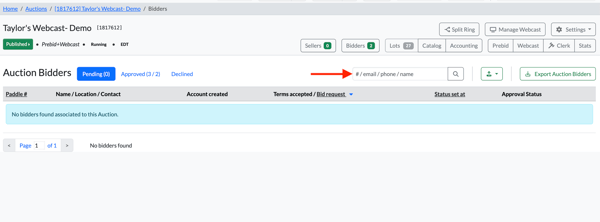
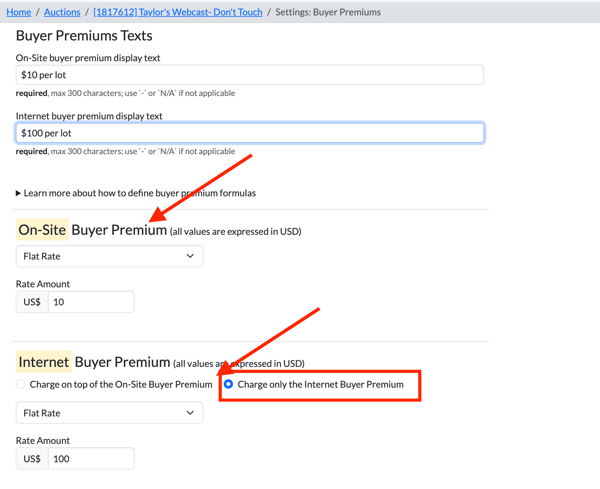 Once this is appropriately set, you can begin checking in your onsite bidders. Go to the Bidders tab of the particular auction and as people show up in person to get registered, you can search them by their Permanent online bidder #, their email, their phone # or their name. Most people will look up bidders either by their name or their email.
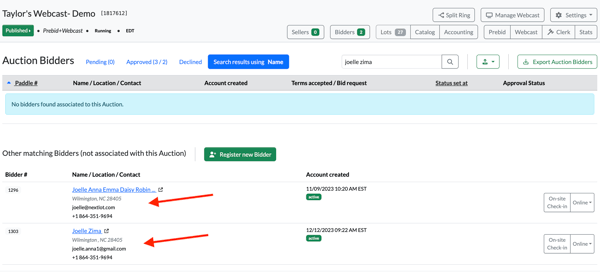
Once you have conducted a search (we searched Joelle Zima) all of the results within your auction site's bidder database that fit that criteria will be listed. All of the bidder's information will be shown and you can click on the hyperlinked name to be taken directly to their admin bidder profile.
If you hover over the bidder's name, a tool tip will appear showing you the bidder's full billing address to provide even more detail in determining the bidder's identity.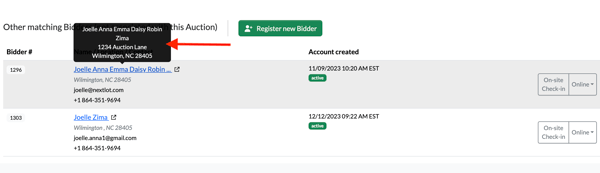
Once you make a determination of who to check in, you can click on the On-site check-in button
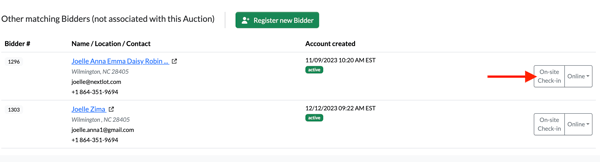
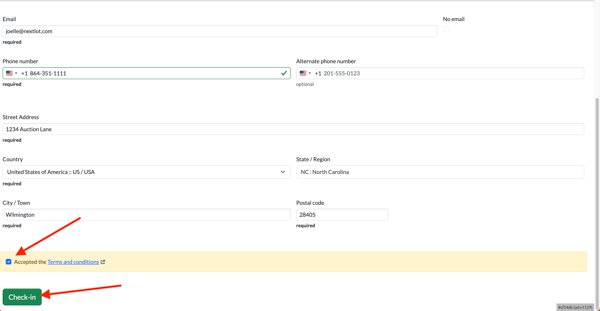
This then brings you to a page where you verify all of the bidder's information (can update their address, phone #, etc if needed). Once confirmed, check the box indicating that they have accepted the terms and conditions of the auction and then click the Check-in button at the bottom of the page.
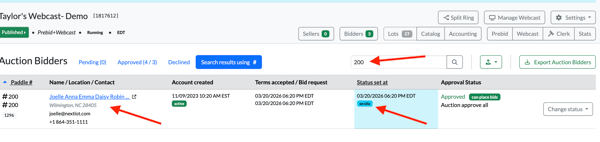
Once a bidder is checked in, you will be brought back to the check in page but the page will be filtered to just show the bidder you just checked in. The bidder information will show again on the left, it will be noted that they are checked in on-site and the search filter shown will be showing their paddle # that they were assigned. Write the appropriate # on the paddle and give them their paddle for the auction.
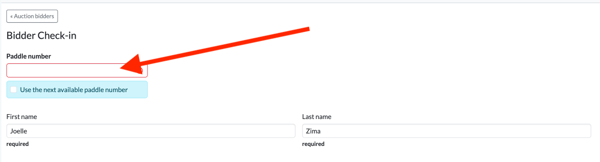
If you want to specifically assign a bidder a particular paddle # rather than the system automatically assigning the next available # (NextLot employees can help set up the starting paddle # per customer in the client's HQ settings), you can do so at the top of the previous page shown below. Simply uncheck the box to open up the box (shown below).
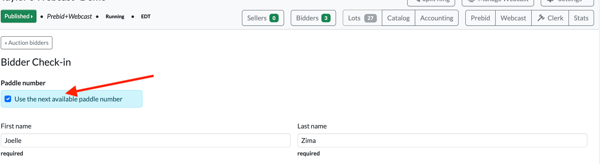
Once unchecked you can type in the appropriate paddle # that you want to assign to that bidder. If you type in a paddle # that has already been assigned for that auction, you will receive an error and will have to choose a different paddle #.
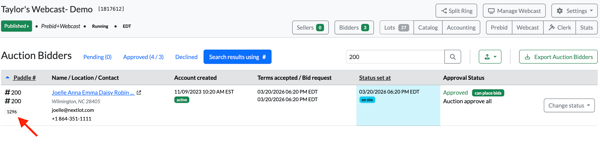
Once an onsite bidder is checked in, it is VERY important to note that they are NOT only checked in onsite- but they are ALSO checked in online as a NextLot online bidder. Looking at Joelle's account below, you will see it notes her ONSITE paddle # (200) next to her name, but it also listed her NextLot online bidding # (1296) as well on her account.
 Should she elect to leave the auction and want to bid online in the auction, she can login to her online bidding account and bid online in the auction.
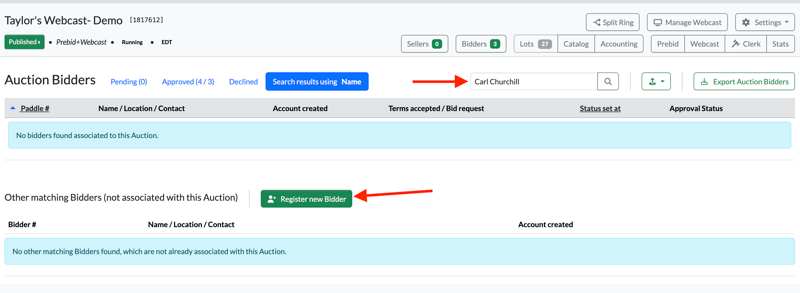
If a bidder comes to the auction and you search for their name and they do NOT exist in your bidder database (see search below- Carl Churchill), you can add them. Simply search their name or email and when no results are found, click on the green Register new bidder button (shown below).
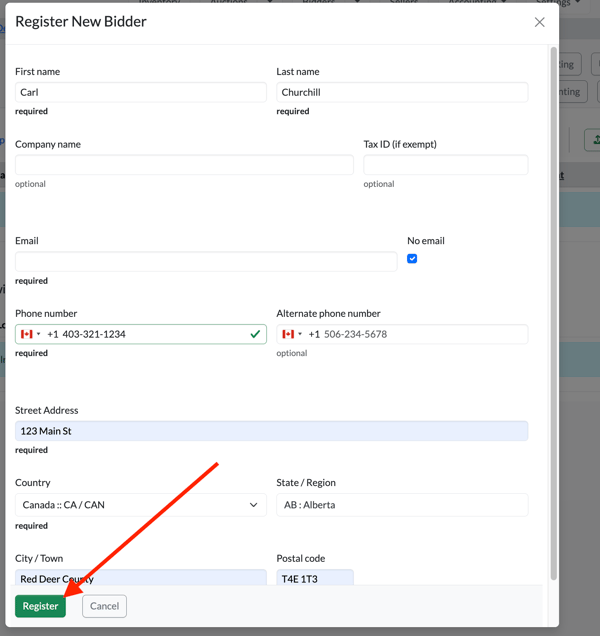
This will bring up a form where you can fill in their contact information including: First name, Last name, phone #, email, mailing address. Optional fields include Company Name, Tax ID and an Alternate phone #. It is also important to note that some bidders will NOT want to give an email address (either they don't have one or they just do not want to receive emails from the auction company). It is important to communicate to the bidder that without adding a valid email, they will not be able to bid online at future auctions and will not be able to receive copies of their invoices via email. If they still refuse to provide one, check the box (shown below) to indicate that the bidder is not providing an email.
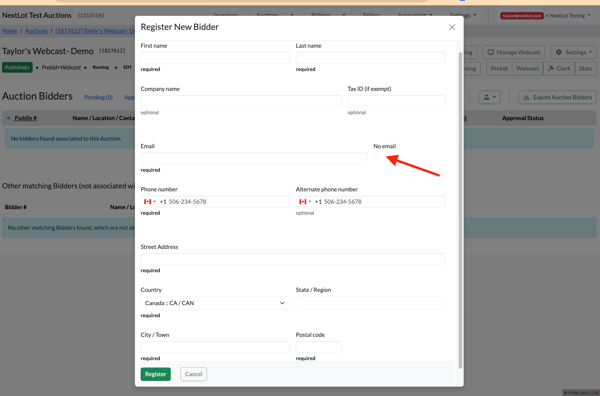
Once you fill out the form with the required information, click on the Register button and a new bidder account will be created for the bidder.
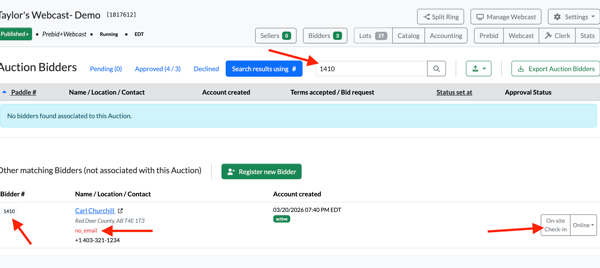
Once you register the account, you are brought back to the check in screen. The filter will be applied using the bidders permanent online bidding number through NextLot (1410) and it is shown in the far left column of the bidder's information. Since this bidder did NOT provide an email- it is noted no-email in red on their profile. To complete their check-in, click on On-site check-in.
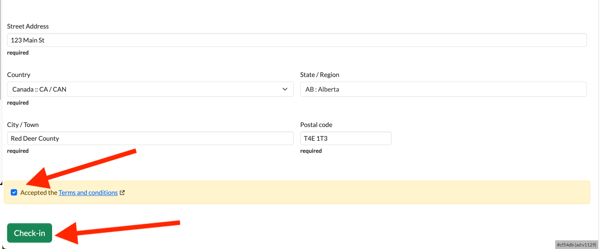
You are brought to the check in confirmation page (like above). Check the box that the bidder agreed to the terms and click to check them in.
Unlike the previous bidder we checked in (Joelle), Carl did not provide an email, so he will NOT be able to login to his online bidding account to bid in the auction online if he leaves the auction because he did NOT provide an email. He will only be able to participate in this auction under his onsite paddle # (201). Should Carl elect to provide an email at a later time, NextLot can help update that on his profile (to be described at a future time).
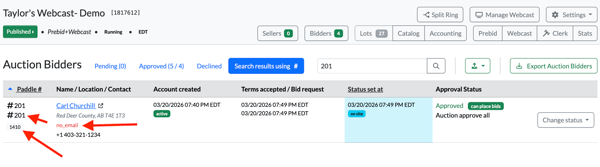
If Carl had elected to provide an email (like the below bidder Taylor Twine who was registered for the first time)
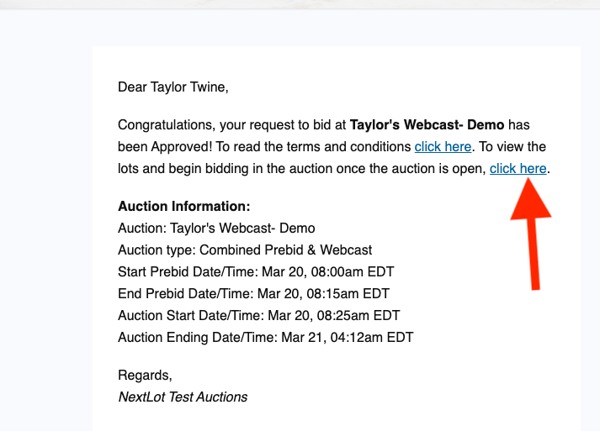
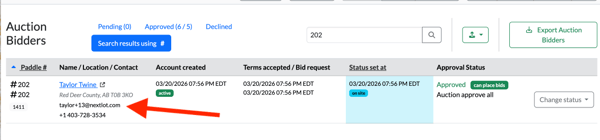 Then he would have received an email indicating that he was approved to bid in the auction. If he clicks on the link to view the lots and begin bidding, he will then be brought to the online bidding site.
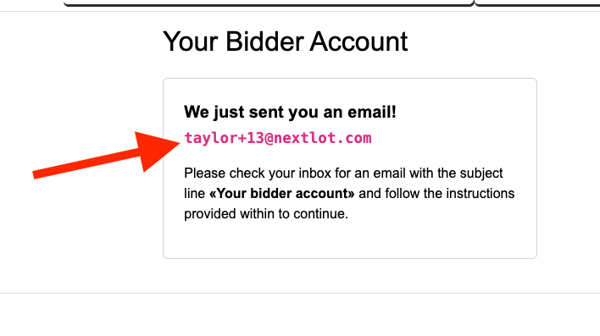
On the online bidding site, if he attempts to login, he will be sent an email with a link to set up his password for his account. Once he sets up his password, he can bid in the auction in person with his in person paddle # or his online number.
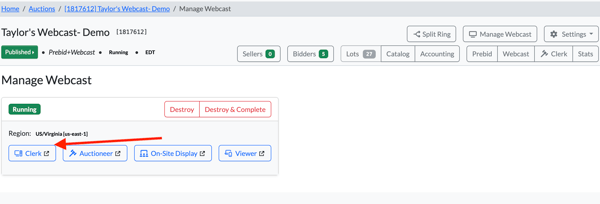
Once your bidders are checked in and the auctioneer is ready to start the auction, the webcast should be prepared and 1 or 2 people (depending on the pace of the auction) should open up the Webcast Clerk Screen.
Once you sell a lot, you will see a new area within the Closed Rounds tab
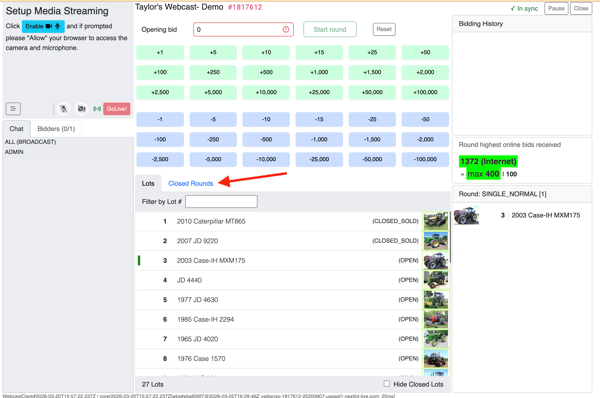
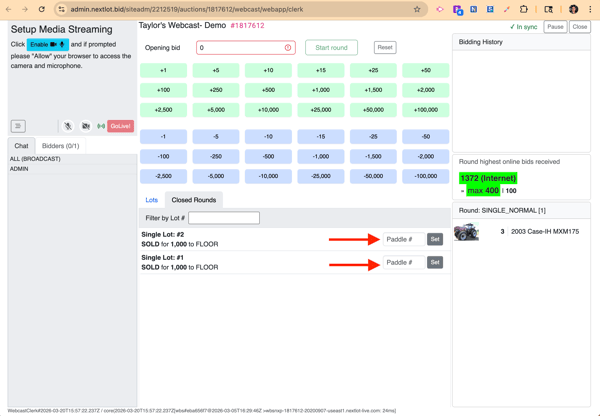
Once you open the closed rounds you will see that every lot that has been sold to a Floor bidder will have a field called " 'Paddle #' Set". This is where the person clerking the auction can note the onsite paddle # of the bidder who purchased that lot.
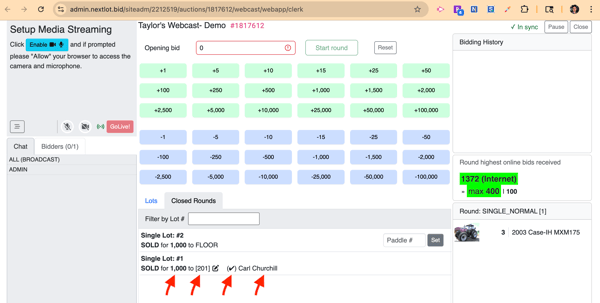
Once you set an onsite paddle # as the winning bidder for a particular lot, it will show the price assigned for the lot ($1000) the paddle # that you assigned (201), a Check mark if that paddle # was found and was checked in and thus created a "Clerked Lot" (to be explained later) and the bidders name pulled from their profile.
If you made a typo and accidentally typed in the wrong bidder (lets say you meant to type in 202 but fat fingered and accidentally hit 201) you can simply click on the pencil icon to reopen the form (shown below)
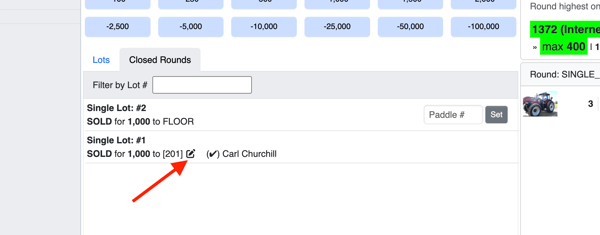
Type in the in the appropriate paddle # and click Set (or hit enter)
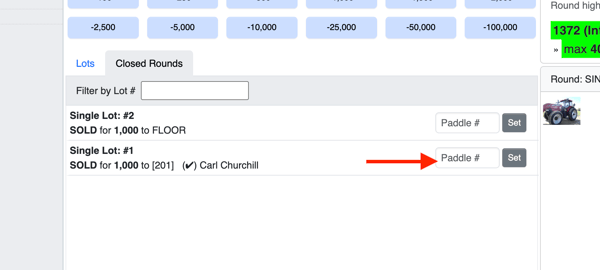
And the new assigned bidder will be listed.
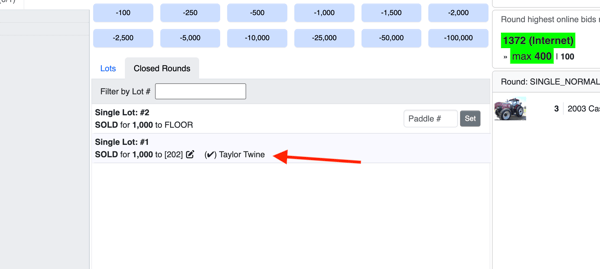
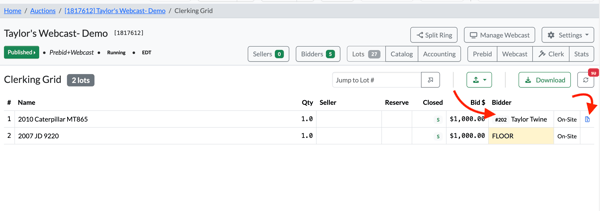
Whatever change you make here will be reflected in the Clerking Grid within the Admin UI (shown below). Once a checked in paddle # is assigned to a lot, it automatically creates an invoice for that bidder (or adds that lot to that bidders already existing invoice IF they have already purchased a lot). The invoice can be accessed by clicking on the blue invoice icon.
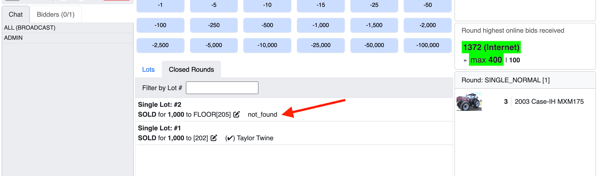
If you attempt to assign a paddle # to a lot and that particular paddle # does not exist within that auction, the lot in the closed round in the webcast will read: not_found (shown below).
If no bidder is found, the clerking grid in the admin UI will still be marked as Floor (see red arrow to the right below) for the assigned bidder but the FLOOR bidder paddle hint will contain the number entered on the webcast. This is for helping to reconcile later in case there was a mistake.
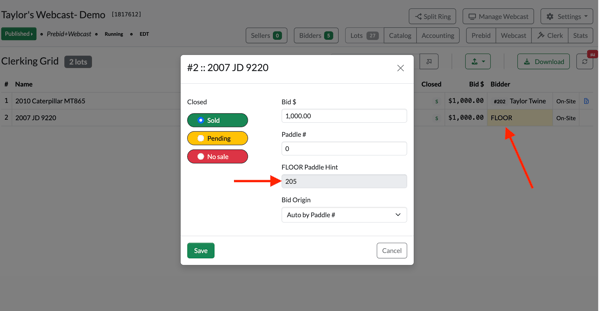
With this in mind, if a bidder is presented with this situation, they can ALSO simply click to re-edit the lot in the webcast clerking screen and type in the person's name since their paddle # is not registered for the auction to keep a record of their name if they arrived at the auction late and didn't have time to get a paddle # because the lot they were interested was able to sell. See below where we went into lot again by clicking the pencil icon, typing in the bidder's name into the paddle # field.
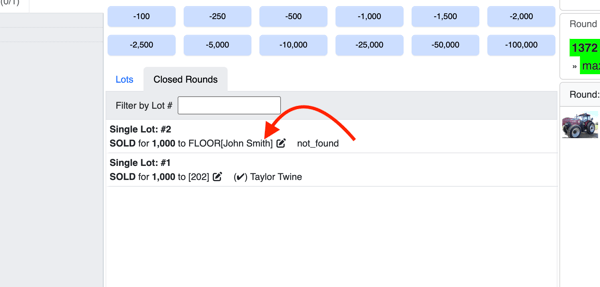
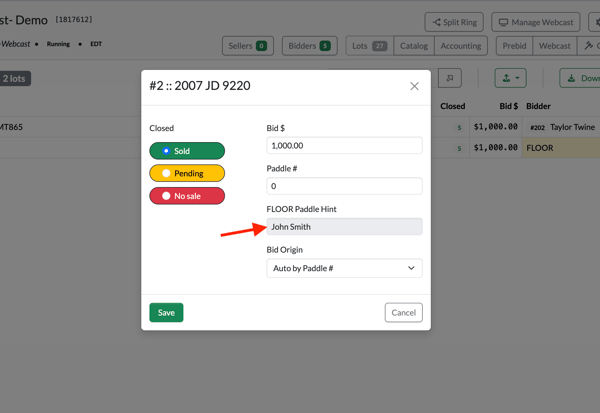
Once resubmitted- the floor paddle hint for that lot will update with the new information (the bidder's name).
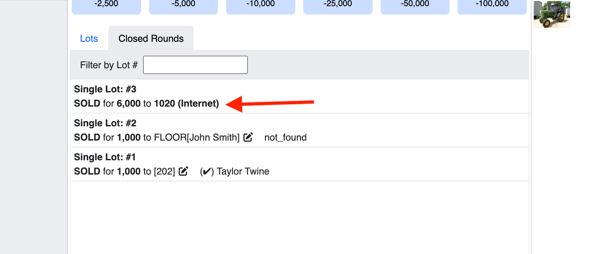
There will also be times when a NextLot online bidder is the high bidder on a lot. Whenever a lot is sold to NextLot online bidder, the person clerking the paddle #'s does NOT have to do anything as the system automatically assigns the online bidder's permanent bidder number to the lot. See below where online bidder 1020 was the high bidder at $6000 for lot 3. There is not a pencil icon to edit this as the system automatically assigns the lot to him.
Then in the clerking grid you will see the lot automatically assigned to that bidder, noted that he was an online bidder and automatically generating an invoice for him with the appropriate Buyers Premium for an online bidder (discussed in very first paragraph of this section).
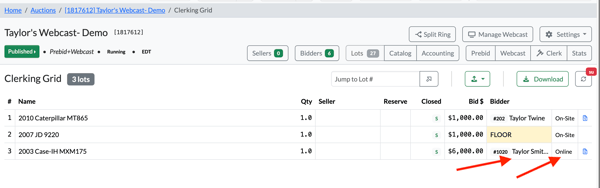
Should any changes need to be made to prices of lots after they are clerked, they can all be accomplished in the clerking grid (shown above). This is the master grid upon which all of the invoices are created and can be updated. Once a lot has been put on an invoice AND that invoice has had a payment on it, it locks changes in the clerking grid for that lot to prevent accounting issues.
If you make any changes that result in a differentiator of the price on any of the lots from how MUCH it was sold in the webcast, a yellow icon will populate in the clerking grid for that lot as a sign that the clerking grid result now diverges from the webcast result. If you hover over the icon- it will tell you this.
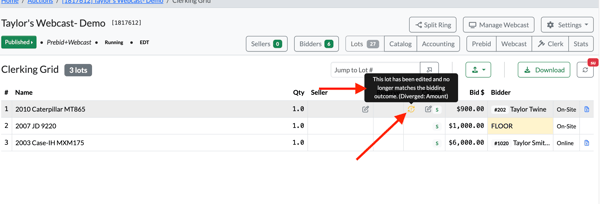
For a lot sold to an ONLINE bidder, if you change the winning bidder in the clerking grid, it will read divergent bidder and if you change the amount, it will also read divergent amount. You cannot have divergent bidder for a floor bidder because the system did not automate won won the lot because the clerk had to manually type in the winning paddle #.

NextLot recommends that all clients have someone keep a paper copy of their clerking as well. While not a requirement, it is always smart to have a backup in case there are any discrepancies or disagreements from a bidder claiming that they did not win a particular lot. Human error is always possible when working in data entry.
FEATURE- Display icon in webcast clerk screen closed rounds to show if a bidder was assigned in the clerking grid OR was just found as a checked in bidder for that auction
Within the webcast clerking screen, you can now assign on-site paddle numbers to lots that were clerked during the auction.
To do this:
- Clerk the auction as you normally would.
- If a lot is sold to the Floor (on-site bidder), navigate to the Closed Lots tab.
- Enter the correct on-site paddle number for the winning bidder.
- Note: On-site bidders must be checked in prior to the auction. More details on this will be included in a future release.
Once assigned, the system will display a black checkmark next to the paddle number and bidder name, indicating the assignment was successful and that an invoice has been created for that on-site bidder.
.png?width=1884&height=499&name=Screenshot%202026-03-19%20at%2012.52.25%20PM%20(2).png)
Important Notes
- No changes to online bidding:
The way the system records NextLot online bidders and their winning bids remains unchanged. - Combined online and on-site bidding for the same bidder:
If a bidder participates both on-site and online (e.g., they leave the auction and continue bidding remotely), all purchases will appear on a single invoice.- The invoice will reflect the appropriate Buyer’s Premium (BP) for each lot based on how it was purchased:
- Example:
- A lot purchased online at $1,000 with a 10% BP = $100 BP
- A lot purchased on-site at $1,000 with a 5% BP = $50 BP
.png?width=1893&height=819&name=Screenshot%202026-03-19%20at%2012.55.01%20PM%20(2).png)
- Example:
- The invoice will reflect the appropriate Buyer’s Premium (BP) for each lot based on how it was purchased:
This ensures accurate billing while keeping all purchases consolidated under one invoice for the bidder.
Updated Knowledge Base Articles: