
*Internal* System Release Notes March 31, 2026
Feature – Updated Bidder Check-In UI
The bidder check-in process has been updated with a more streamlined interface. The first change you’ll notice is the updated “Check In” button. When searching for a bidder, there is now a single “Check In” option. Selecting this opens a modal where you can edit bidder information and assign the onsite paddle number.
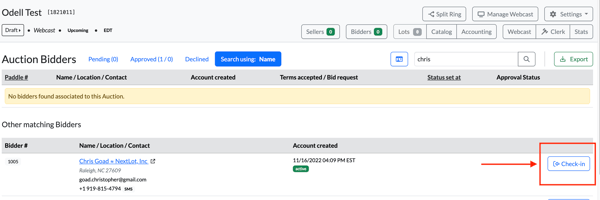
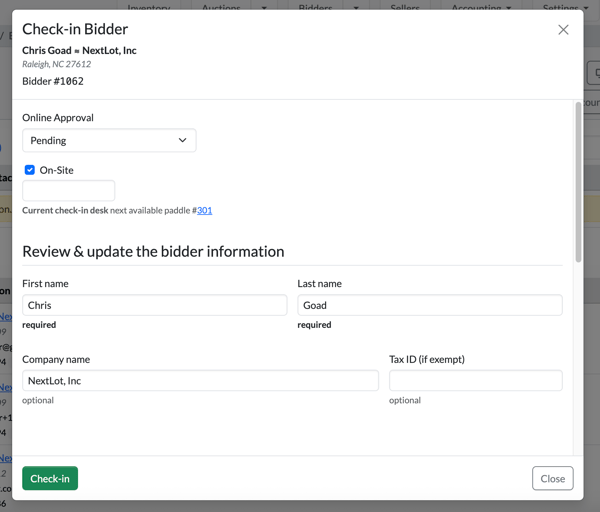
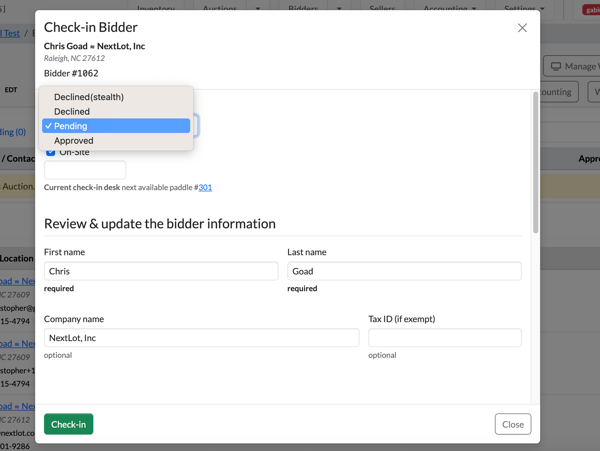
Please note the following behaviors based on approval settings:
- Auto Approval: When a bidder is checked in while the auction is set to auto approval, they are automatically approved for the sale. However, they will not be able to place bids until they accept the terms and conditions. Additionally, this action does not trigger a “Your request to bid has been approved” email.
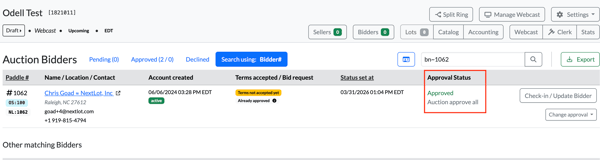
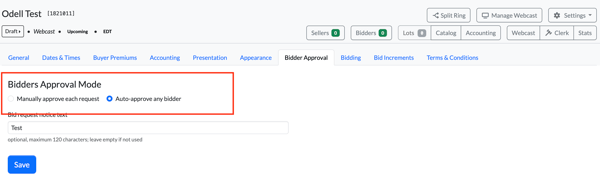
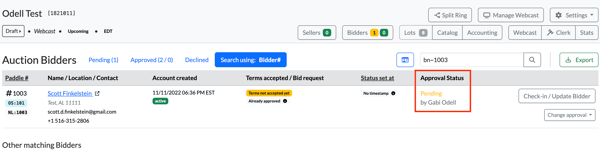
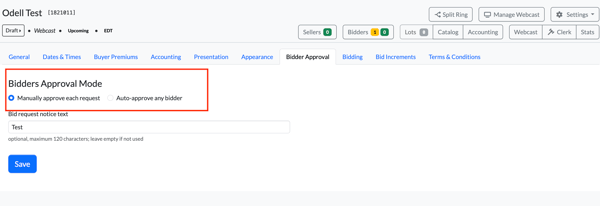
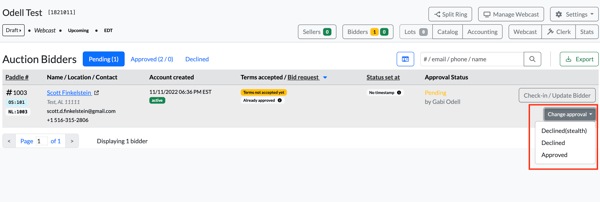
- Manual Approval: When a bidder is checked in under manual approval, their status is set to pending until an admin approves them. Once approved, a “Your request to bid has been approved” email is sent.
FEATURE – Checking in a Bidder Without a NextLot Account
If you need to check in a bidder who does not already exist in the system, start by searching for them (e.g., “Remi”). If no results appear, click the green “Register New Bidder” button.
From there:
- Enter the bidder’s information, including a valid email address.
- The bidder will receive a registration email to complete their account setup.
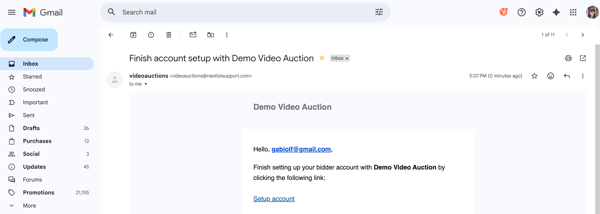
- After creating a password, they’ll receive a “Thank you for registering” confirmation email.
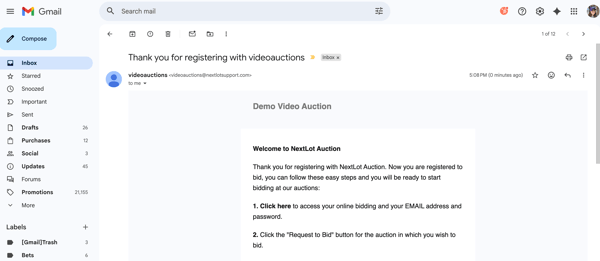
- Once completed, they will be able to actively participate and place bids in auctions.
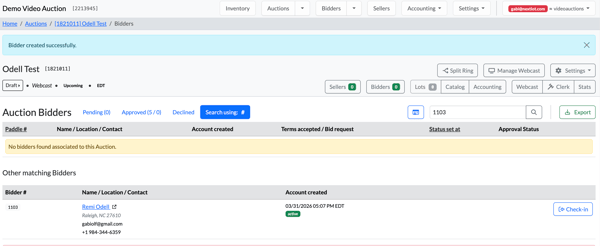
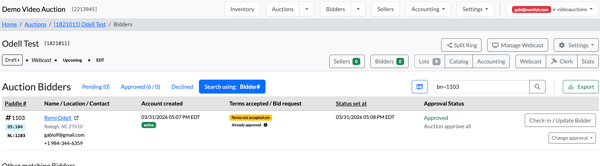
Important Notes:
- You can check in a bidder before they finish setting up their account, but they will not be able to bid online until their profile is fully completed.
- You can register and check in a bidder without an email address, but they will not be able to bid online unless a valid email is added to their profile.
UPDATE – Checking in Onsite After Online Participation
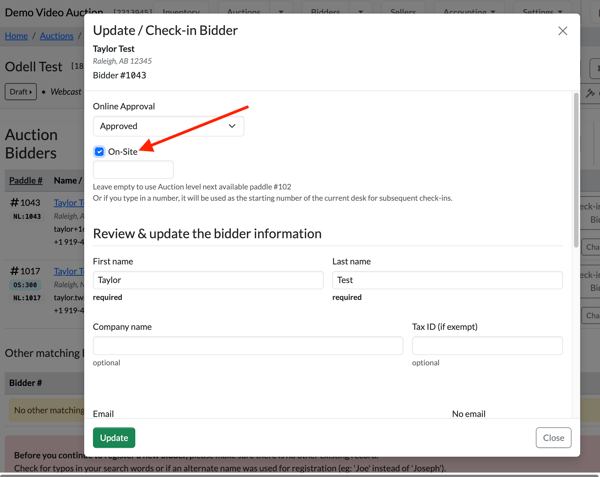
The system now allows bidders who initially participated online to be checked in later as onsite bidders during the same auction. For example, a bidder may place bids online earlier in the auction but choose to continue bidding in person later on. Simply go the auction, search for the bidder and then click on Check-in/Update Bidder option for that bidder who should show already under the auction bidders area.

Once clicked, you can check the box for them to be checked in onsite and have them be assigned an onsite paddle #.
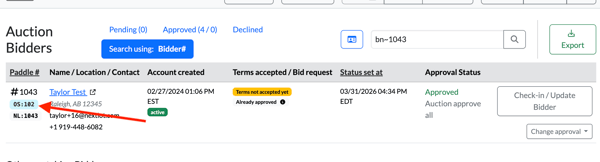
Once checked in onsite- the admin would give the bidder their paddle # (listed in blue next to their name)
FEATURE – Streamlined Onsite Check-In Process
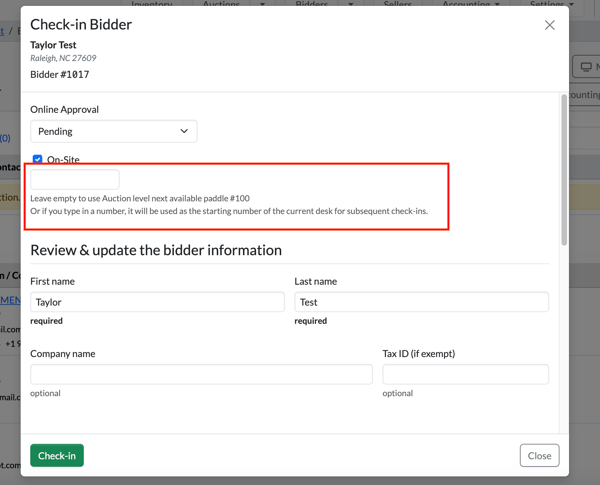
We understand that some auctions operate with multiple check-in lines and preprinted paddle numbers. To help streamline this process, the system will now remember the last onsite paddle number used by each individual clerk (per browser).
For example:
- If Gabi is assigned paddle numbers in the 300s, the first time she checks in a bidder, the system will default to the starting onsite paddle number.
- After she enters 300 and completes the check-in, the next time she registers a bidder, the system will automatically default to 301.
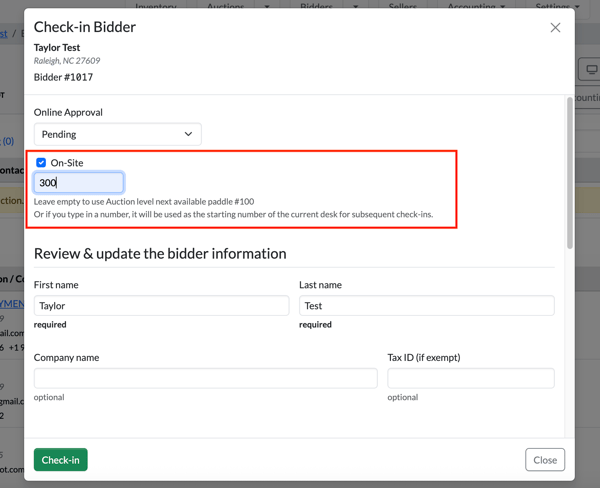
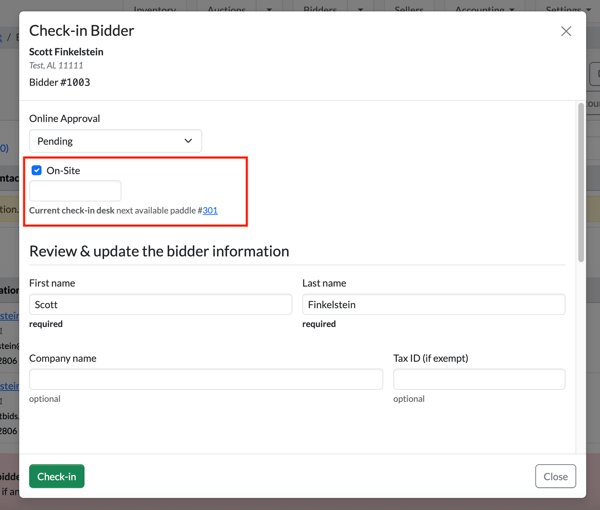
The same applies to other clerks:
- If Taylor is using paddle numbers in the 200s, the system will initially default to the standard starting number.
- After entering 200, the next check-in will automatically default to 201.
This enhancement helps speed up the check-in process and reduces the need to manually track paddle numbers across multiple lines.
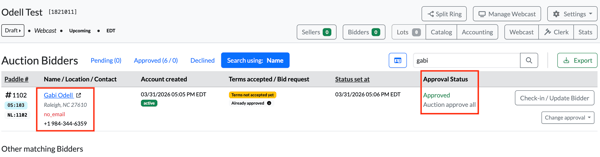
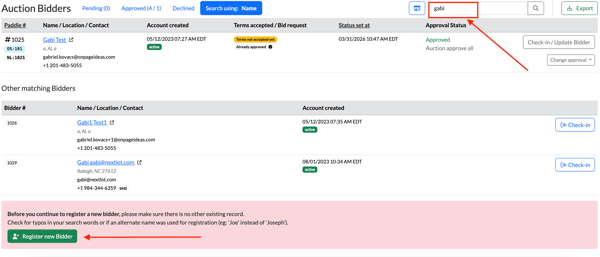
An important note: when registering a bidder for an onsite auction, if your search matches existing first or last name criteria, a red warning message will appear stating:
"Before you continue to register a new bidder, please make sure there is no other existing record. Check for typos in your search terms or consider if an alternate name was used for registration (e.g., ‘Joe’ instead of ‘Joseph’)."
This message is intended to ensure you are aware that a bidder may already be registered under similar criteria before creating a new record.
For example, if you search for “Gabi” instead of the full name “Gabrielle,” the warning message will appear to alert you that someone matching that criteria may already exist in the system.
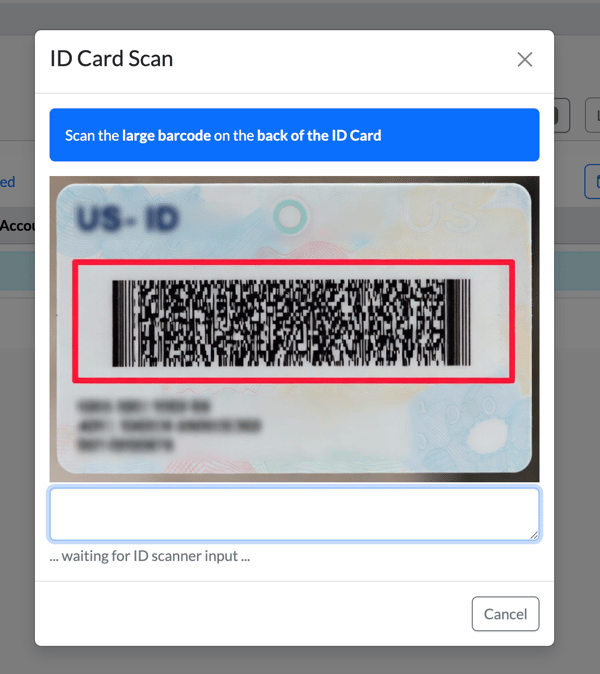
Feature- Driver's License Scanner for bidder check-in/registration
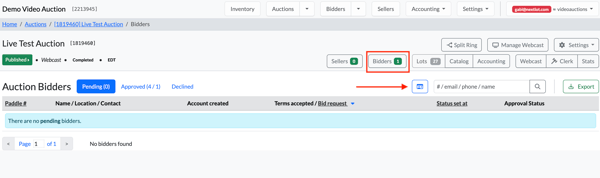
You will also notice a new driver’s license scanner button when checking in a bidder, located next to the search field used to find bidders for auction check-in.
More details on this feature will be shared soon. In the meantime, if a client already has a scanner for driver’s licenses, we encourage them to begin testing and using it. It has been confirmed that anyone with a Wavebid purchased drivers license scanner will work with the NextLot platform.
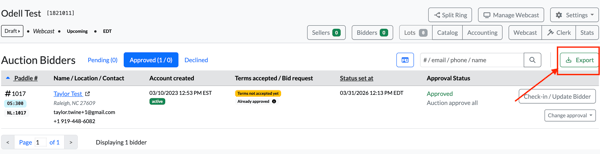
Feature – Bidder Export Improvements
When exporting the bidder list from a webcast that includes onsite bidding, two new columns have been added to the spreadsheet: Column C (Online #) and Column D (On-site #). These additions help improve the accuracy of bidder identification and bidding records.

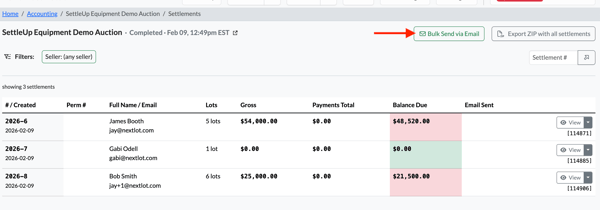
FEATURE - Bulk emailing of seller settlements
You can now bulk email seller settlements on an auction by auction (or auction ring code) basis.
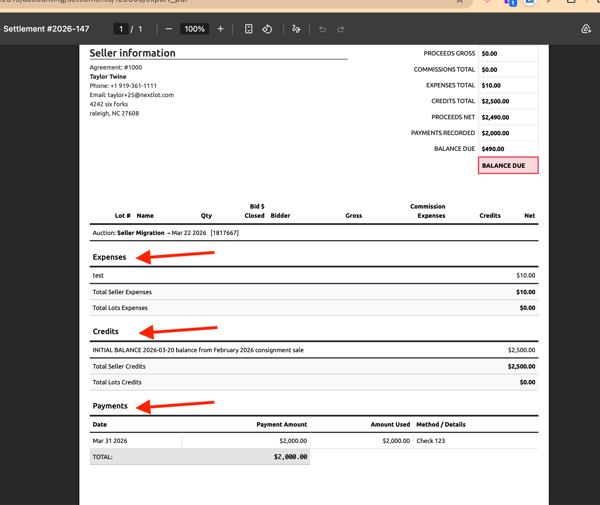
FEATURE - Display Seller Credits, Seller Expenses and Seller Payments on printable seller settlements
These fields are now not only showing in the UI for the admins to see but are now included in the PDF copies that the sellers will receive.
FEATURE - Bulk Printing of Invoices/Settlements from a Zip File
When navigating to bidder invoices and needing to download them for printing, there is now a “Zip with all invoices” option available.
To use this feature, go to the bidder invoices for the desired auction, click the green Export button, and select “Zip with all invoices.” This will download a ZIP file containing all invoices to your device.
.png?width=600&height=187&name=Screenshot%202026-03-25%20at%201.13.49%20PM%20(2).png)
.png?width=600&height=222&name=Screenshot%202026-03-25%20at%201.14.57%20PM%20(2).png)
Once you open the ZIP file, each invoice will be saved as an individual PDF, allowing you to easily select specific ones to print. If you prefer to print all invoices at once, simply select all the PDFs (click invoice, and then hold Shift down as you select all invoices) and use Ctrl + P (Print), which will print them together as if they were combined into a single document.
.png?width=600&height=302&name=Screenshot%202026-03-25%20at%201.30.34%20PM%20(2).png)
Updated Knowledge Base Articles: