
Once
*Internal* System Release Notes April 27th, 2026
FEATURE – Delete Seller Payment
We understand that, similar to the ability to delete bidder payments, there is also a need to delete seller payments. With this update, when you navigate to the applicable seller settlement, a Super Admin (NextLot team members only) can now remove a seller payment. This process works similarly to deleting a bidder invoice, simply open the settlement, scroll to the payment in question, and click the red “Delete” button.
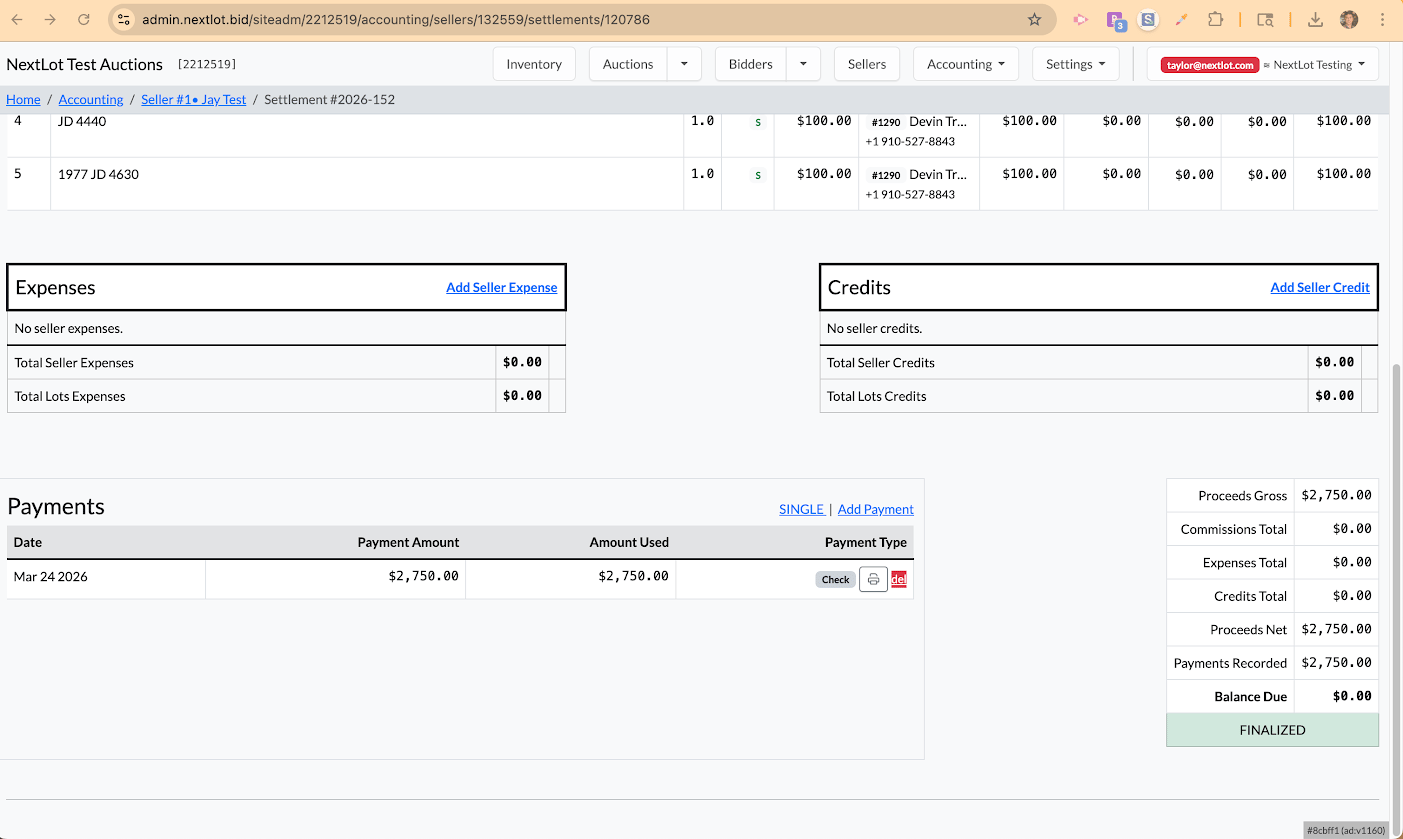
If you go to the seller's settlement summary, you will also see the option to delete payments at the bottom for ALL of their settlements that have received payments.
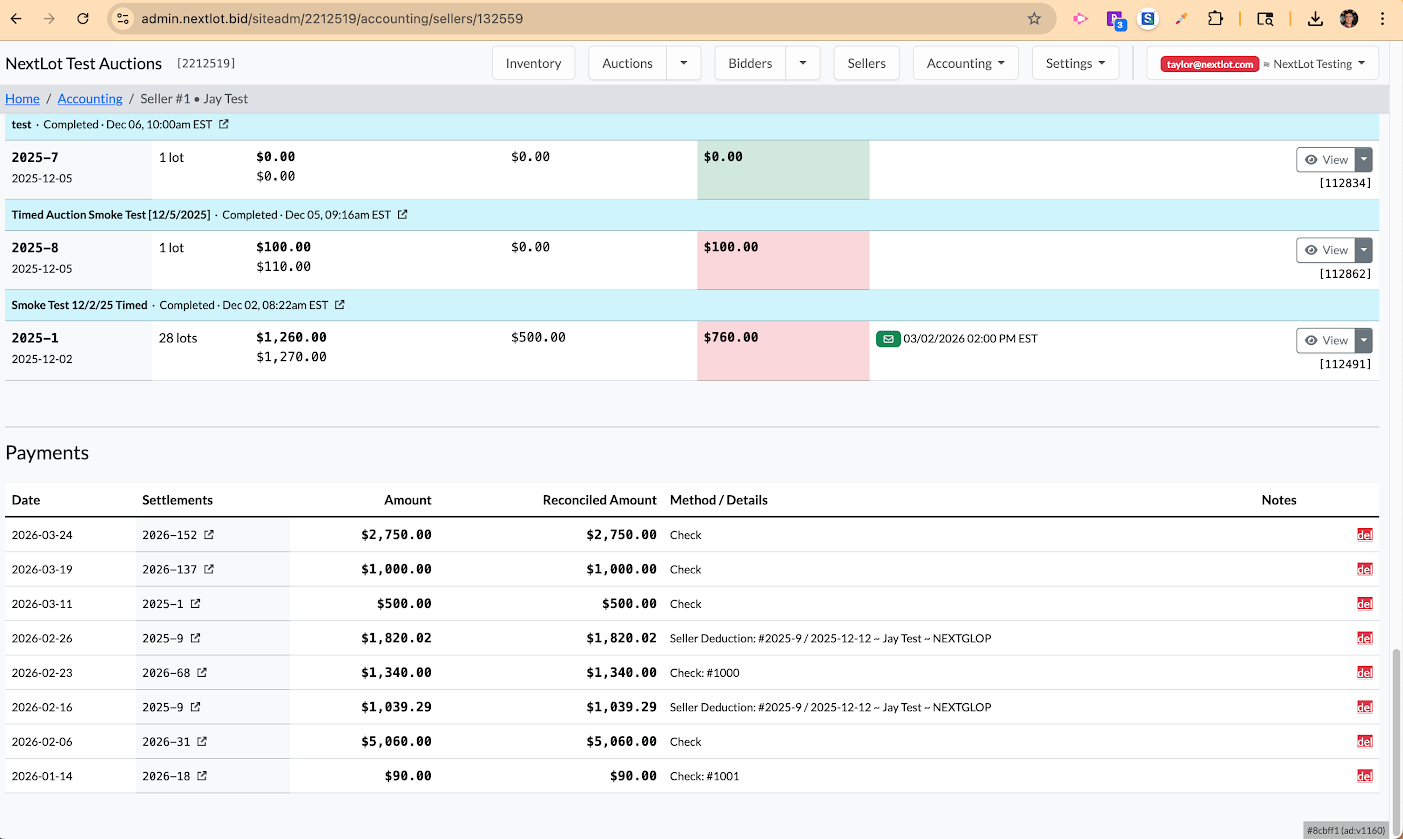
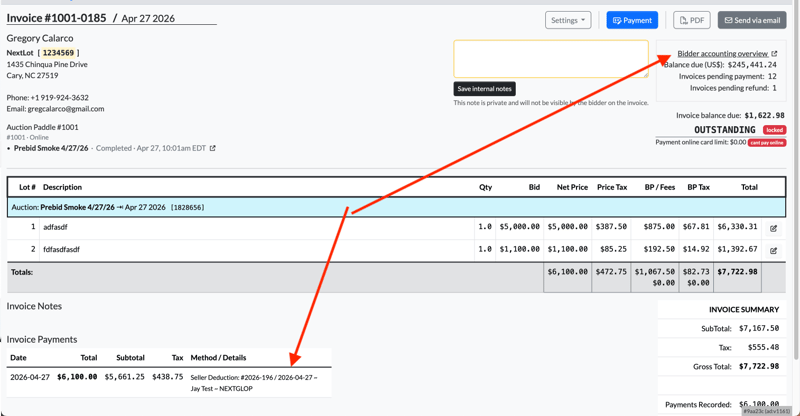
There are some restrictions in deleting a seller payment, particular when those payments are linked to a bidder invoice. If you go to a seller settlement and attempt to delete the seller deduction payment method, you will receive an error (see video below).
In order to properly delete the payment, you must FIRST go to the bidder invoice upon which the seller deduction was used as a payment method (shown below). Once you are sure you are on the right invoice, click on the Bidder accounting over option to access a full list of all of the bidder payments:
On this list of bidder payments, click to delete the payment that matches that from the invoice.
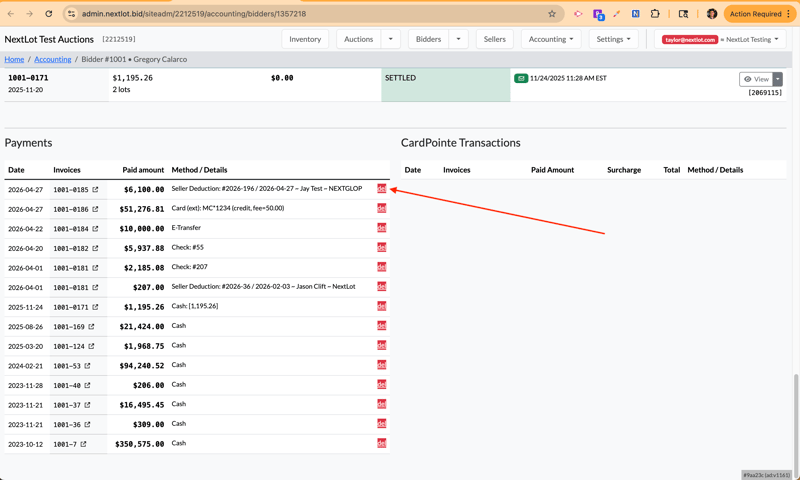
Once this has been deleted as a BIDDER payment, you can return to the seller settlement and successfully remove the payment of the seller deduction to the seller.
The reason that you cannot delete the seller payment that was done in the method of a seller credit immediately is that the bidder invoices/seller settlements while interconnected, are 2 completely different entities. They are treated separately and thus the payment has to removed from each separately.
FEATURE – Customer Logo Banner on Bidder Invoice/ Seller Settlement
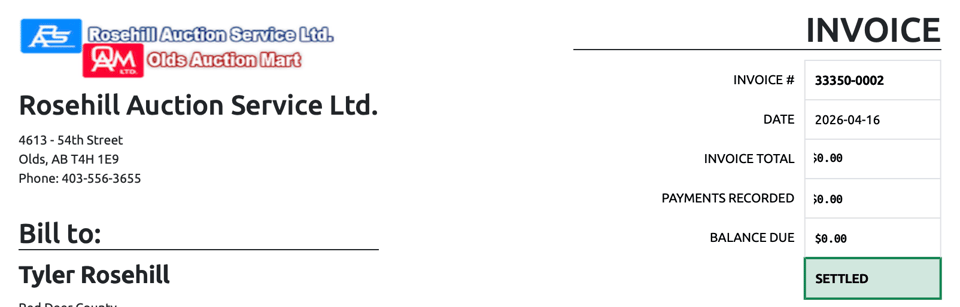
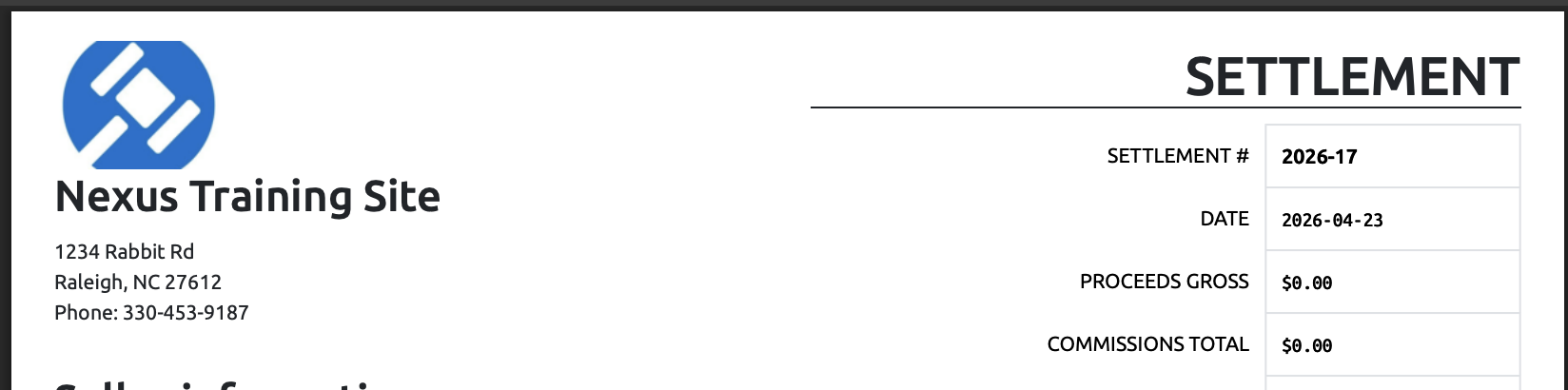
To further enhance a client’s white-label experience, you can now add a client’s logo to bidder invoices and seller settlements. Examples are shown below:
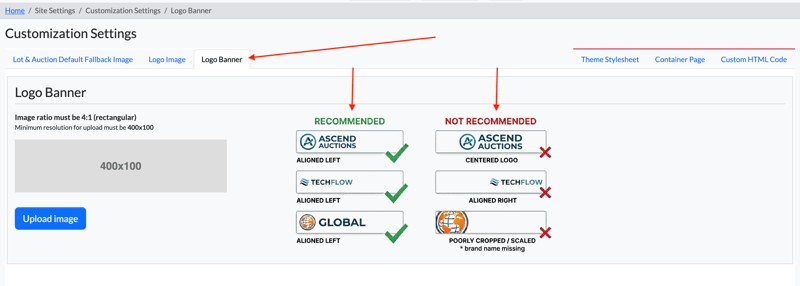
The logo displayed on invoices and settlements is pulled from the Logo Banner setting. To update this, navigate to Site-Wide Settings → Customization & Appearance → Logo Banner.
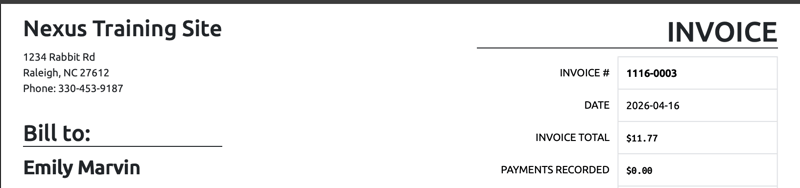
If a Logo Banner is not currently uploaded, you will only see the auction site name on your invoices like so:
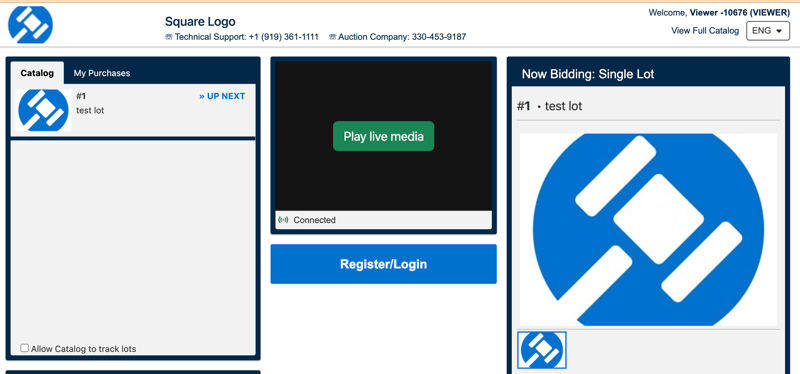
Once you upload a logo banner it is ALSO used as a logo in your webcast. Here are ways to consider your logo banner:
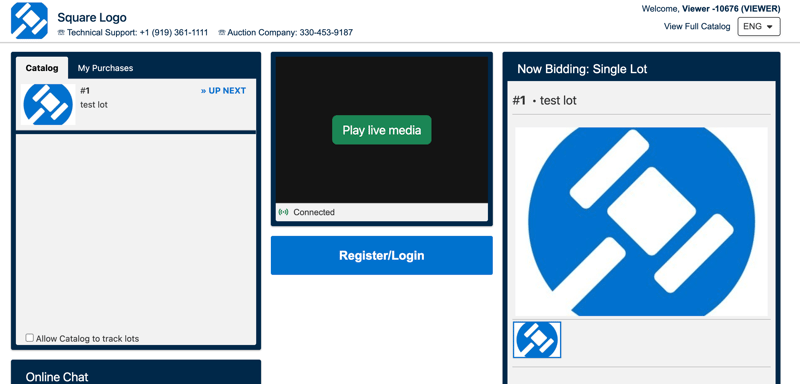
No Logo Banner in Webcast (Defaults to the square Logo Image in the Webcast)
Invoice/Settlement (no logo displayed at all):
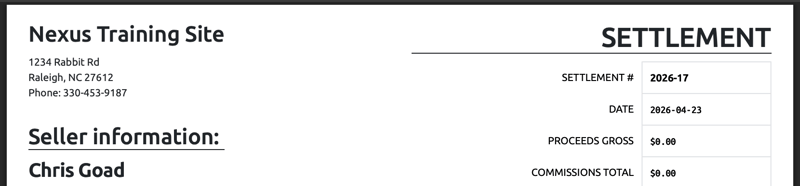
If you upload a square based logo image into the logo banner, its best done by aligning it to the left for the purpose of displaying it on the invoices/settlements, however it will result in some white space in your bidder/viewer webcast view to the right of your logo:
Left Aligned Webcast Banner:
left aligned bidder invoice/seller settlement:
The best option if you do NOT have a good logo banner style images for your settlements is add your company name to the left of your logo in the logo banner like shown below:
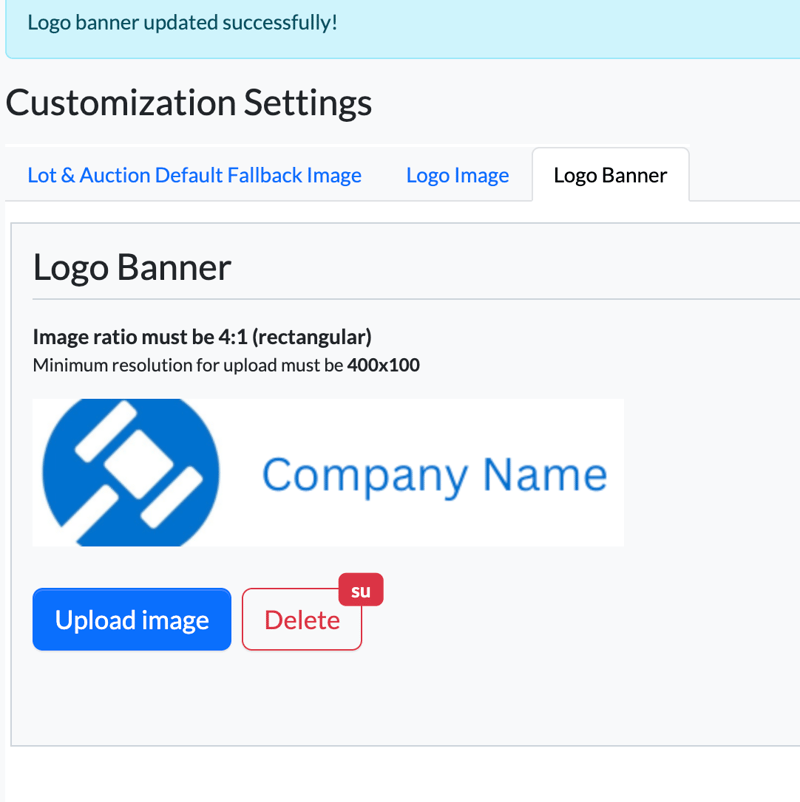
If added, it will appear like so in the webcast:
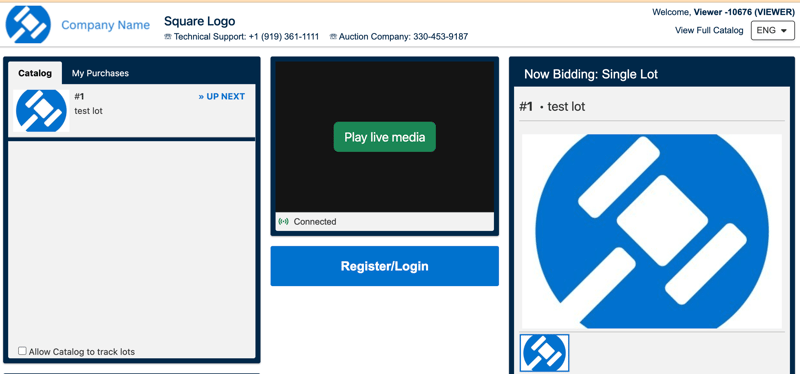
and like so on the bidder invoices/seller settlements.
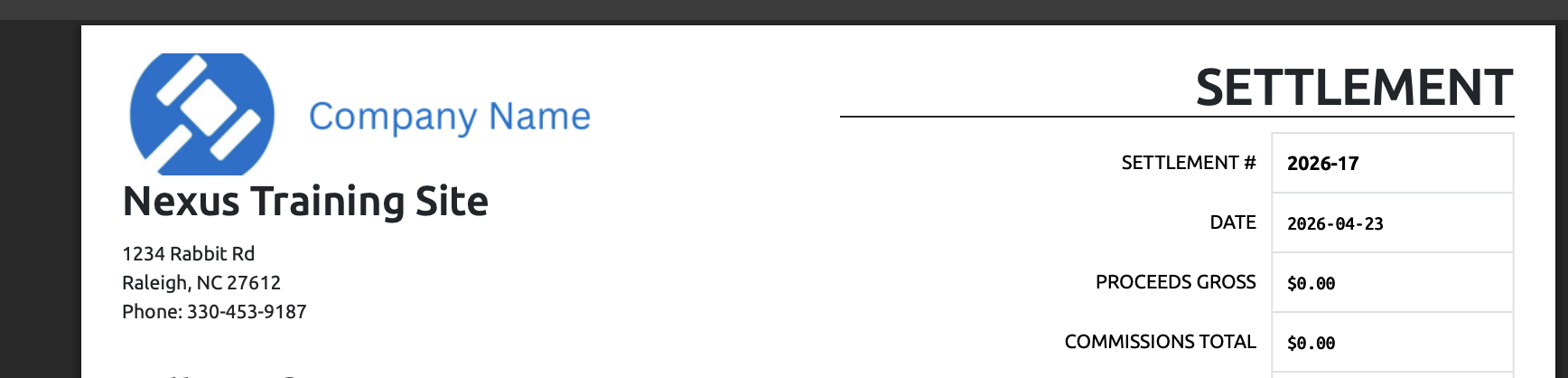
If your customer only has a square type logo, help them out in creating something in Canva like the above and using it as their logo banner for use in their invoices/settlements and in the webcast.
Updated Knowledge Base Articles
Ensuring Bidders are registered to receive SMS Notifications