
*Internal* System Release Notes January 21, 2026
Auction Payment Summary Report:
With the continued expansion of the NextLot accounting system, a report has been created to show an auction's payment summary at a very high level to help auction houses determine how their remittance process for invoices is progressing. To access this report, go to the accounting section and then select Auctions to view a list of all of your recently/currently closing auctions. In this list, you will see a new icon shown in as the 4th in the icons listed for each auction. Clicking this icon will bring you to the auction payment summary report for that particular auction.
If you look at the 4th auction on this list, you will see that this auction does NOT have an icon in this place. This is because there are NO invoices (see Inv. column for this auction reads 0). If there are NO invoices for an auction, there is no Auction Payment Summary report available.
.png?width=800&height=310&name=Screenshot%202026-01-19%20at%203.48.39%20PM%20(2).png)
There are several payment sections that may appear on the Auction Payments Summary Report. These sections will only populate if at least one payment of that type has been recorded. The available payment types include:
Seller Credit, Cash, Check, Bank Wire, E-Check (ACH), E-Transfer, Card (Online), Card-on-File, and Card (On Site).
Seller Credit
Additional details for Seller Credit will be provided within the next 30 days.
Cash
The Cash section displays detailed information for each cash payment, including the payment date, the paid amount, and within the Details section, you will see the amount of cash given and if there is any change needed to be given to the bidder. It also shows which admin recorded the transaction, the invoice number it was applied to, the bidder’s name and company (if filled out within their bidder profile), and any notes entered at the time of payment.
At the bottom of the section, you’ll find summary totals for the auction, including total paid amount and total cash collected and in the upper-right corner, the number of cash transactions for the auction is displayed.
In the example shown, bidder Jason Clift paid $1,400 in cash for an invoice totaling $1,316.70. The auction house returned $83.30 in change, which is reflected in the Details column. The transaction was recorded by Admin Odell, allowing staff to easily identify who recorded the payment if questions arise.
Another example shows Mad Rexrode, who paid part of her invoice in cash. A note entered by Admin Odell indicates that the remaining balance will be paid on January 22.

Check
The Check section includes details such as the payment date, the paid amount, and a details section where the check number (if entered during time of transaction) will be found. It also displays the admin who recorded the payment, the invoice number, bidder name & company (if filled out within their bidder profile) and any notes made my admin in relation to this transaction.
At the bottom, you’ll see summary totals for the auction, including the total paid check amount, along with the number of check transactions in the upper-right corner.
In the example, Admin Odell recorded the check number used by Mad Rexrode and noted that the payment was made with a business check.

Card
This payment type indicates that a bidder paid their invoice on site using a credit or debit card, with the payment recorded by an admin in Settle Up.
The Card section includes details such as the payment date, the paid amount, and a details section where you will be able to tell if the card used was a debit or credit and the surcharge fee applied (if applicable). It also displays the admin who recorded the payment, the invoice number, bidder name & company (if filled out within their bidder profile) and any notes made my admin in relation to this transaction.
Summary totals appear at the bottom, including total paid card amount, along with the number of on-site card transactions.
In the example, Grace Winchester used two cards to pay her invoice. The first transaction does not show a surcharge, likely due to debit usage or state regulations (such as Connecticut) (notice how it reads (debit) after the card information). The second transaction includes a surcharge, indicating it was processed as a credit card (also notes credit).

Card (Online)
This payment type indicates that the bidder initiated payment online using a card on file or by entering a new card. This option is only available to clients using NextLot’s third-party payment processor, CardPointe.
The Card (online) section includes details such as the payment date, the paid amount, and a details section where you will be able to tell if the card used was a debit or credit and the surcharge fee applied (if applicable). It also displays the admin who recorded the payment, the invoice number, bidder name & company (if filled out within their bidder profile) and any notes made my admin in relation to this transaction.
Summary totals appear at the bottom, including total paid card (online) amount, along with the number of card (online) transactions.
In the example, Mitchell Lea paid his invoice online, which is confirmed by the “Recorded By” column showing Bidder Initiated rather than an admin name. You can also see that he must have paid with a credit card due to the $5.20 fee added in the Details column.

Card-on-File
This payment type indicates that an admin or auctioneer initiated payment by charging a bidder’s saved card on file. This feature is also only available to clients using NextLot Pay powered by CardPointe.
The Card-on-file section includes details such as the payment date, the paid amount, and a details section where you will be able to tell if the card used was a debit or credit and the surcharge fee applied (if applicable). It also displays the admin who recorded the payment, the invoice number, bidder name & company (if filled out within their bidder profile) and any notes made my admin in relation to this transaction.
Summary totals appear at the bottom, including total paid card-on-file amount, along with the number of card-on-file transactions.
An example would be, Admin Odell charged Cline Churchill’s card on file.

Bank Wire
The Bank Wire section includes details such as the payment date, the paid amount, and a details section where you will be able to see what bank as used along with the transaction ID (if filled out during time of transaction). It also displays the admin who recorded the payment, the invoice number, bidder name & company (if filled out within their bidder profile) and any notes made my admin in relation to this transaction.
Summary totals appear at the bottom, including total paid bank wire amount, along with the number of bank wire transactions.
In the example, Admin Odell recorded a bank wire payment from Grace Winchester using USABank, with transaction ID 222-9696963.

E-Check (ACH)
E-Check payments—commonly referred to as ACH in the United States—appear in this section.
The E-Check section includes details such as the payment date, the paid amount, and a details section where you will be able to see what bank as used along with the transaction ID (if filled out during time of transaction). It also displays the admin who recorded the payment, the invoice number, bidder name & company (if filled out within their bidder profile) and any notes made my admin in relation to this transaction.
At the bottom, you’ll find totals for E-Check payments and the number of E-Check transactions.
In the example, Admin Taylor Twine recorded an E-Check (ACH) payment from Bidder Taylor and Bidder Cline Churchill initiated an E-Check (ACH) payment online.

E-Transfer
E-Transfer is the Canadian equivalent of ACH/E-Check.
This section includes the payment date, bank name (if entered), transaction ID (if entered), amount collected, recording admin, invoice number, bidder name, and notes.
Summary totals include the total E-Transfer amount received and the number of E-Transfer transactions.
In the example, Admin Taylor Twine recorded an E-Transfer payment from Taylor Card, processed through Bank of America, with transaction ID 2000-10002-1124.

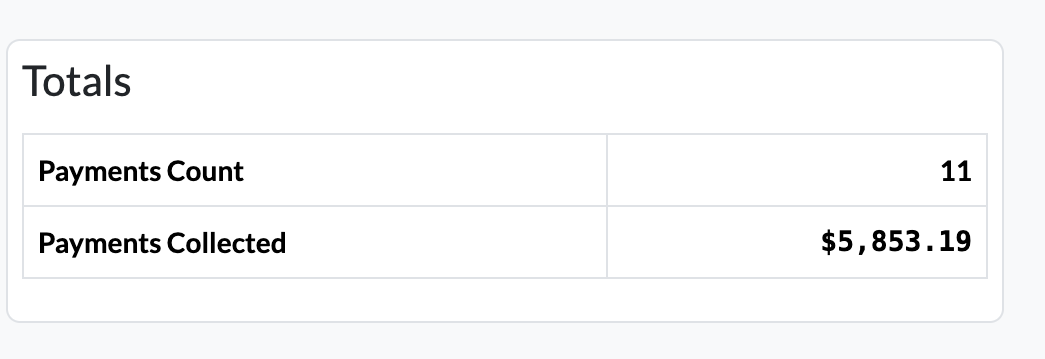
Totals
A Totals section is automatically created as soon as at least one lot is sold—regardless of whether a payment has been made.
This section displays the total number of payments collected (combined across all payment types) and the grand total amount collected at the time of viewing.
Important: This report does not update in real time. If changes are made to invoices or payments, you must refresh the page to see the updated information reflected in the report.
Filters of Auction Payments Summary Report
Within the Auction Payments Summary Report, you can filter payment records by the admin who recorded the transaction, the date range in which the transaction occurred, and the payment type. To select a filter, you simply click on any of the four filter type buttons i.e. Admin (any admin) and then the filters will appear. Please see picture below.
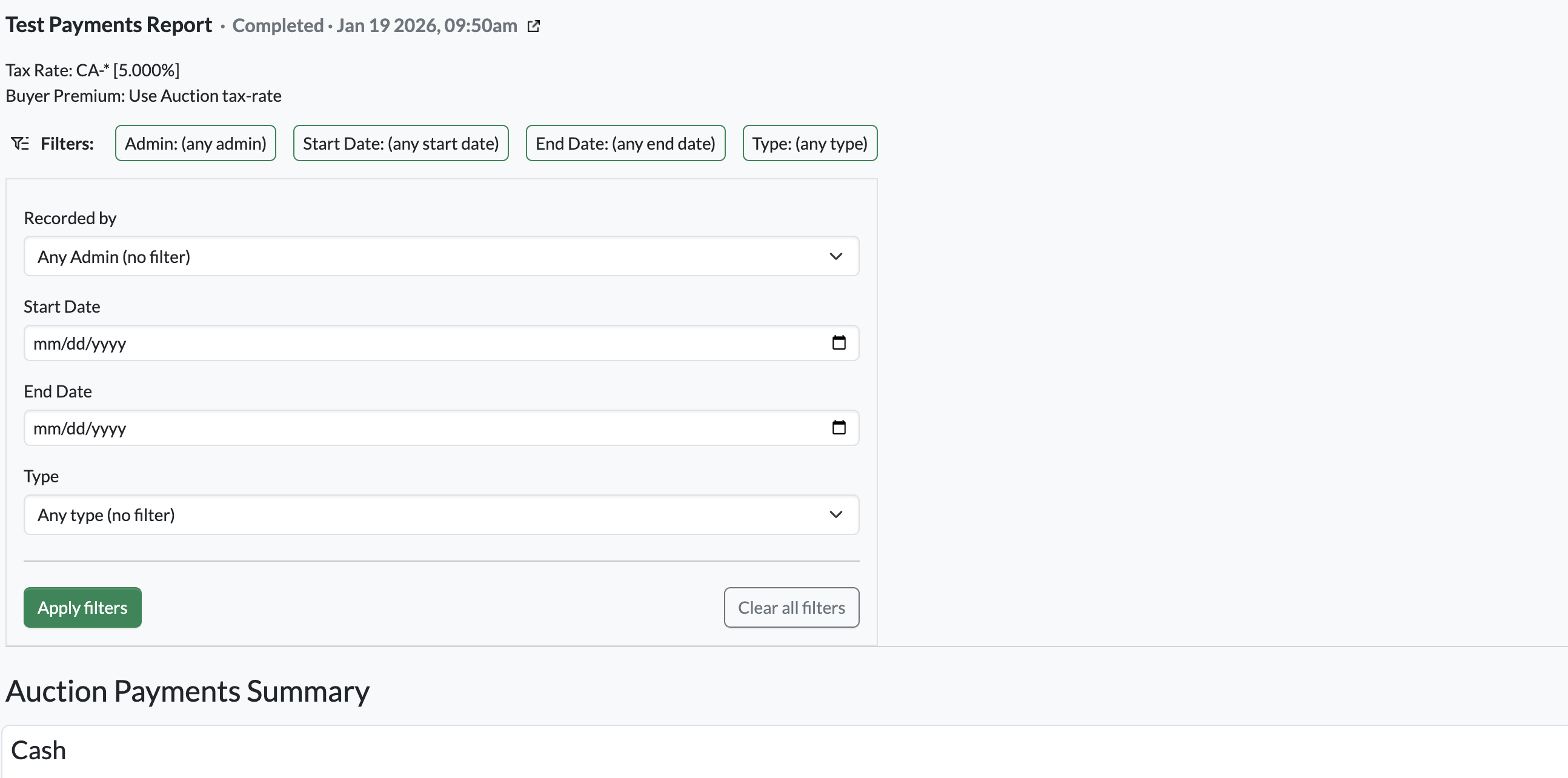
*Please note that Auction Payments Summary Reports are generated on an auction-by-auction basis (which also includes auction rings, if applicable), not across ALL COMBINED auction listings.
Downloading / Printing Auction Payments Summary Reports
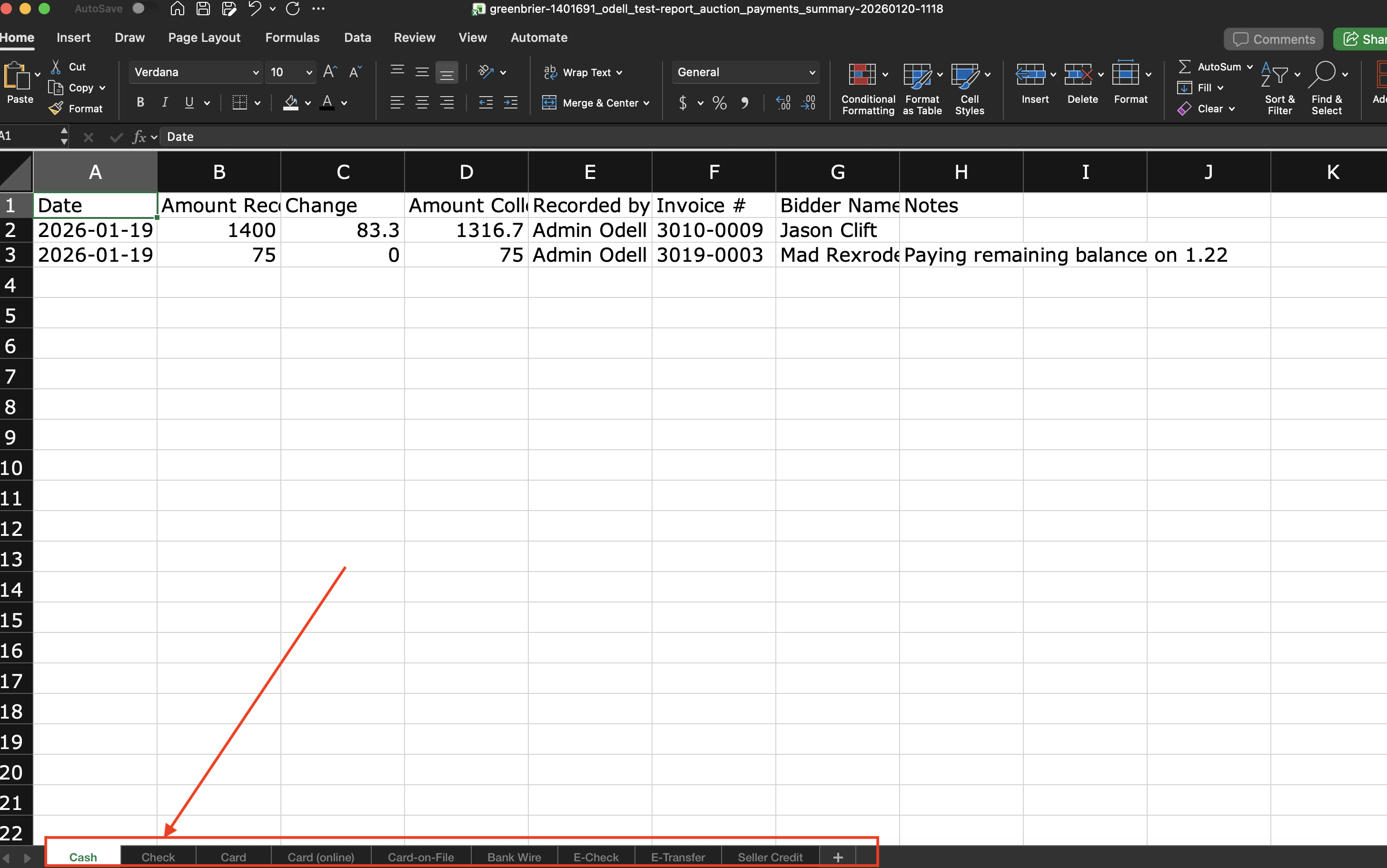
If you would like to download all auction payment reports and view them in an Excel file, simply click the green “Download Report” button. An Excel file will be generated containing the same fields displayed in the Auction Payments Summary Report within the UI.
Each payment type is organized into its own separate worksheet, which you can navigate using the tabs at the bottom of the Excel file.
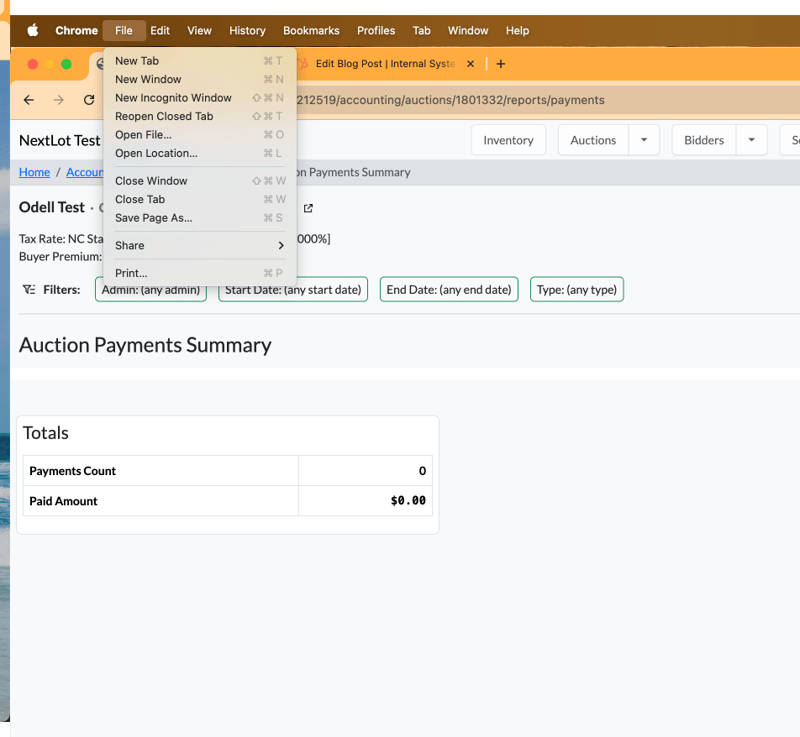
To print the Auction Payments Summary Report—whether filtered or for the entire auction—navigate to File → Print (on both Mac and PC). From there, you can select and print the specific pages that contain the data you’d like to include in a paper copy.
Refunding Entire Lots on Invoice
We now support full refunds of individual lots within an invoice that has already received payment. This feature is designed for situations where a bidder arrives to pick up their paid items, but one of the won lots is missing—for example, due to misplacement or theft.
To issue a full lot refund, navigate to the bidder’s invoice and click the edit icon labeled “Adjust Lot Line Item.” A modal will appear with a message indicating that a new correction invoice will be created. To process a full refund, set the Net Price equal to the lot’s sold price (for example, $100, as shown in the video below). You also have the option to refund the Buyer’s Premium (BP).
As shown in the video, the system will automatically calculate and include any applicable sales tax in the refund. This same process can be repeated for any additional fees associated with the lot, such as shipping or hauling.
Once completed, a new invoice will be generated for the refunded amount, which you can use to process the refund. The original invoice will update to reflect only the lots that were successfully picked up.
Please watch the video below for a full demonstration of how to issue full lot refunds.