
*Internal* System Release Notes March 20th, 2026
FEATURE – Add Initial Seller Balance During Bulk Import/Registration
To better support clients transitioning to Settle Up, we’ve introduced the ability to add an initial seller balance when bulk importing / registering new sellers. This is especially helpful when sellers have existing balances—whether the auction house owes the seller or the seller owes the auction house—making the migration process much more streamlined.
How to Use This Feature
- Navigate to the Master Sellers tab.
- Click the Import button.
- Select an auction where the new seller settlements will be recorded.
- This can be an active or closed auction.
- The dropdown will display the five most recent auctions in each category.
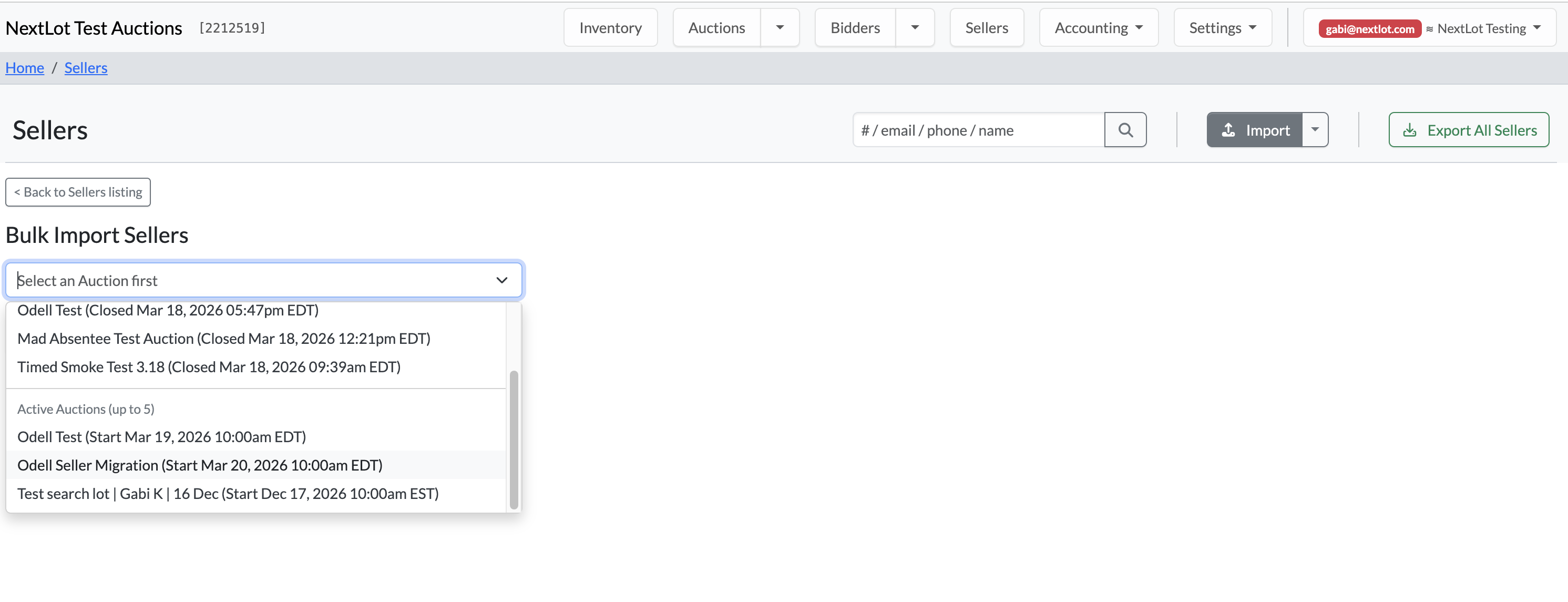
Best Practice:
Create a dedicated auction titled something like “Seller Migration” to easily track and manage all imported seller balances.
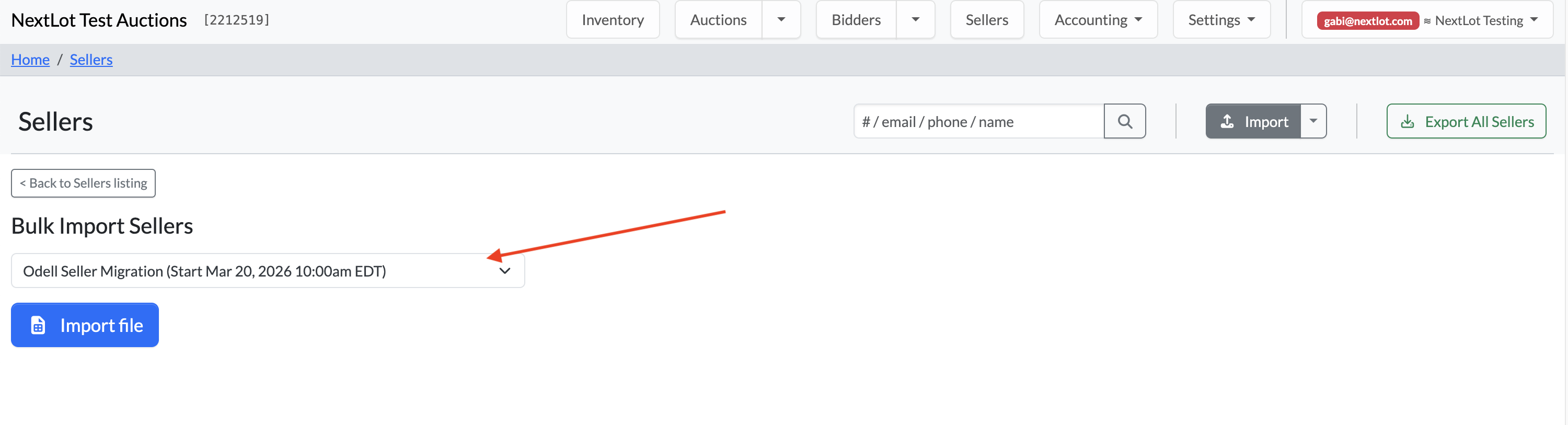
You now click "Import file".
Spreadsheet Updates
After downloading the import template, you’ll notice two new columns at the end:
- Column N: Initial Balance Amount (Optional)
- Column O: Initial Balance Note (Optional)

Complete all required fields:
- Columns A, B, C, F, H, I, J, K, L
- Columns N and O (if applicable—adding a note is strongly recommended)
.png?width=960&height=94&name=Screenshot%202026-03-19%20at%207.37.15%20AM%20(2).png)
Once completed, upload the file.
What Happens After Import
- Navigate back to the auction you selected.
- You will see the sellers have been successfully imported.
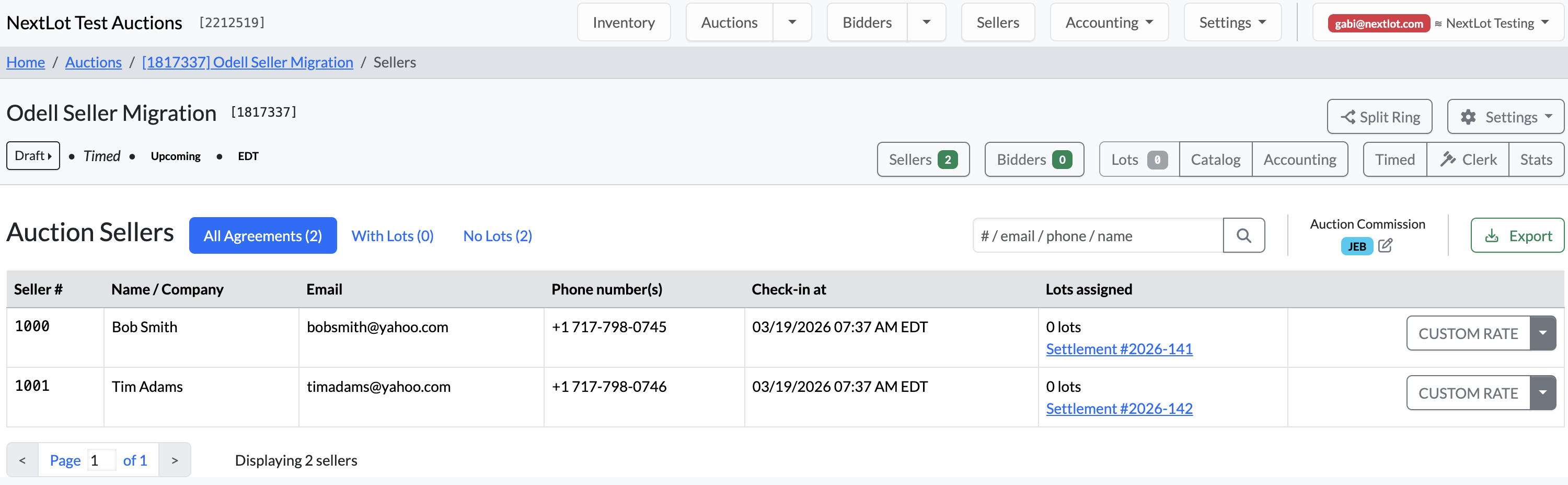
- Each seller will have a Seller Settlement reflecting the imported balance.
- Seller rates will default to Custom Rate, which can be adjusted later if needed (this does not impact the imported balance).
Balance Handling:
- Negative balance (seller owes the auction house): Displays as a seller expense
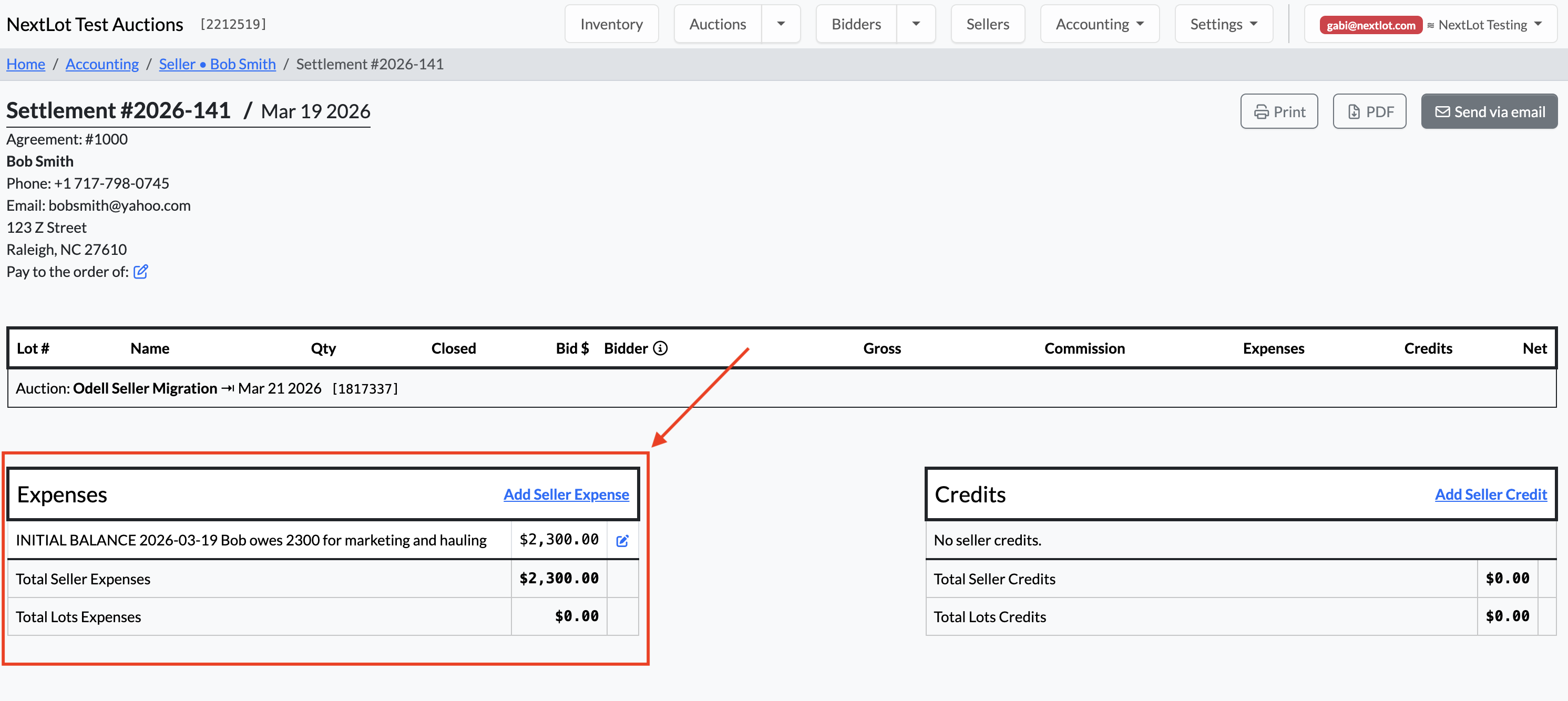
- Positive balance (auction house owes the seller): Displays as a seller credit
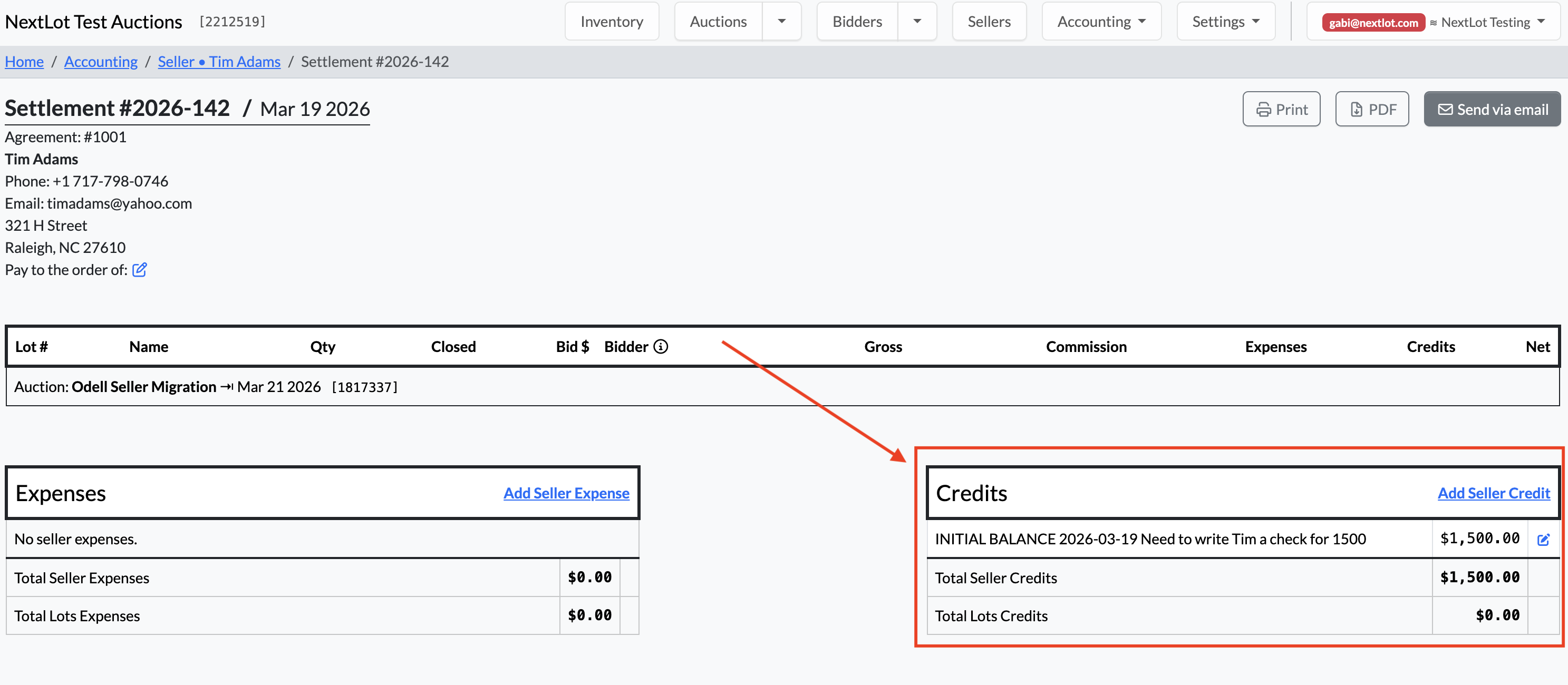
You can then reconcile and process payments as needed.
Important Notes
- This feature is available only through bulk import.
- It cannot be done when registering a seller individually using the Register New Seller button.
- However, you can still use the bulk import to apply a balance to a single seller if needed.
UPDATE – Registering Non-U.S. Sellers & Bidders Requires Country Code on Phone Number
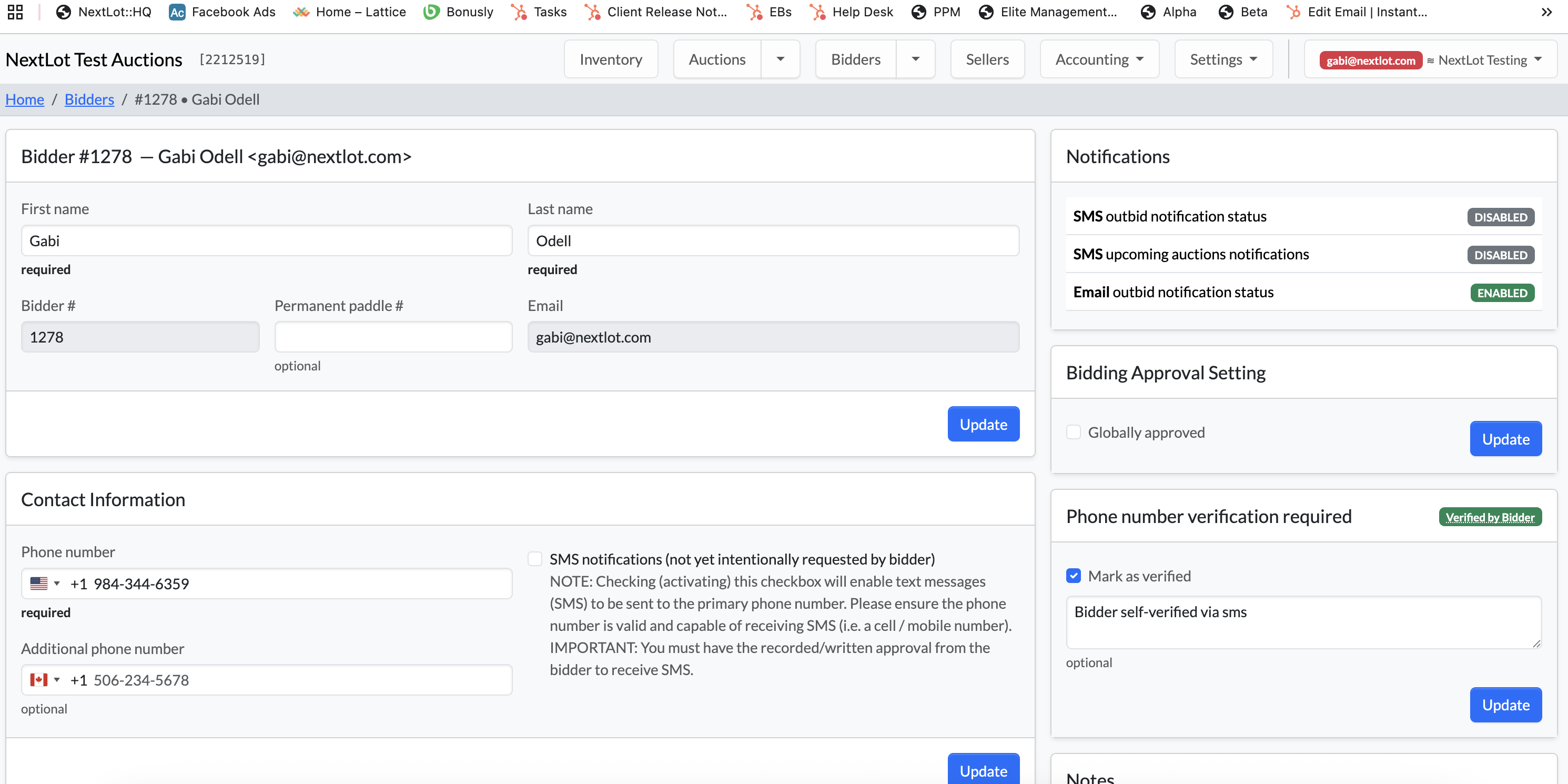
When manually registering sellers, or when a new bidder creates an account, the Phone Number field now includes a default country flag. This default is pulled from the site-wide country setting and automatically applies the correct country code.
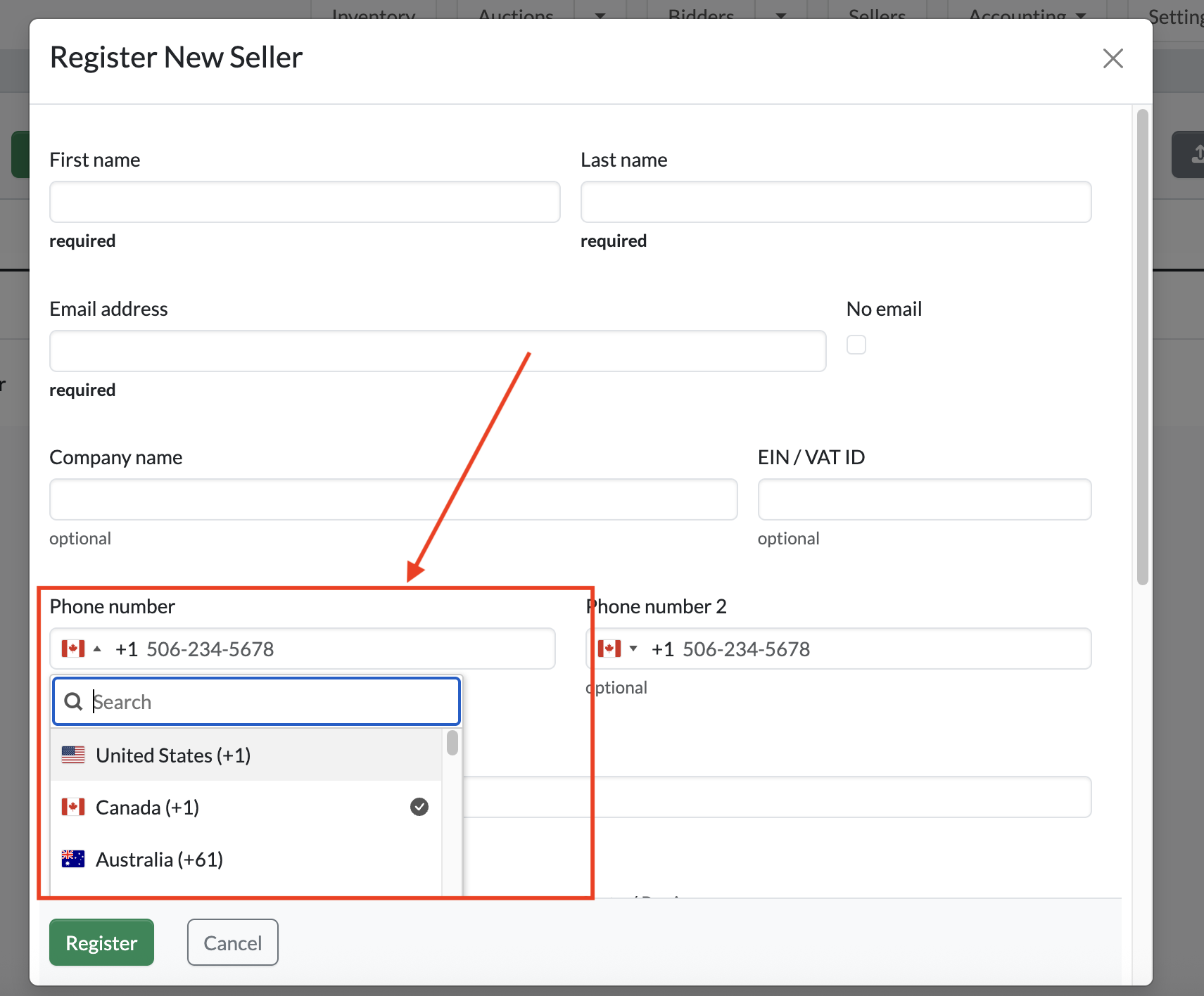
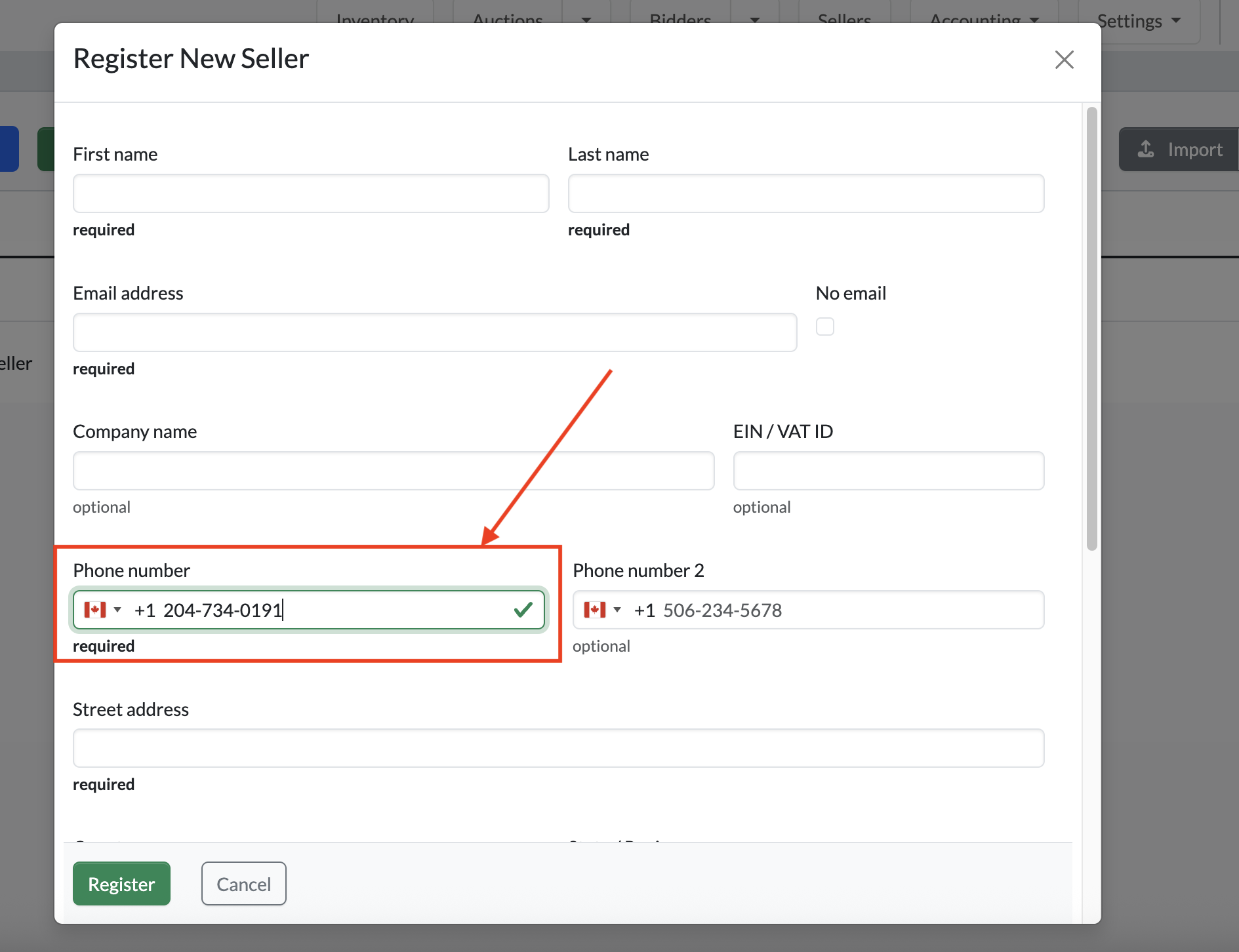
For example, if the default country is Canada, entering a valid Canadian phone number will result in the field being highlighted in green with a checkmark, indicating the number is valid.
If the auction house is based in Canada but the seller or bidder has a U.S.-based phone number, you have two options:
- Select the U.S. country code from the dropdown menu, or
- Simply begin typing the phone number, and the system will automatically detect the country of origin.
Please refer to the video below for a demonstration
FEATURE – Bidder Address Display in Check-In
When navigating to the Bidders tab of an auction, you will now see the bidder’s city, state, and ZIP code displayed directly beneath their name.
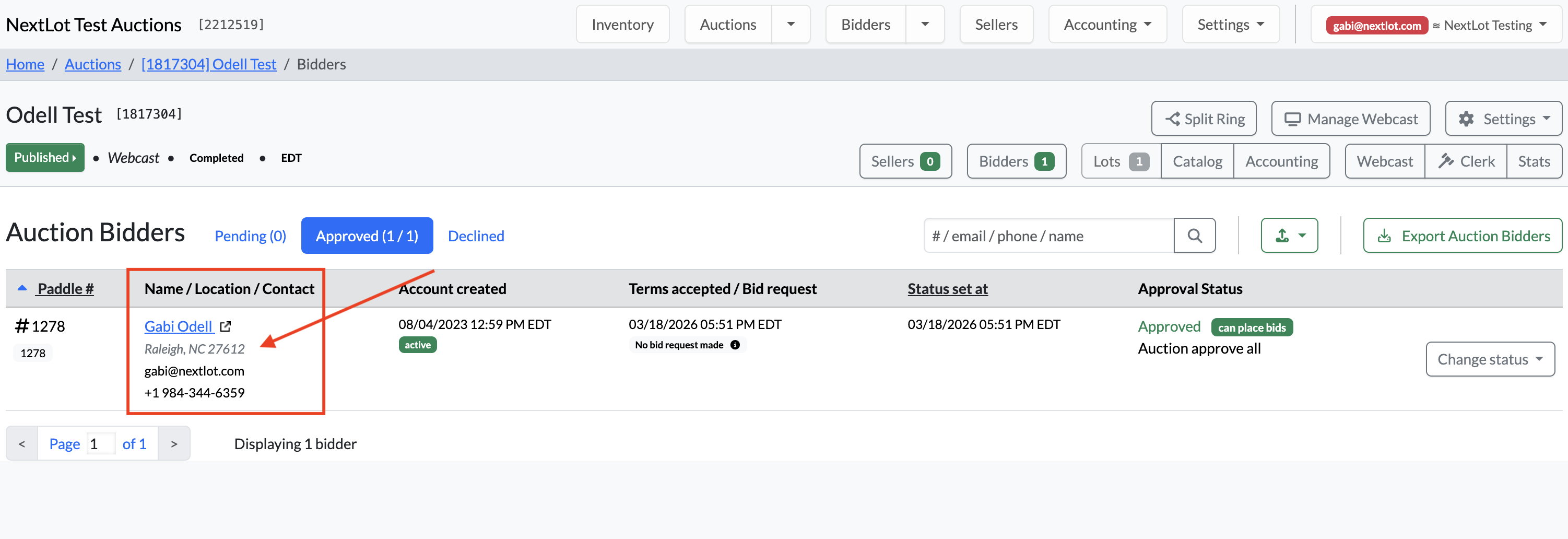
If you hover over the bidder’s name, a tooltip will appear showing the full address, including the street address.
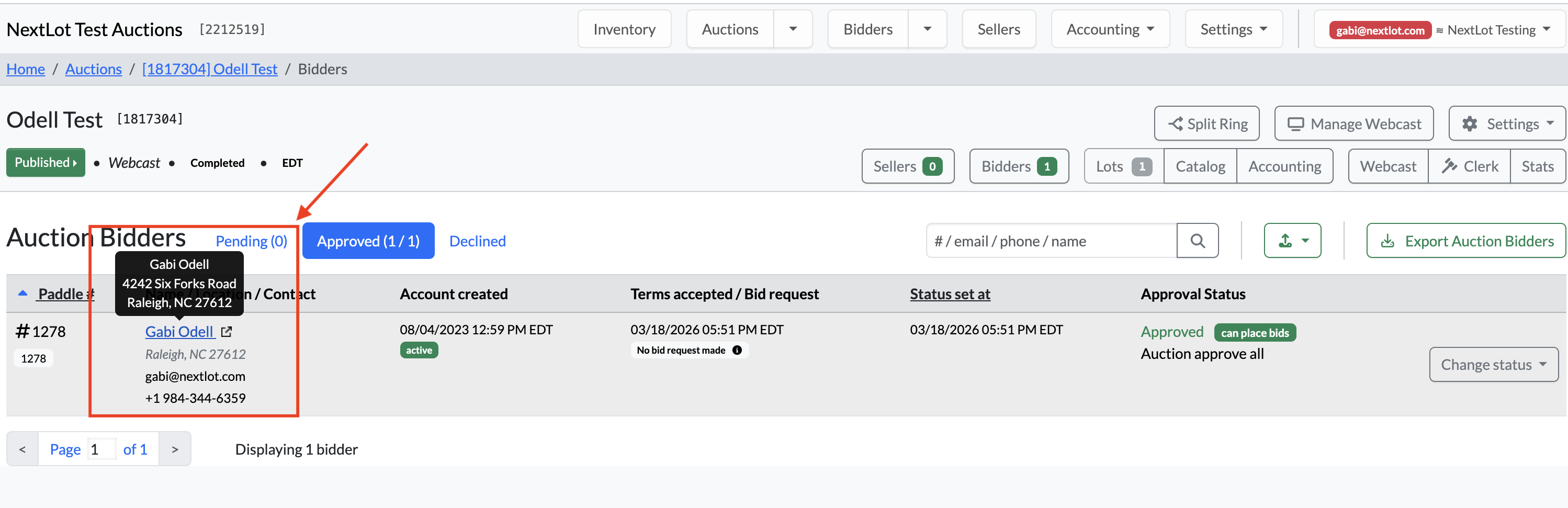
Additionally, the bidder’s name is now hyperlinked, allowing you to click on it and be taken directly to their bidder profile.
FEATURE – Clerking Grid Now Displays Bid Origin and Buyer’s Premium
The Clerking Grid has been updated to provide more visibility into each bidder’s activity and applicable buyer's premium.
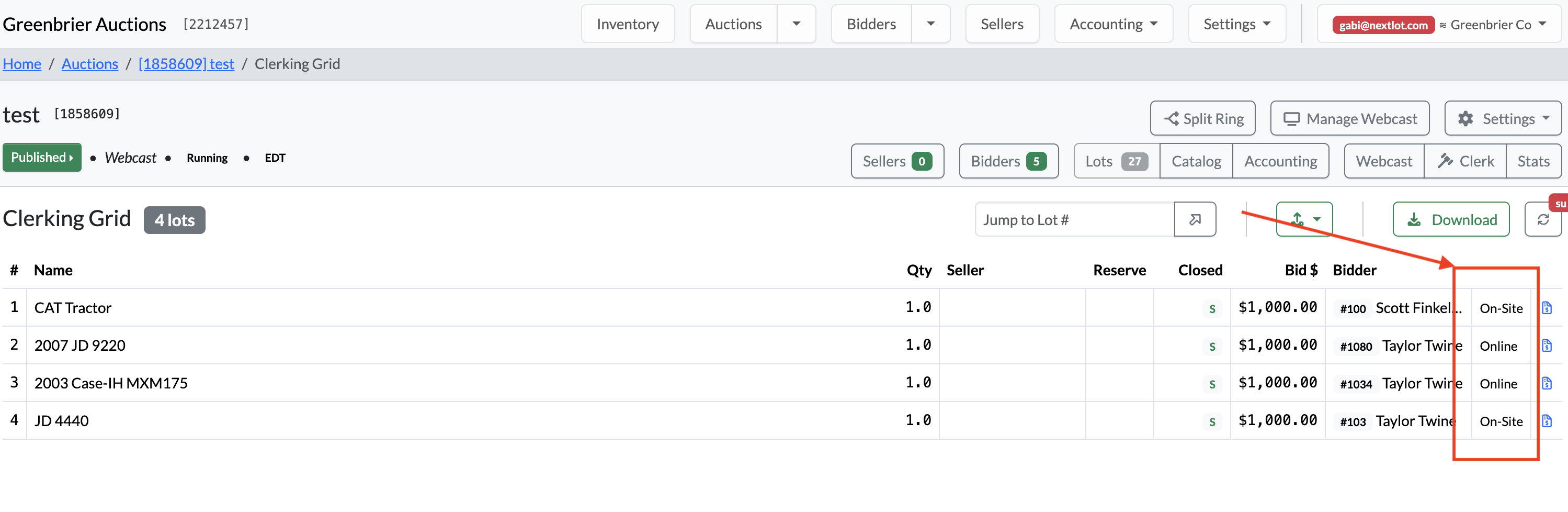
When navigating to the clerking grid, you will now see an additional column to the right of the bidder column that displays either “Online” or “On-Site.” This indicates the bidder’s platform (bid origin) for that specific clerked lot.
- Online: The bidder placed their bid through NextLot and will have the online Buyer’s Premium applied to their invoice (as set in the Buyer’s Premium settings).
- On-Site: The bidder is an in-person bidder and will have the on-site Buyer’s Premium applied to their invoice.
This makes it easier to quickly identify how each bidder is being charged.
Examples:
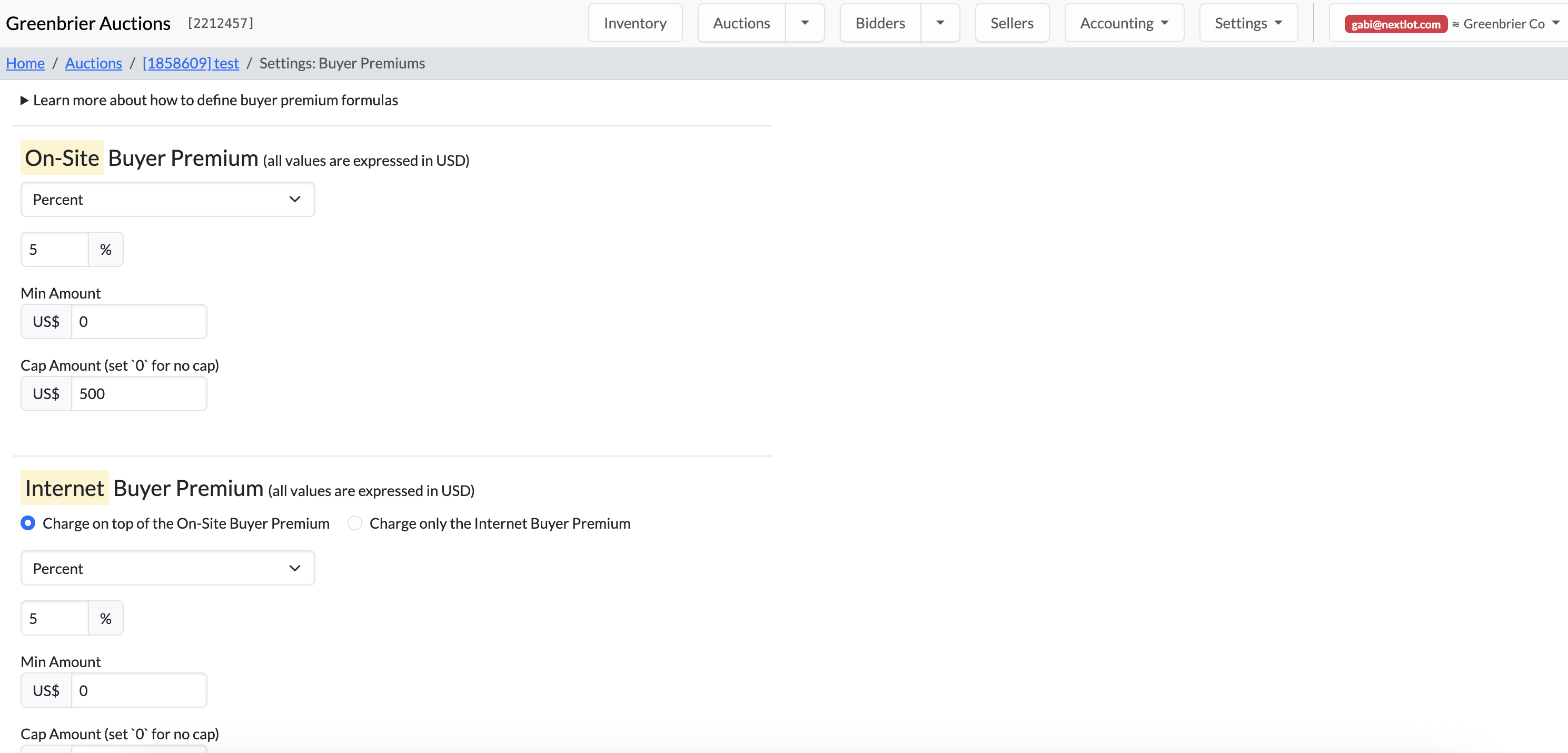
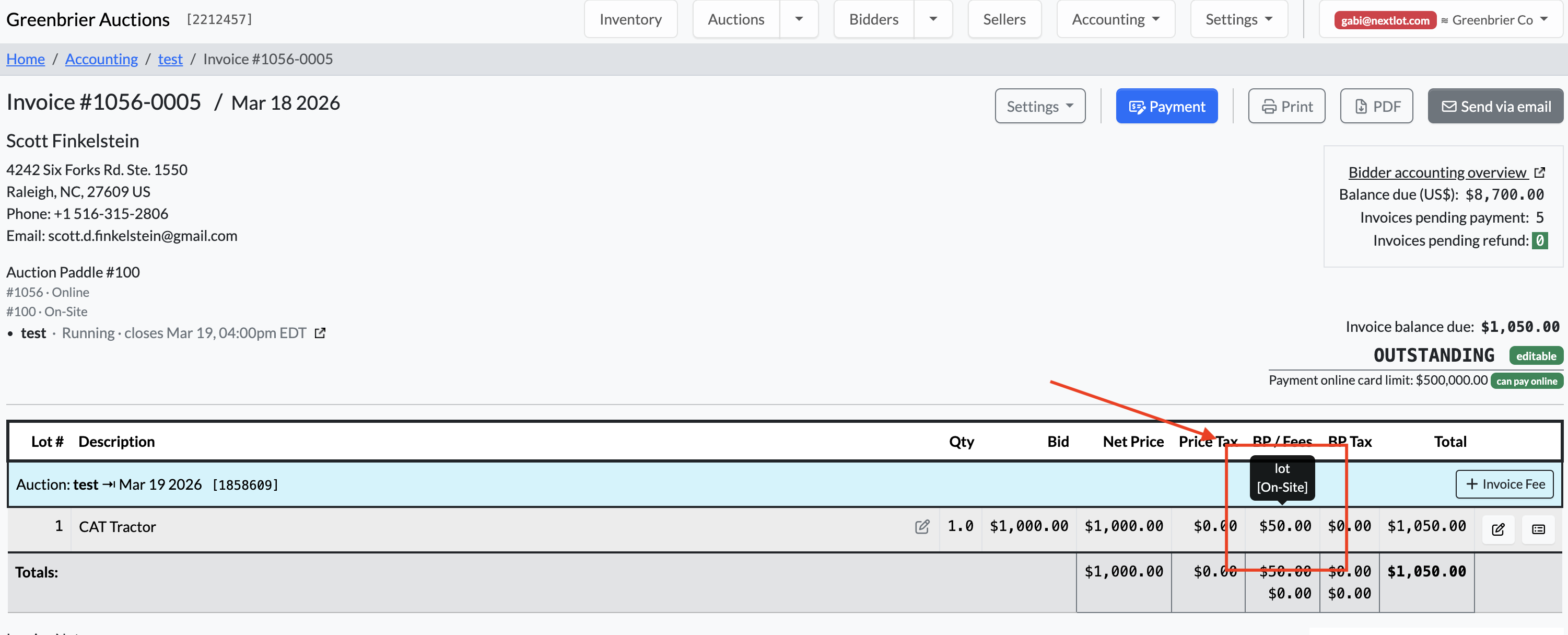
- If the on-site Buyer’s Premium is 5%, a $1,000 purchase will result in a $50 premium, which will be reflected correctly on the invoice.
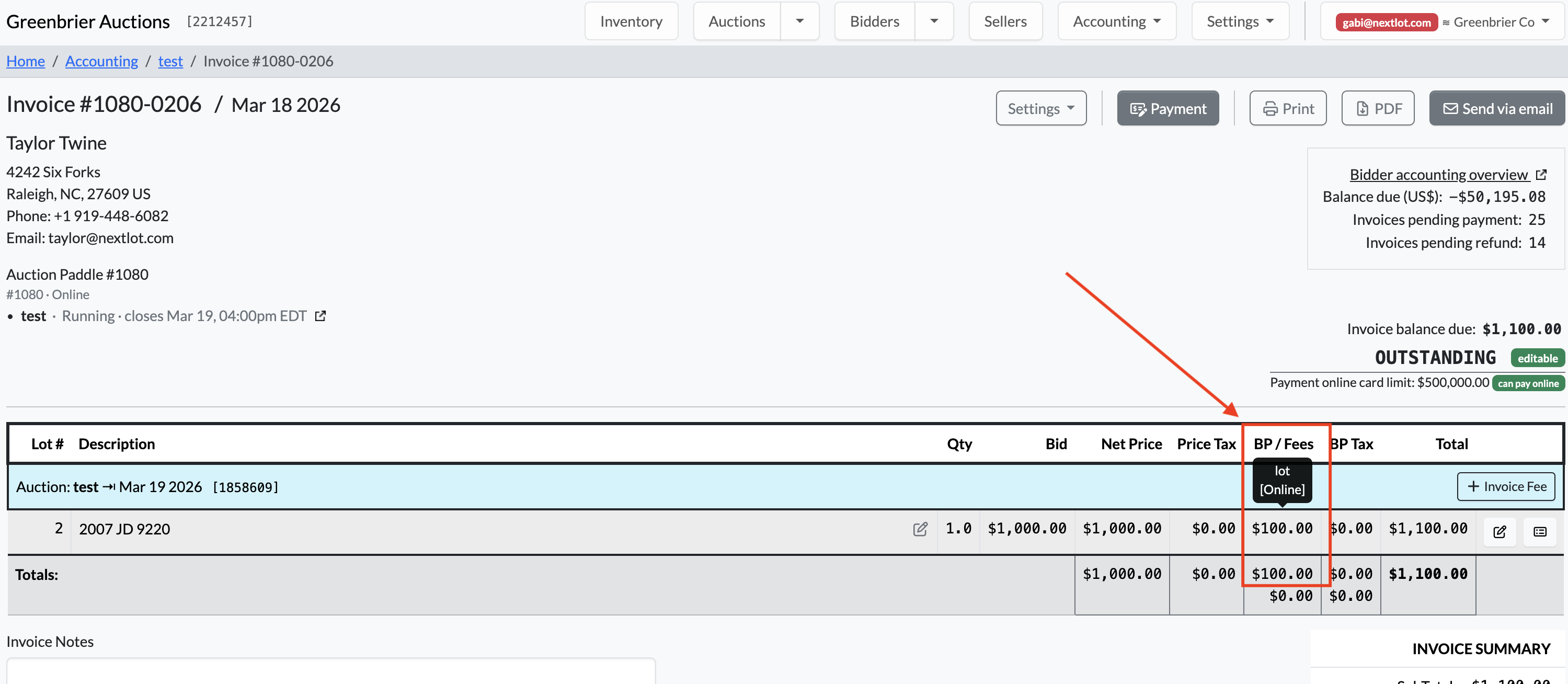
- If the online Buyer’s Premium is set to 10% (applied on top of the on-site rate), a $1,000 purchase will result in a $100 premium, also calculated correctly on the bidder’s invoice.
This update helps ensure clarity and accuracy when reviewing bidder activity and Buyer’s Premium charges during clerking.
FEATURE – Assigning On-Site Paddle Numbers in Webcast Clerk Screen displays Check Mark next to clerking grid assigned lots
Within the webcast clerking screen, you can now assign on-site paddle numbers to lots that were clerked during the auction.
To do this:
- Clerk the auction as you normally would.
- If a lot is sold to the Floor (on-site bidder), navigate to the Closed Lots tab.
- Enter the correct on-site paddle number for the winning bidder.
- Note: On-site bidders must be checked in prior to the auction. More details on this will be included in a future release.
Once assigned, the system will display a black checkmark next to the paddle number and bidder name, indicating the assignment was successful and that an invoice has been created for that on-site bidder.
.png?width=1884&height=499&name=Screenshot%202026-03-19%20at%2012.52.25%20PM%20(2).png)
Important Notes
- No changes to online bidding:
The way the system records NextLot online bidders and their winning bids remains unchanged. - Combined online and on-site bidding for the same bidder:
If a bidder participates both on-site and online (e.g., they leave the auction and continue bidding remotely), all purchases will appear on a single invoice.- The invoice will reflect the appropriate Buyer’s Premium (BP) for each lot based on how it was purchased:
- Example:
- A lot purchased online at $1,000 with a 10% BP = $100 BP
- A lot purchased on-site at $1,000 with a 5% BP = $50 BP
.png?width=1893&height=819&name=Screenshot%202026-03-19%20at%2012.55.01%20PM%20(2).png)
- Example:
- The invoice will reflect the appropriate Buyer’s Premium (BP) for each lot based on how it was purchased:
This ensures accurate billing while keeping all purchases consolidated under one invoice for the bidder.
FEATURE- Ability to Assign Lots to Checked In Sellers via Catalog App
With the release of Sellers tracking in NextLot, we have incorporated the ability to assign CHECKED-IN sellers to lots within the catalog app.
When you have sellers checked into your auction (like below)
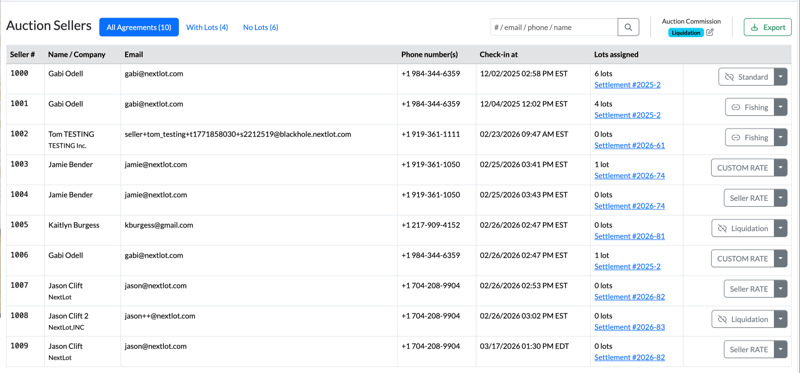 You can assign any 1 of these sellers to a particular lot via the catalog app.
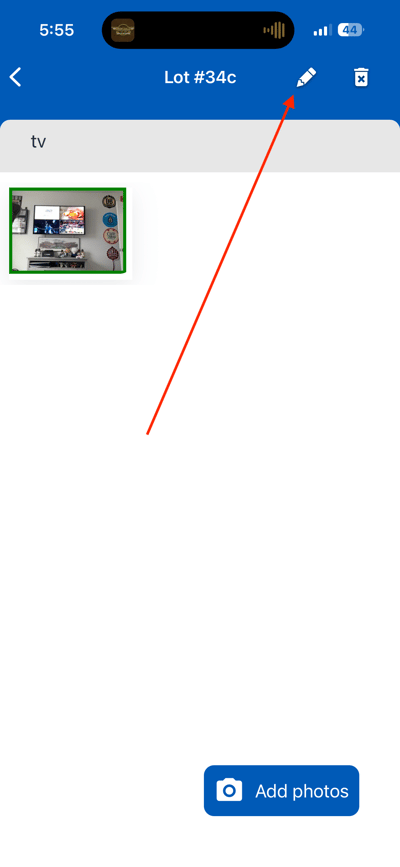
To assign a seller to an already created lot, click into the lot and then click the edit pencil icon
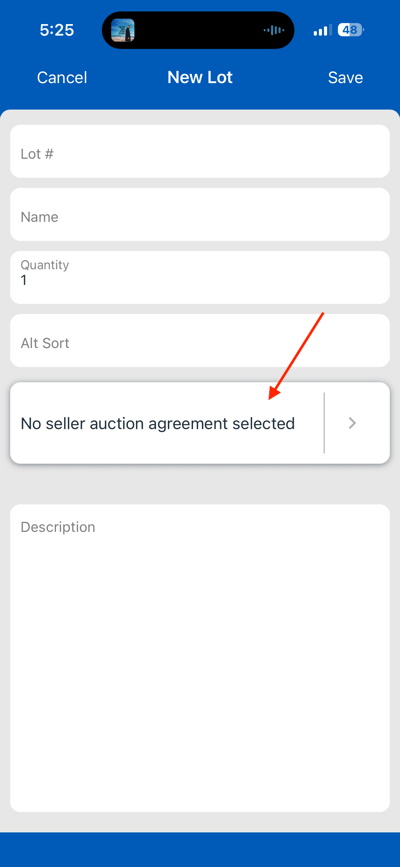
 Once in the edit screen, you will see the a new area called "No seller auction agreement selected" (assuming no seller has been assigned to this lot).
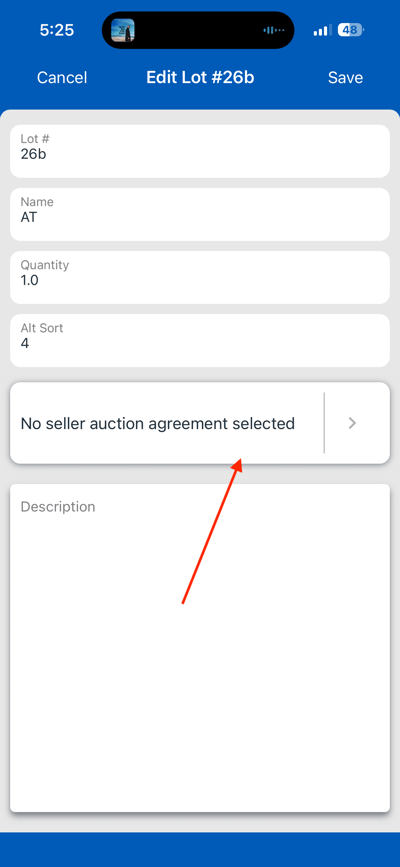
Once you click on this field, it will bring up screen where you can search for for a seller to assign to the lot by either searching for their auction seller #, their name, their email or their mailing address. At the top of screen it will list what the assigned seller auction agreement is (if there is not 1 assigned, it will reach "No seller auction agreement selected).
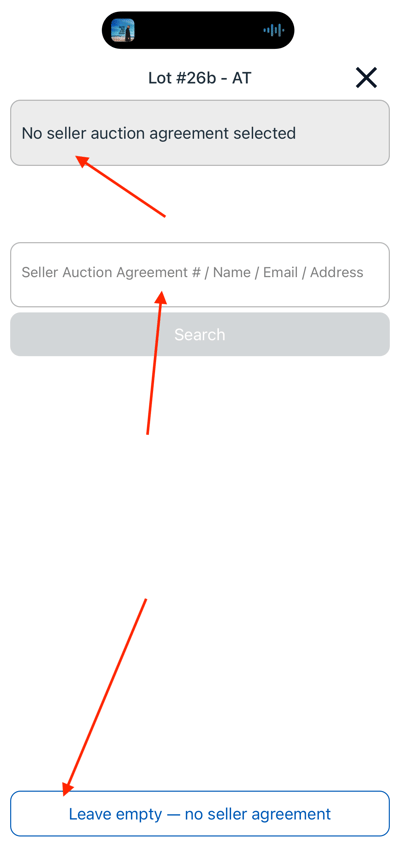
At the bottom of the screen is an option to click to leave the seller assignment empty and return to the previous page where you can edit the lot #, name, quantity, alt sort and description.
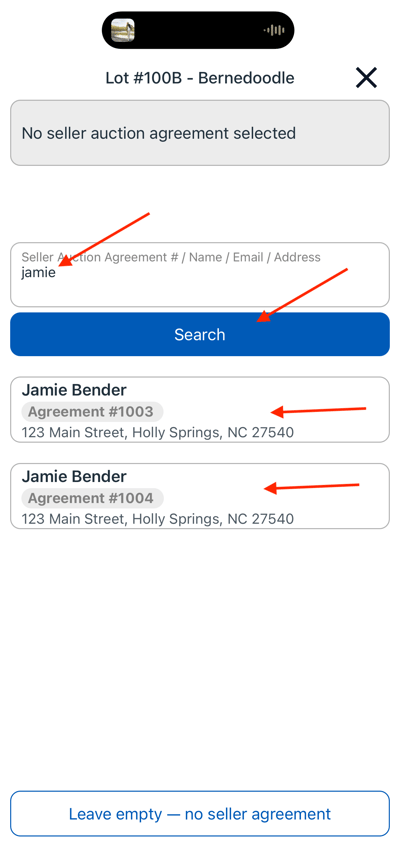
Once you type in your search criteria and click on the search button- the results that fit your criteria will populate below the search button. You can click on the applicable result you want to assign to this lot. There are 2 results when searching for "Jamie" because Jamie was checked into the auction twice with separate agreements. Agreement 1003 is set to 1 particular commission while agreement 1004 is set to a different rate. You want to choose the Agreement based on the commission you want to assign to the lot.
 Once you choose your seller, it will display at the top of the page AND it will be an option on the Fast select section just above the search area. This will allow you to quickly assign a seller on multiple lots in a row without having to search for them.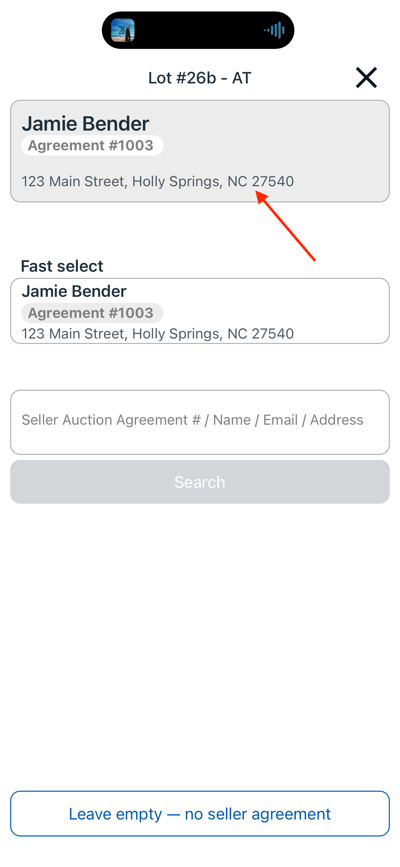
Up to 2 options will show on the fast select section as shown below. These will be the 2 most recent seller agreements assigned to lots assigned by that admin account.
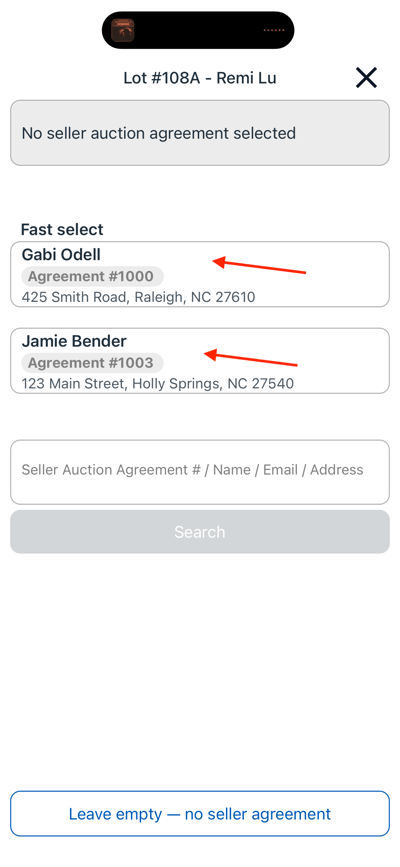 Once a seller has been assigned, you are immediately brought back to the lot editing page and it will show the seller you have assigned to that particular lot.
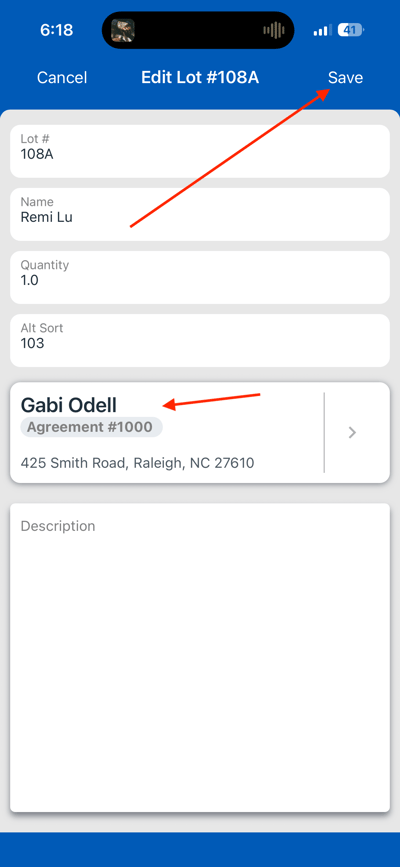
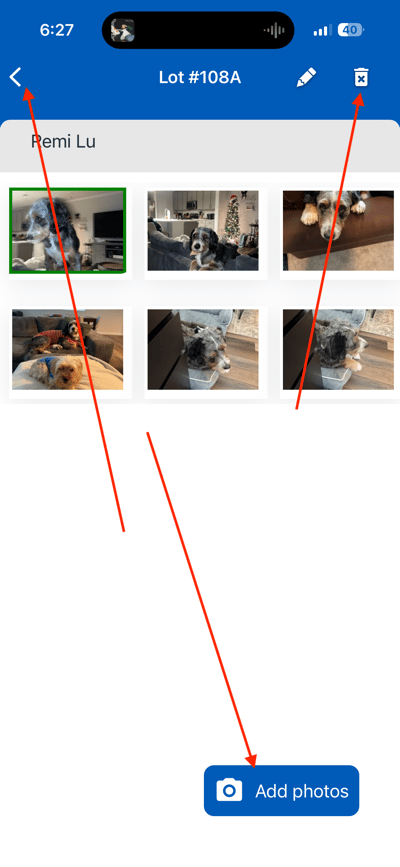
You must then click save to save the seller (and another changes you make to the lot). After clicking save, you are brought back to the Lot's thumbnail preview page where you can either click to add photos, return to the catalog listing, or delete the lot.
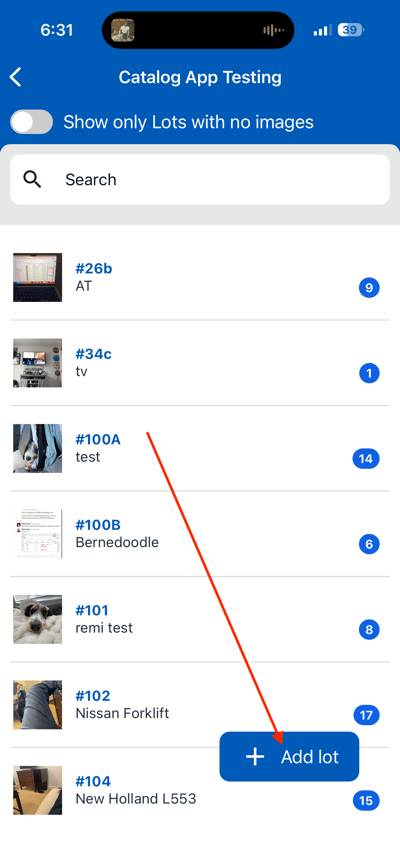
 If you are creating a new lot and want to add a seller, the process is the same. Simply click the + Add New button and then follow the same steps as above for assigned a seller.
Updated Knowledge Base Articles:
How To Apply Sales Taxes to Lot Purchase Prices, Buyers Premiums & Fees
How To Add the Auction House App to your Phone Homescreen
How to Update a Bidder's Account
Bulk Importing Images Using the Image's URL