
*Internal* System Release Notes June 23rd
FEATURE – Bidder Pick List
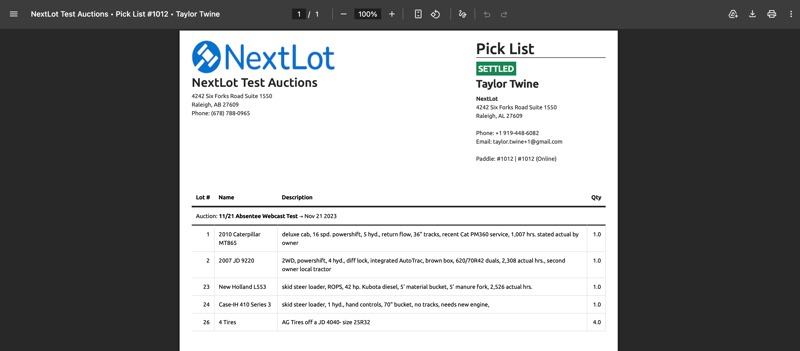
Some auction houses use a Pick List as part of their checkout and load-out process. When a bidder checks out, they are provided with a printed document that lists all of the lots included on their invoice, but does not display any pricing information.
The Pick List includes both the bidder's information and the auction house's information in the header. The bidder can then take this document to the warehouse or load-out area, where the load-out team can quickly identify which items need to be retrieved and released to the winning bidder.
Scenario of the Pick List being used: a bidder comes to pay for their purchases at a consignment auction. The admin looks up their invoice, takes payment. They then print off a copy of their paid invoice for the bidder to keep and a copy of their paid pick list. The bidder then takes their invoice and pick list outside, hands the pick list to 1 of the load-out team and they gather the items and load them up onto the bidder's trailer/truck. The bidder then takes the invoice and pick list and drives to the gate. They hand the paid pick list to the gate attendant- the attendant sees that it reads PAID and double checks that the only items the bidder is leaving with are the items from their pick list. Once confirmed, they let keep gate attendant keeps the pick list and lets the bidder out of the yard.
The pick list is essentially used as a Ticket of sorts that allows the bidder to leave the auction yard with their purchased items. If a pick list is given to the gate attendant and the pick list reads Outstanding- then the gate attendant knows that the bidder still needs to remit payment and should not be allowed to leave with their purchases.
Information Included on the Pick List
The Pick List contains:
- Lot Number
- Lot Name
- Lot Description
- Quantity
- Invoice Status (Paid, Outstanding or Refund Due)
- Winning Bidder's Name
- Bidder Address
- Phone Number
- Email Address
- Paddle Number
Pick List Options
There are two Pick List formats available:
- Pick List – Displays the lot information without images.
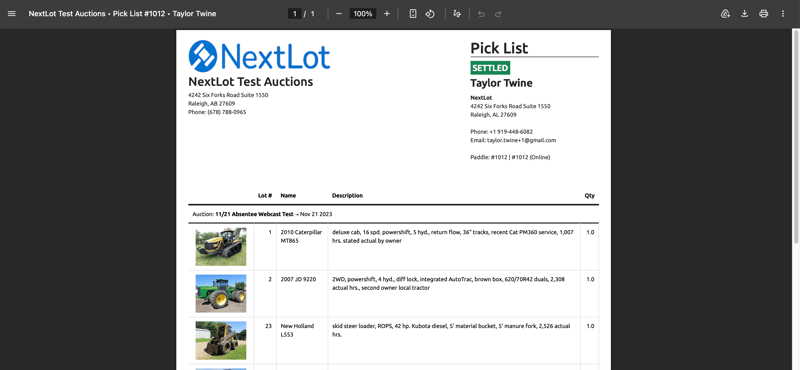
- Pick List with Images – Displays the lot information along with a single image (the default image) of the items won. Using the Pick List with images can be VERY useful when you have a very large auction and lots of items and your load-out team is not familiar with the items.
Auction houses can choose the version that best fits their office and load-out workflow.
How to Download a Pick List
- Open the bidder's invoice.
- Click the green Download button located in the upper-right corner of the invoice.
- Select either:
- Pick List, or
- Pick List with Images
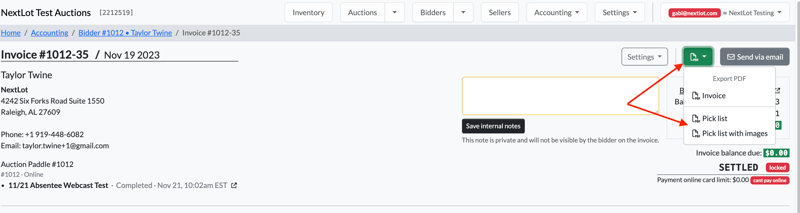
The examples below demonstrate both formats:
- The first example shows the standard Pick List without images.
- The second example shows the Pick List with Images, which includes photos of the lots won by the bidder.
FEATURE – Lot Export Options
When exporting the Lot Catalog from either the Lots Cataloging or Lots Accounting pages, there are multiple export options available to support imports into third-party bidding platforms such as Proxibid, Live Auctioneers and EquipmentFacts.
Image Export Options
- Lots (images separated):
- Each image URL is exported into its own individual spreadsheet column/cell.
- Lots includes the plain text formatted descriptions
.png?width=800&height=320&name=Screenshot%202026-06-23%20at%209.54.47%20AM%20(2).png)
- Lots (images delimited):
- All image URLs are exported into one cell, separated by commas (comma-delimited) and a space.
- the descriptions are plain text
.png?width=800&height=297&name=Screenshot%202026-06-23%20at%206.32.33%20AM%20(2).png)
These export options provide flexibility depending on the requirements of the platform receiving the lot data.
Based on our research, the Lots (image separated) file will be compatible with Proxibid and Live Auctioneers. the Lots (images delimited) will be compatible with Equipment Facts. Please note that these exports download the lot descriptions as plain text as none of these providers allow for rich text descriptions. If you need rich text descriptions for any particular reason, you can download the original NextLot Lot export by selecting the first lot export from the drop down list (simply labeled "Lots".)
To access these export options, navigate to the applicable auction's Catalog or Accounting tab. Then, click the green Download icon located in the upper-right corner of the page and select the lot export format that best meets your client's needs from the dropdown menu.
.png?width=800&height=311&name=Screenshot%202026-06-23%20at%206.31.44%20AM%20(2).png)
UPDATE- Alt Sort Resequenced Lots
After applying Alt Sort to a catalog, the process for re-sequencing lot numbers has been updated, although the overall functionality remains the same.
To re-sequence lot numbers based on the Alt Sort # order:
- Navigate to the applicable auction's Catalog or Accounting tab.
- Click the Run Order Field option on the left-hand side of the page.
.png?width=800&height=106&name=Screenshot%202026-06-23%20at%209.45.23%20AM%20(2).png)
.png?width=800&height=626&name=Screenshot%202026-06-23%20at%209.45.33%20AM%20(2).png)
4. Once Alt Sort has been applied, you will have the option to update all lot numbers to match the current run order defined by the Alt Sort values.
5. Click the blue checkbox to begin the re-sequencing process.
.png?width=800&height=71&name=Screenshot%202026-06-23%20at%209.46.09%20AM%20(2).png)
.png?width=1877&height=170&name=Screenshot%202026-06-23%20at%209.45.40%20AM%20(2).png)
6. A modal will appear, allowing you to specify the starting lot number for the sequence.
7. Enter the desired starting lot number and click Save.
.png?width=543&height=281&name=Screenshot%202026-06-23%20at%209.46.01%20AM%20(2).png)
UPDATE: Bidder Payment Report & Seller Payment Report Order Enhancement
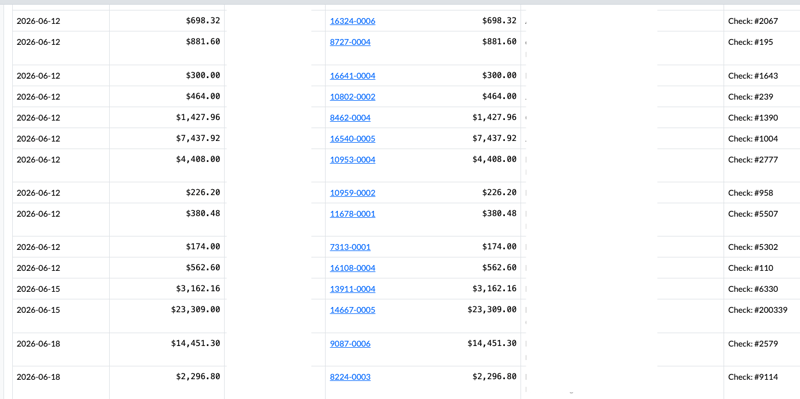
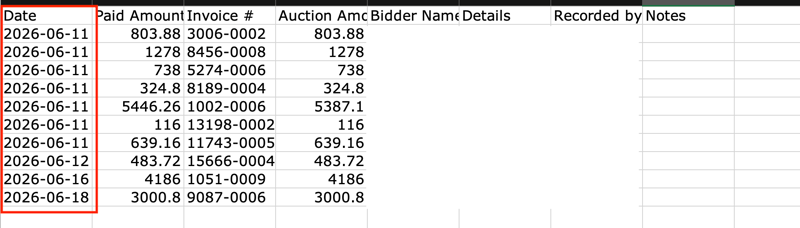
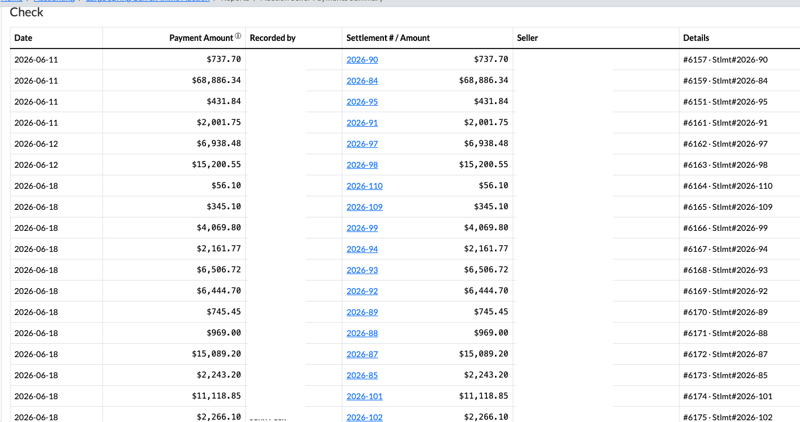
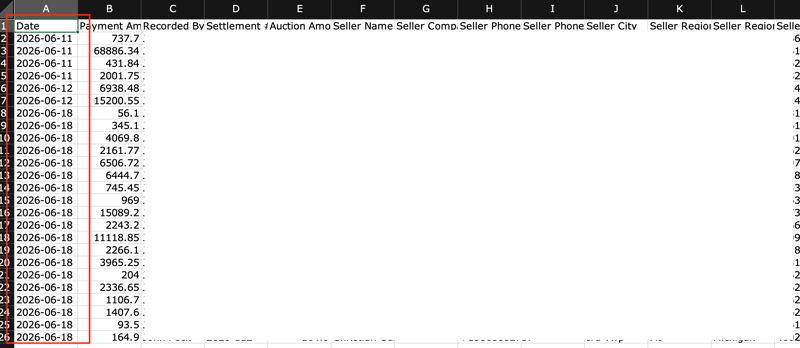
To make it easier to locate and identify payments within both the Bidder Payment Report and Seller Payment Report, the payment entries in each payment section (such as Cash, Check, Credit Card, etc.) are now organized by payment date.
Payments will now be displayed in descending order, with the most recent payment appearing at the top of each section and the oldest payment appearing at the bottom. This update allows users to quickly find and review the latest payment activity without needing to scroll through older transactions.
Bidder Payment Report Example:
Seller Payment Report Example:
Updated Knowledge Base Articles