
*Internal* System Release Notes March 10th, 2026
UPDATE – Kicking Out and Deactivating a Bidder from a Webcast Auction
We understand that there may be situations where a bidder needs to be removed from an active webcast auction—for example, if they were approved by mistake or if their funds are found to be insufficient. To address this, we have implemented a way for clerks and admins to remove bidders from a webcast AND deactivating their account. This prevents them from re-entering the webcast and continuing to bid.
To do this:
- Navigate to the Clerk Screen.
- Click the Bidders tab.
- Locate the bidder you want to remove.
- Hold down the Shift key on your keyboard and double-click the Deactivate icon.
Important: You must hold down Shift while double-clicking the Deactivate icon. Simply double-clicking the icon without holding Shift will not work. This extra security measure was put in place to ensure that a bidder is NOT accidentally removed from a webcast. Once a bidder is kicked out of a webcast, they will NOT be able to re-enter the webcast unless an admin goes to their bidder profile and changes the bidders status from deactivated to activated.
.png?width=1303&height=505&name=Screenshot%202026-03-10%20at%2010.16.39%20AM%20(2).png)
Once completed, the bidder will turn light gray and move to the bottom of the list under Inactive Users within the webcast.
.png?width=1346&height=485&name=Screenshot%202026-03-10%20at%2010.16.58%20AM%20(2).png)
If you navigate back to the Approved Bidders tab for that auction, you will see that although the Approval Status still shows as Approved, the Account Created column will indicate that the bidder’s account is now Deactivated.
.png?width=1902&height=523&name=Screenshot%202026-03-10%20at%2010.17.07%20AM%20(2).png)
On the public side, once a bidder is deactivated, they will see a red notification modal that says:
“Network error. Oops… You were unable to connect to the webcast.”
Refreshing the page will not allow them back into the auction. Instead, they will be redirected to the login screen, where they will see a yellow message stating:
“Account deactivated, please contact support.”
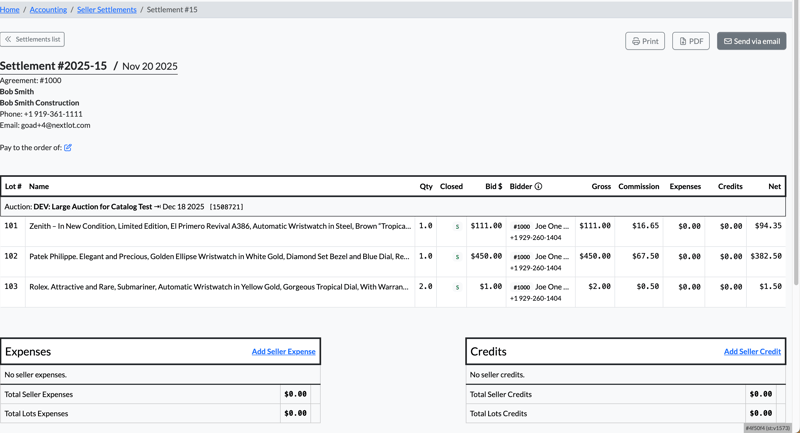
UPDATE- Seller Address to the seller Settlement
To better meet client needs, we have added the seller’s address on file to the Seller Settlement document. This is especially useful for auction houses that snail mail settlements using single-window envelopes. The settlement can now be folded so that the necessary mailing information appears through the envelope window, making it easier for carriers to deliver.
Example:
.png?width=523&height=268&name=Screenshot%202026-03-10%20at%2011.18.02%20AM%20(2).png)
Seller Settlement Before:
Seller Settlement Updated Version:
.png?width=1890&height=781&name=Screenshot%202026-03-10%20at%2010.59.59%20AM%20(2).png)
Update – Partial Refunds on Lots
To help streamline the refund process, you can now issue partial refunds for individual lots directly within an invoice.
To do this, navigate to the paid invoice and click the Edit button on the right-hand side of the lot you want to adjust. From there, you can enter the amount you would like to refund for that specific lot.
-1.png?width=960&height=417&name=Screenshot%202026-03-10%20at%2011.24.33%20AM%20(2)-1.png)
.png?width=1049&height=630&name=Screenshot%202026-03-10%20at%2011.25.10%20AM%20(2).png)
For example, if a bidder purchased four tires but one was missing (e.g., misplaced or taken), you could enter a $50 refund for that tire. You also have the option to refund a partial buyer’s premium, if needed. Any applicable tax will automatically recalculate.
Once the adjustment is made, a new invoice will be generated showing the refund, and the auction house can process the refund using their preferred payment method.
.png?width=1901&height=813&name=Screenshot%202026-03-10%20at%2011.25.20%20AM%20(2).png)
Important notes:
- If a lot fee is associated with the item (such as a title fee tied directly to that lot), you can also issue a partial refund on the lot fee using this method.
.png?width=1895&height=784&name=Screenshot%202026-03-10%20at%2011.29.31%20AM%20(2).png)
.png?width=949&height=669&name=Screenshot%202026-03-10%20at%2012.39.33%20PM%20(2).png)
.png?width=1894&height=806&name=Screenshot%202026-03-10%20at%2011.29.55%20AM%20(2).png)
- However, this does not apply to invoice-level fees. If you need to refund an invoice fee, you will need to navigate to the bidder’s profile, locate the invoice, create a new invoice, and process the refund for that invoice fee separately.
.png?width=1892&height=754&name=Screenshot%202026-03-10%20at%2011.30.51%20AM%20(2).png)
Updated Knowledge Base Articles:
Linking Lots for Timed Auctions