*Internal* System Release Notes May 6th, 2026
FEATURE- AutoCalculation of the surcharge fee when using the card (Ext) payment option
Previously, when recording a payment using Card (ext), the surcharge field would appear blank and admins had to manually calculate and enter the applicable surcharge fee.
To improve the user experience, you can now create Payment Card Fees, which allow the system to automatically calculate surcharge fees based on the payment method or device being used. For example, a CardPointe terminal may have a 3% surcharge fee, while another POS system may use a 4% surcharge fee.
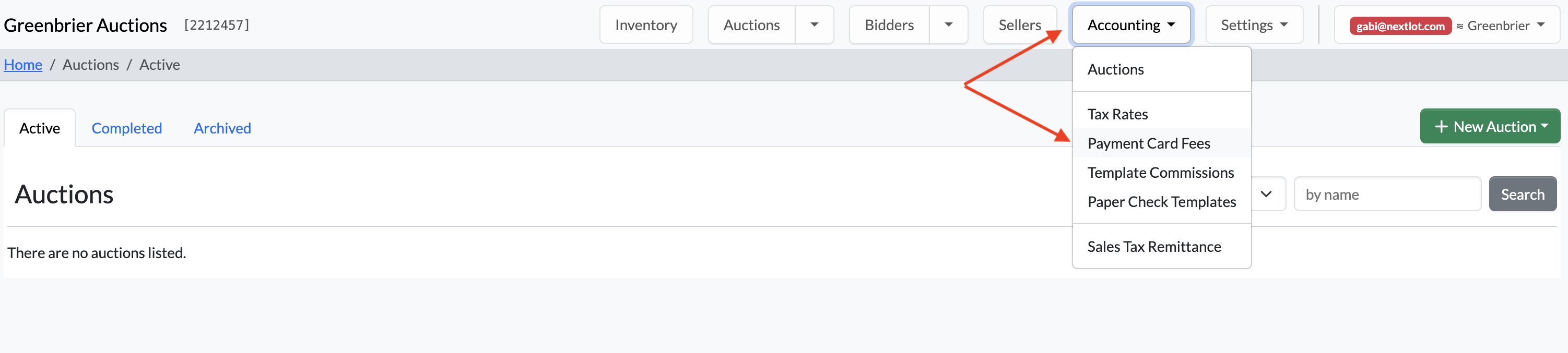
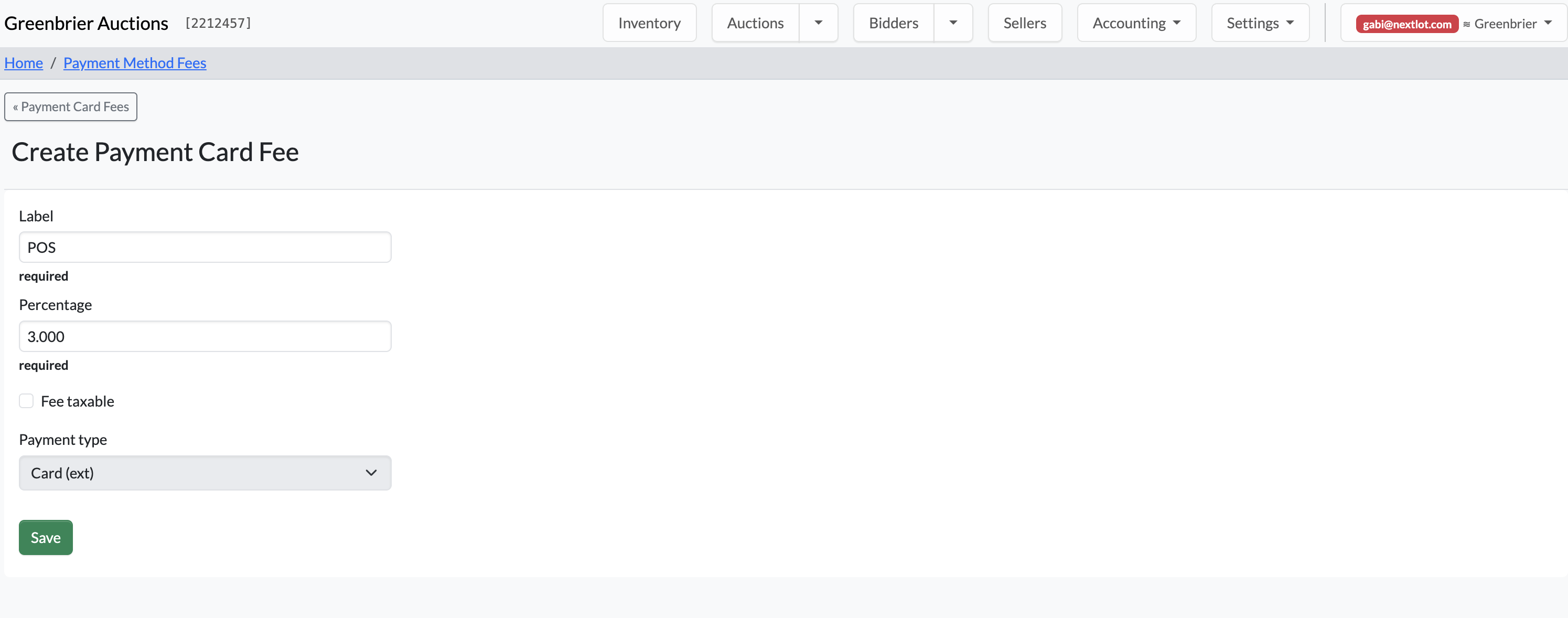
To use this feature, first navigate to the master Accounting tab and select Payment Card Fees. From there, click the green + New button to create a new surcharge label. You will enter:
- A label name (example: “POS”)
- The surcharge percentage (example: 3%)
Then click the green Save button.
Please note: the Fee Taxable option is not currently functional, but it is planned for future use. So please leave this box unchecked for now.

Once a Payment Card Fee has been created, navigate to the invoice where you need to record a Card (ext) payment. In the New Payment modal under Card (ext), you will now see multiple surcharge options:
- Debit with a default surcharge of 0%
- This will always appear as the default option for cases where a customer avoids surcharge fees by paying with a debit card.
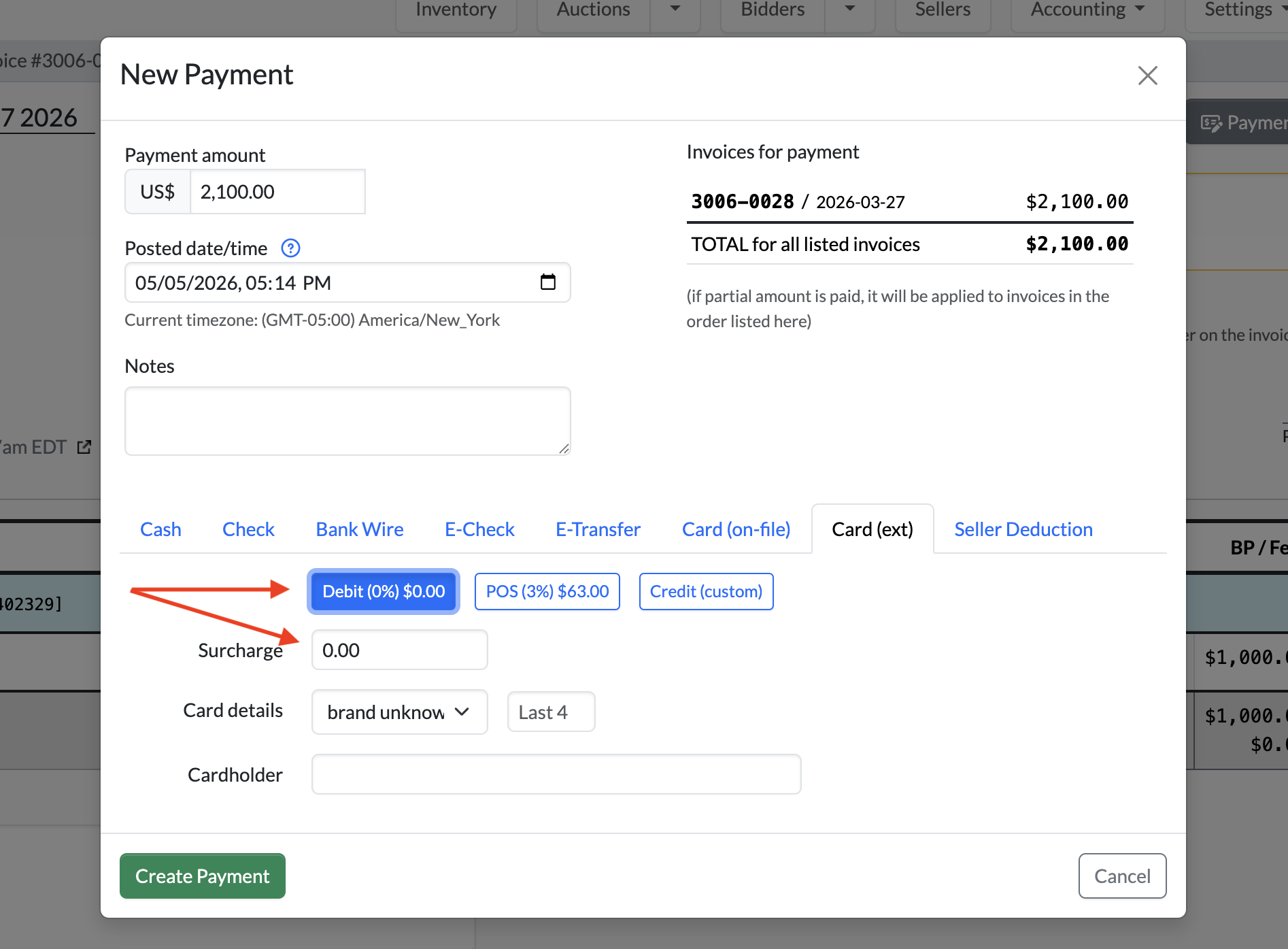
- Any custom Payment Card Fee labels you created
- These will automatically calculate the surcharge amount based on the invoice total.
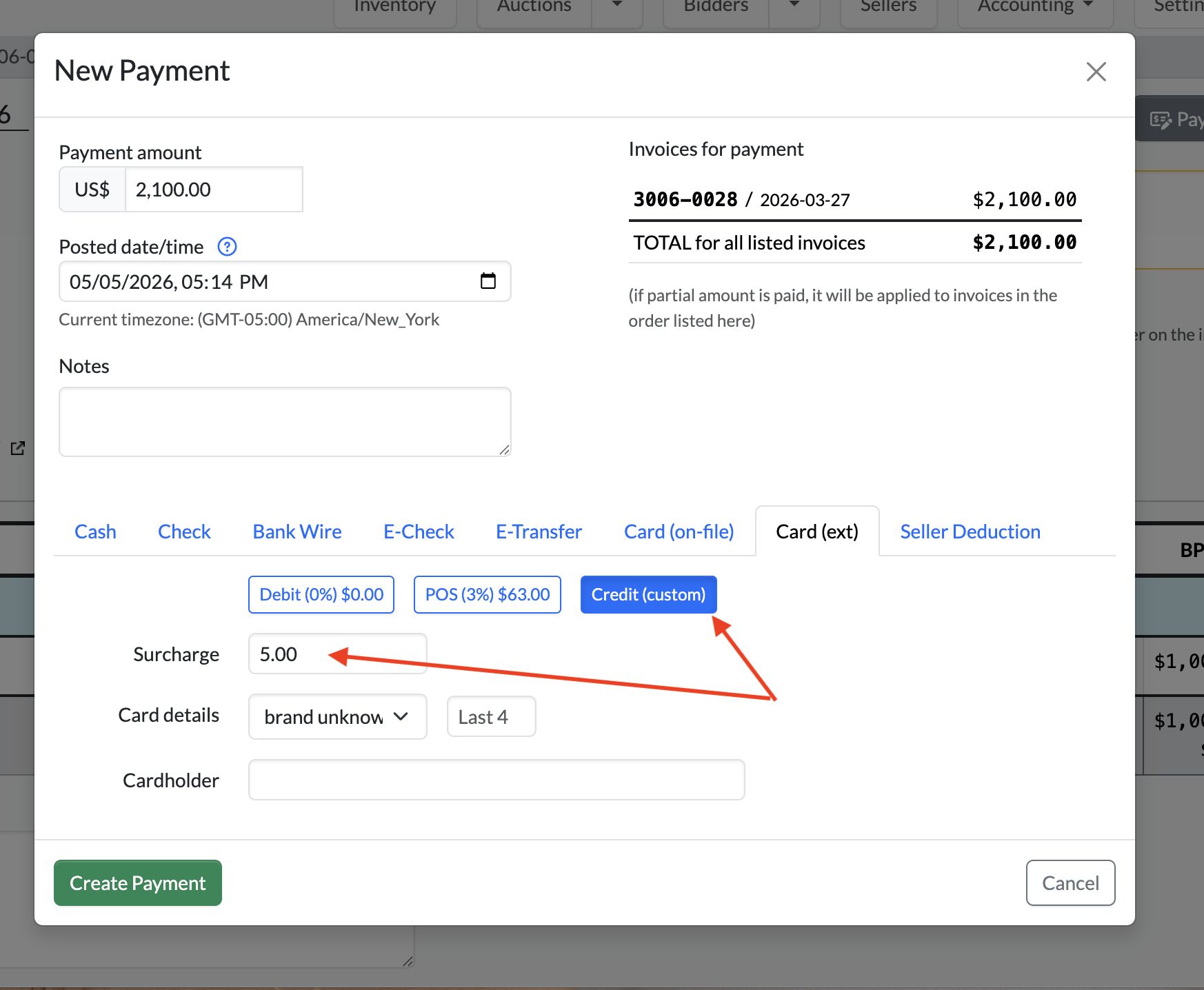
- Credit (custom)
- Allows you to manually enter a custom surcharge amount if needed.
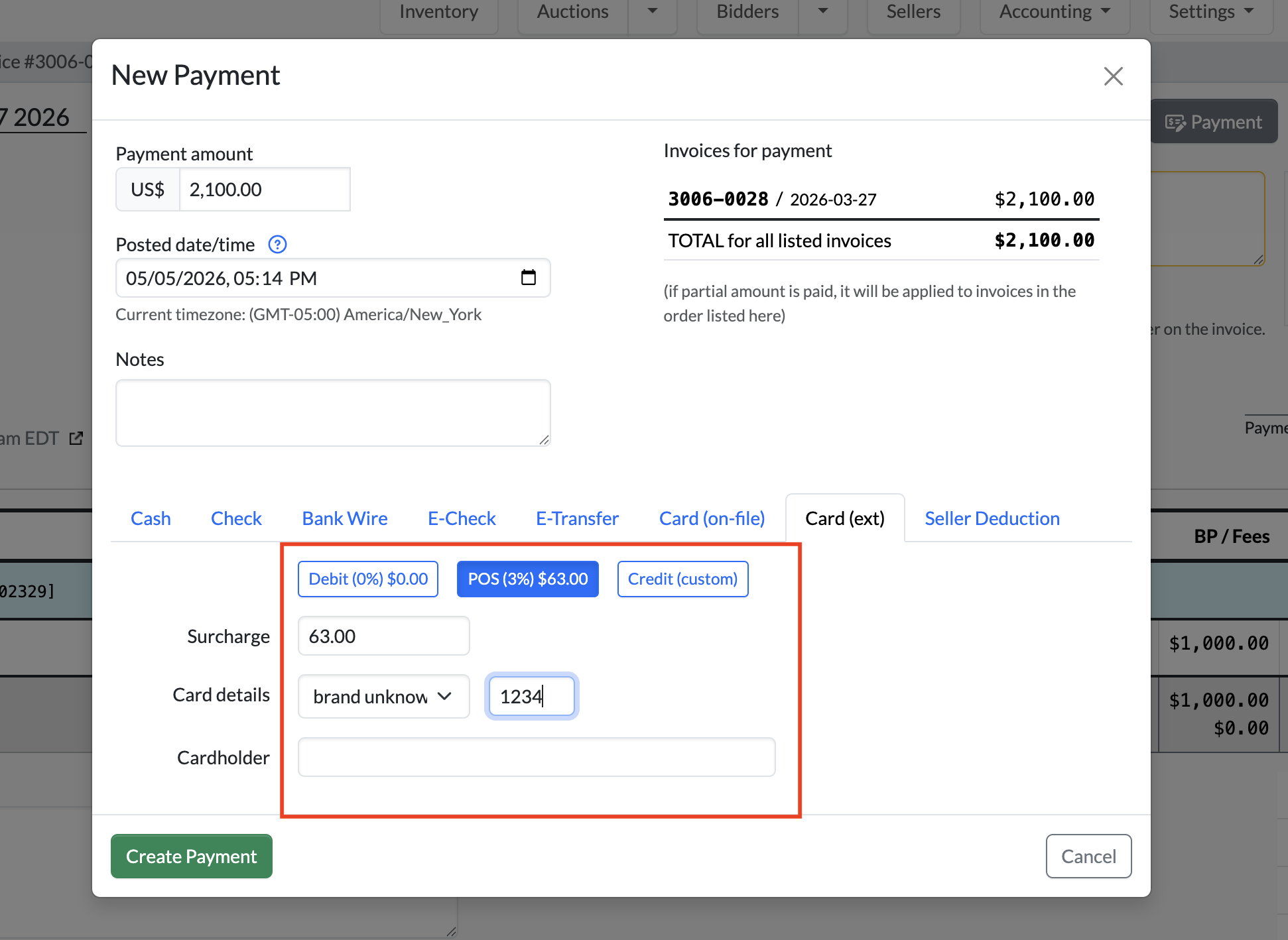
For example, if the invoice total is $2,100 and you select a POS surcharge fee of 3%, the system will automatically calculate and display a surcharge amount of $63.00. Once selected, the surcharge field will auto-fill with the calculated amount, eliminating the need for manual math or data entry.
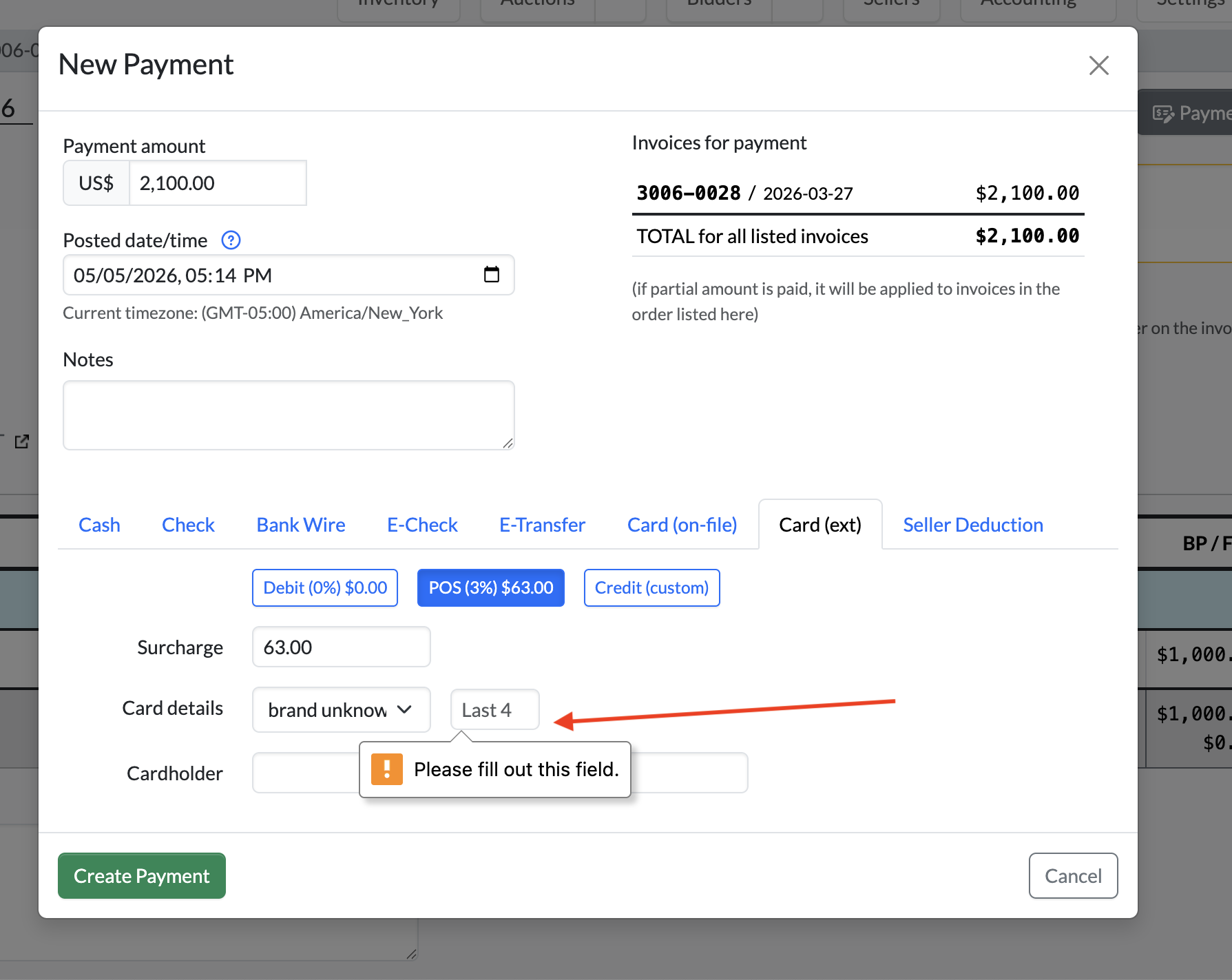
Please note that in order for the payment to be successfully recorded, you must enter the last four digits of the card number. This is required for book-keeping and record-keeping purposes. You are also offered the option to choose the card brand and note the cardholder. This is recommended, but note required to complete the payment.
BUG: Fixed Seller Settlement PDF UI when site name breaks to another line
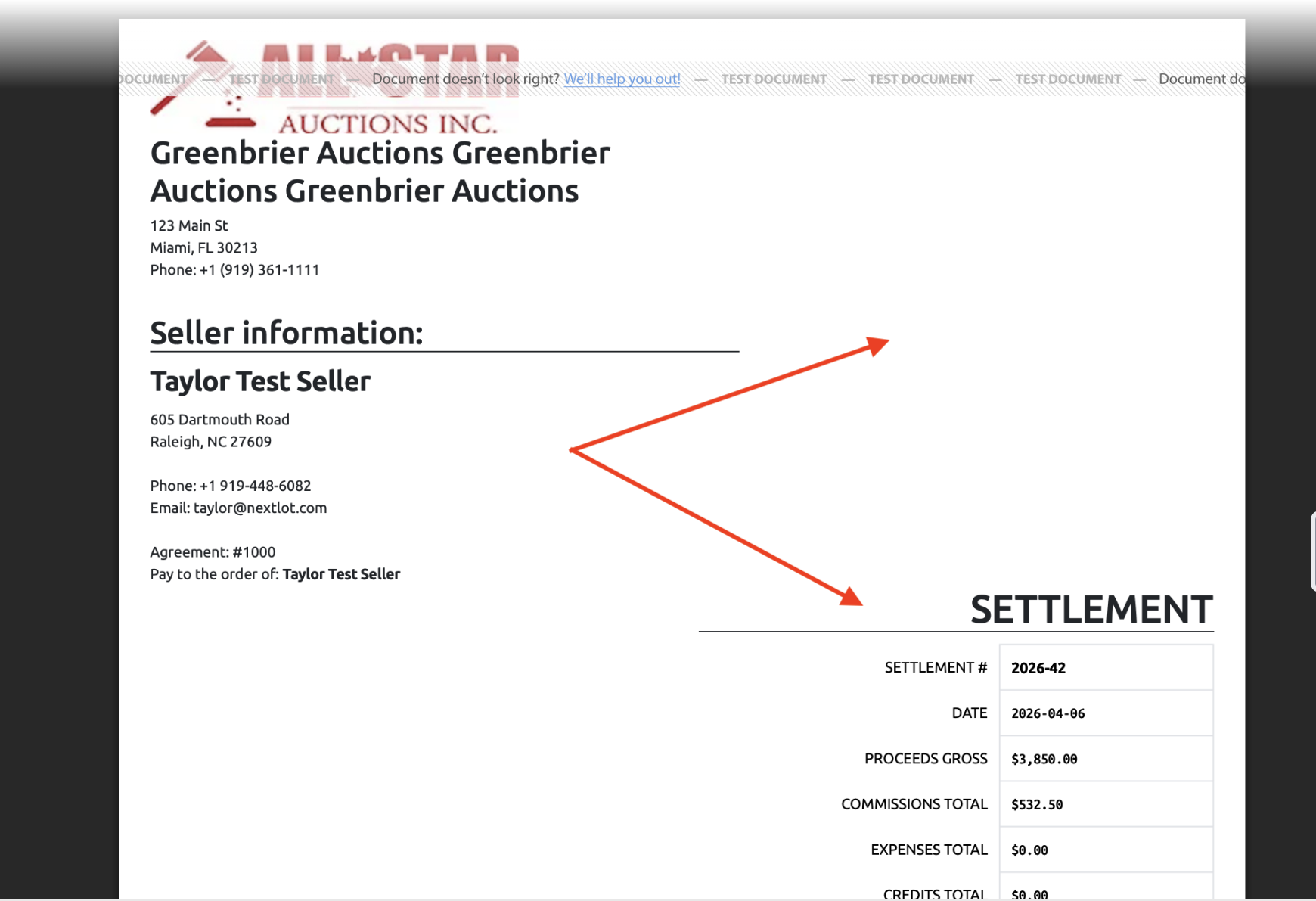
Previously, if an auction house had a long site name that wrapped onto a second line, the settlement section on the invoice would be pushed further down the page. This created unnecessary white space next to the seller information and could cause the settlement to become longer than needed, sometimes even adding an extra page.
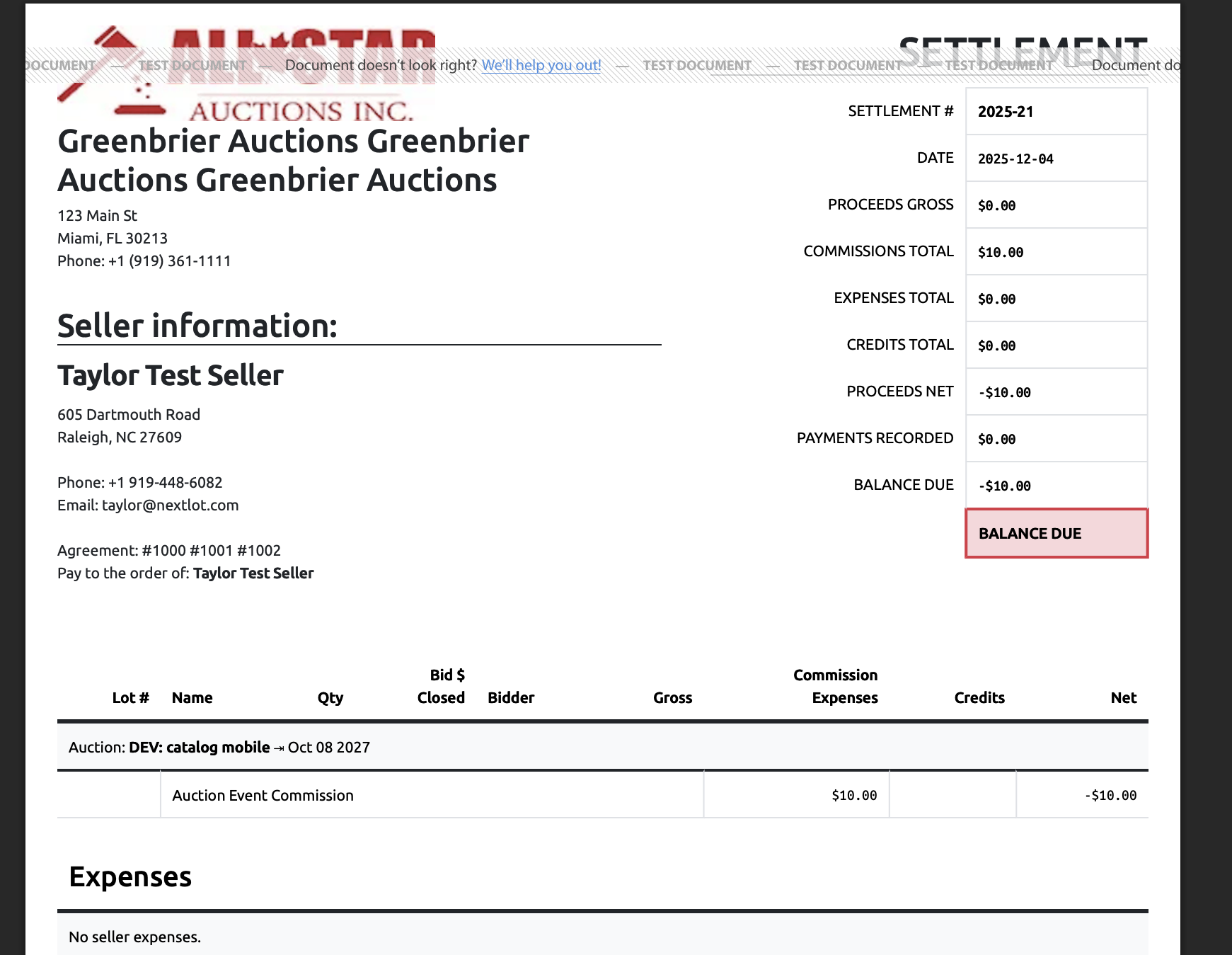
Now, for an improved user experience and cleaner UI appearance, long auction house names will wrap appropriately without shifting the settlement information down the page. This prevents unnecessary white space and helps keep settlements more compact and organized.
Before:
After:
BUG- Manually setting the bidder invoice payment date/time not saving when logging the payment
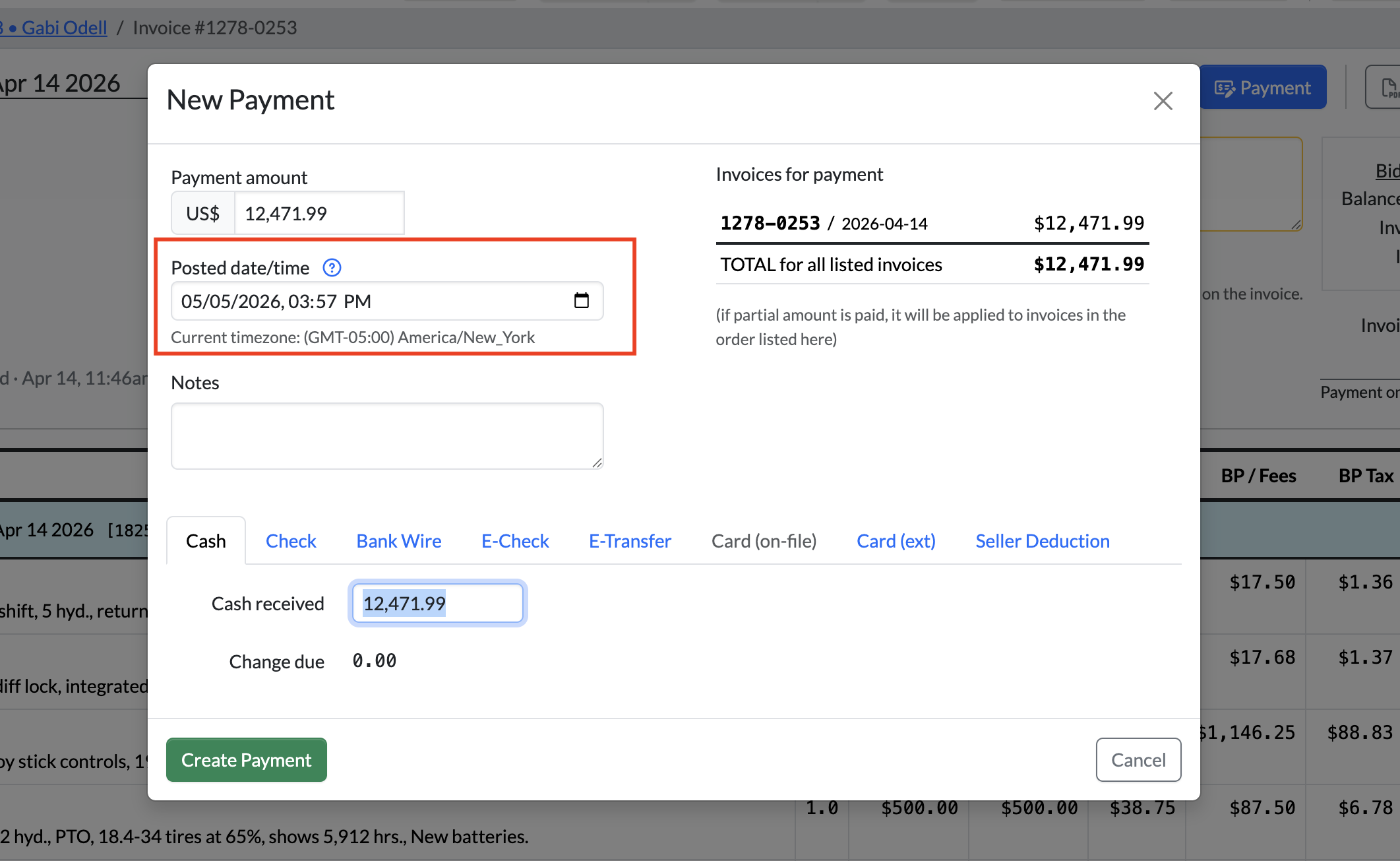
When an admin records a payment on a bidder’s invoice, there is a “Posted Date/Time” field that automatically defaults to the current date and time when the payment is being entered.
Previously, admins were able to edit this field, but the edits were not saving when completing the payment. This created issues in situations where payment had already been collected days earlier, but the payment was not entered into the system until later.
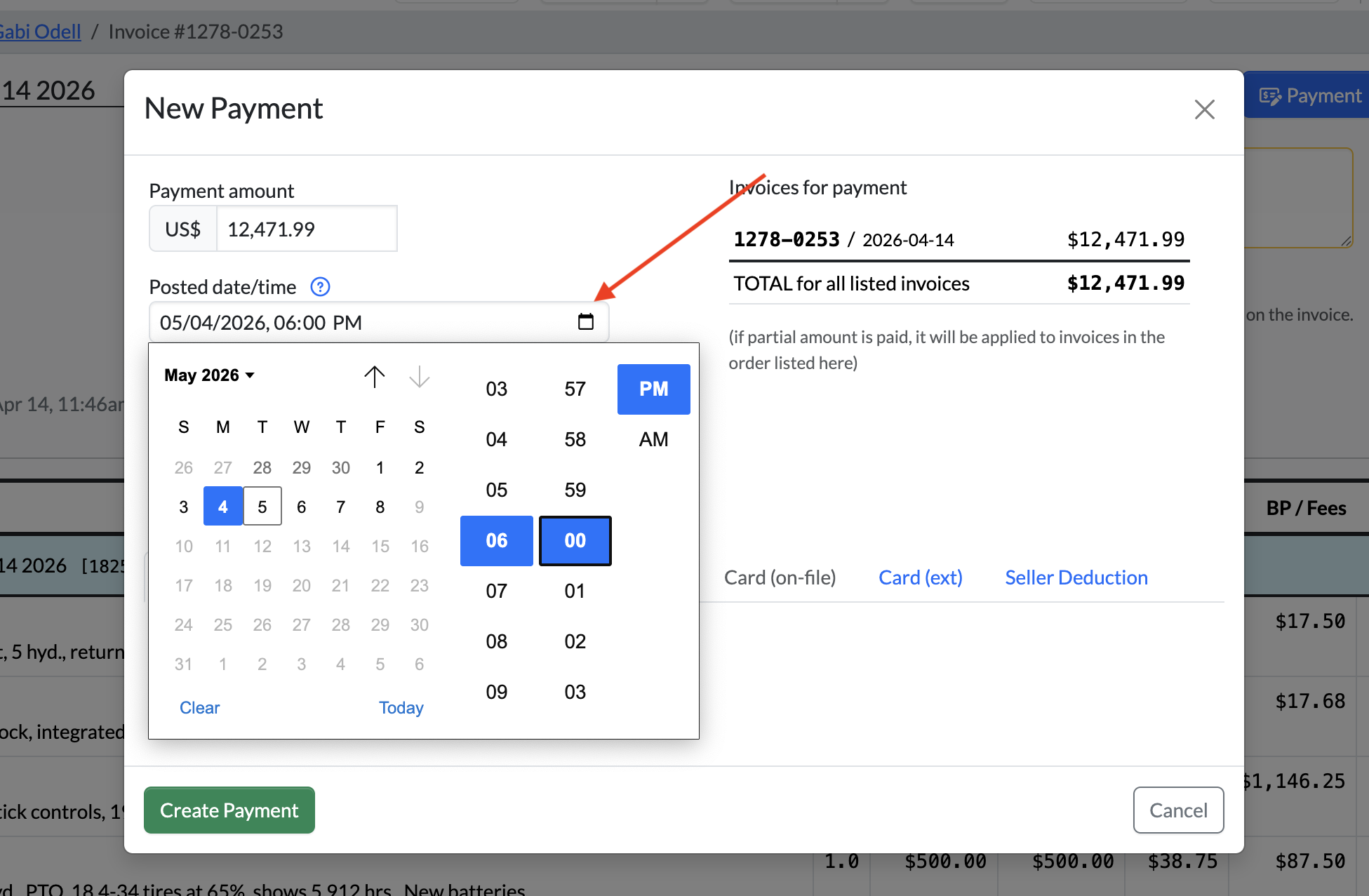
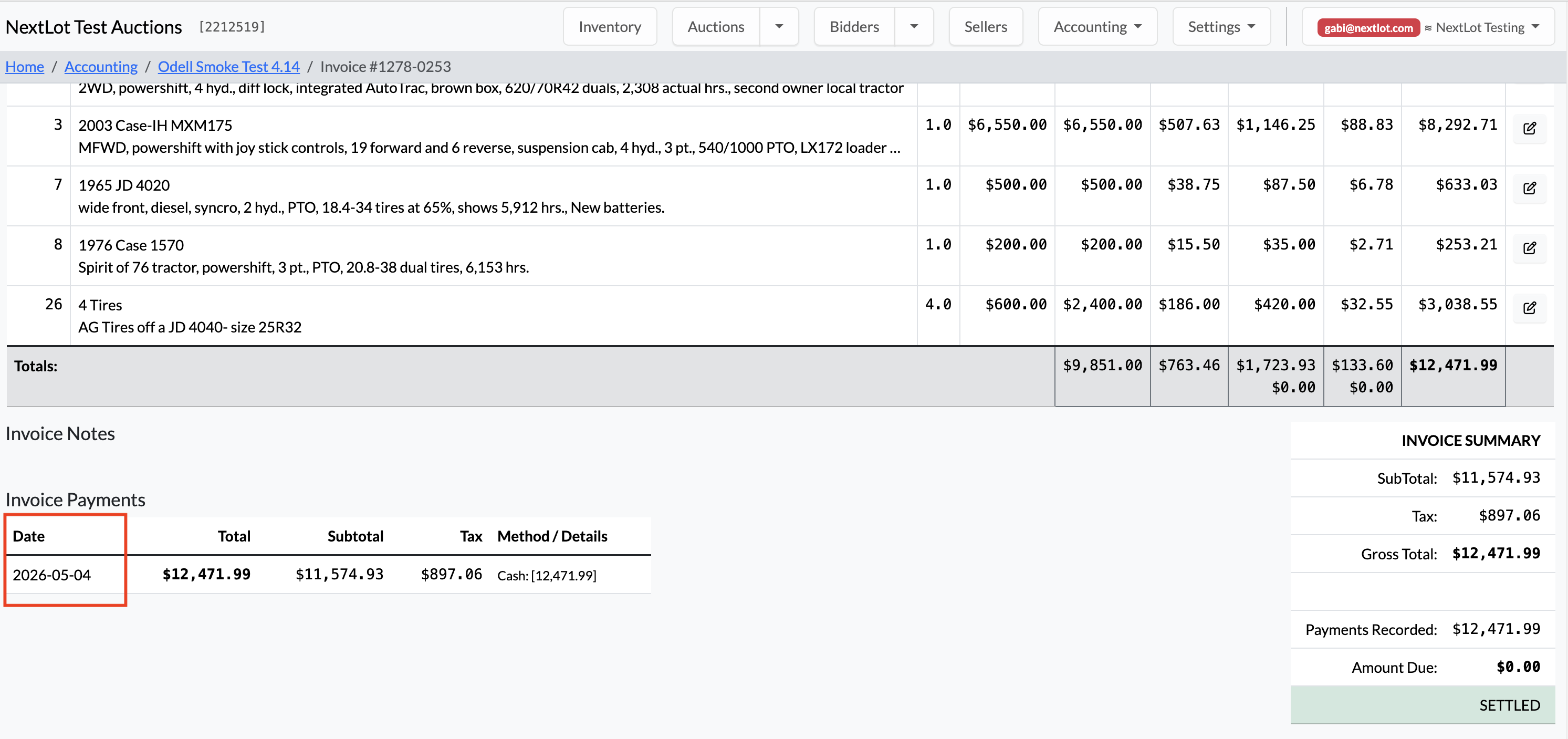
Admins can now edit the “Posted Date/Time” field before creating the payment. For example, if Client A collected a wire payment from Gabrielle Odell on 5/4 at 6:00 PM, but did not record the payment in the system until 5/5 at 4:00 PM, they can now adjust the posted date and time to reflect when the payment was actually received, thereby matching their recordings in NextLot with their banking records.
To do this, simply click the calendar icon, update the date and time as needed, and then click “Create Payment.” Once the payment is created, the adjusted posted date/time will appear in the Invoice Payments section at the bottom of the invoice, accurately reflecting when the transaction originally occurred. This workflow will work very well for auction houses who collect wire payments, e-transfers,
Please see example and workflow below.
BUG- Error isn't thrown when admin creates a linked auction with a commission that is different from the primary auction
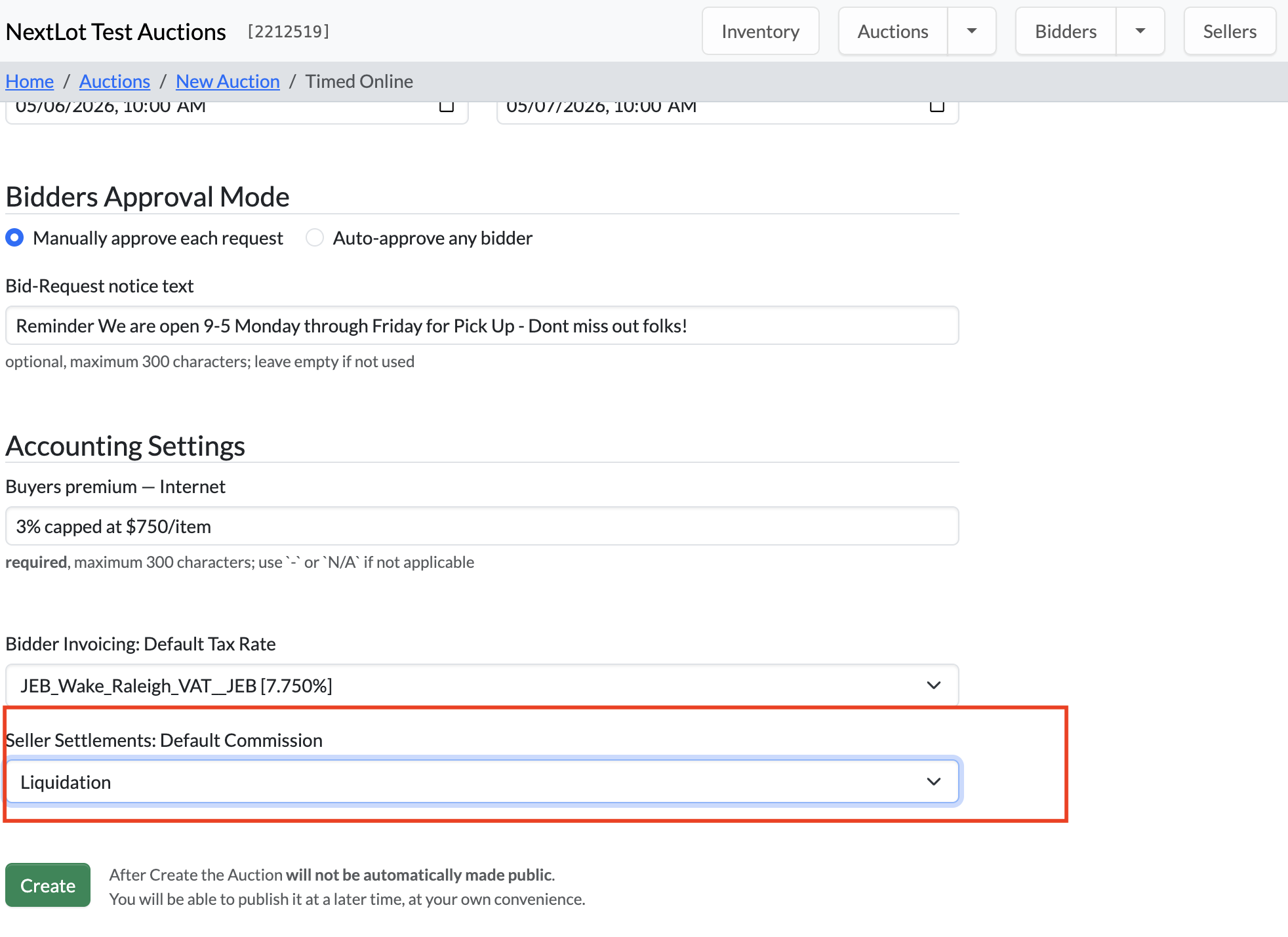
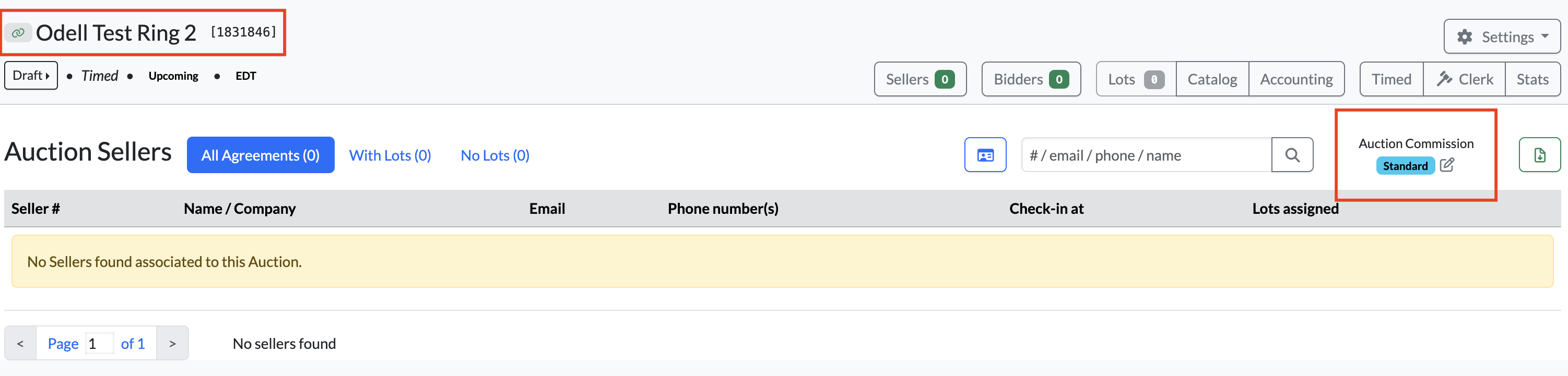
Previously, when creating multiple linked auctions, admins were able to assign different seller commission rates to each auction even if one auction was designated as the primary auction. This created issues during seller check-in because sellers would receive different default commission rates depending on which linked auction they were checked into.
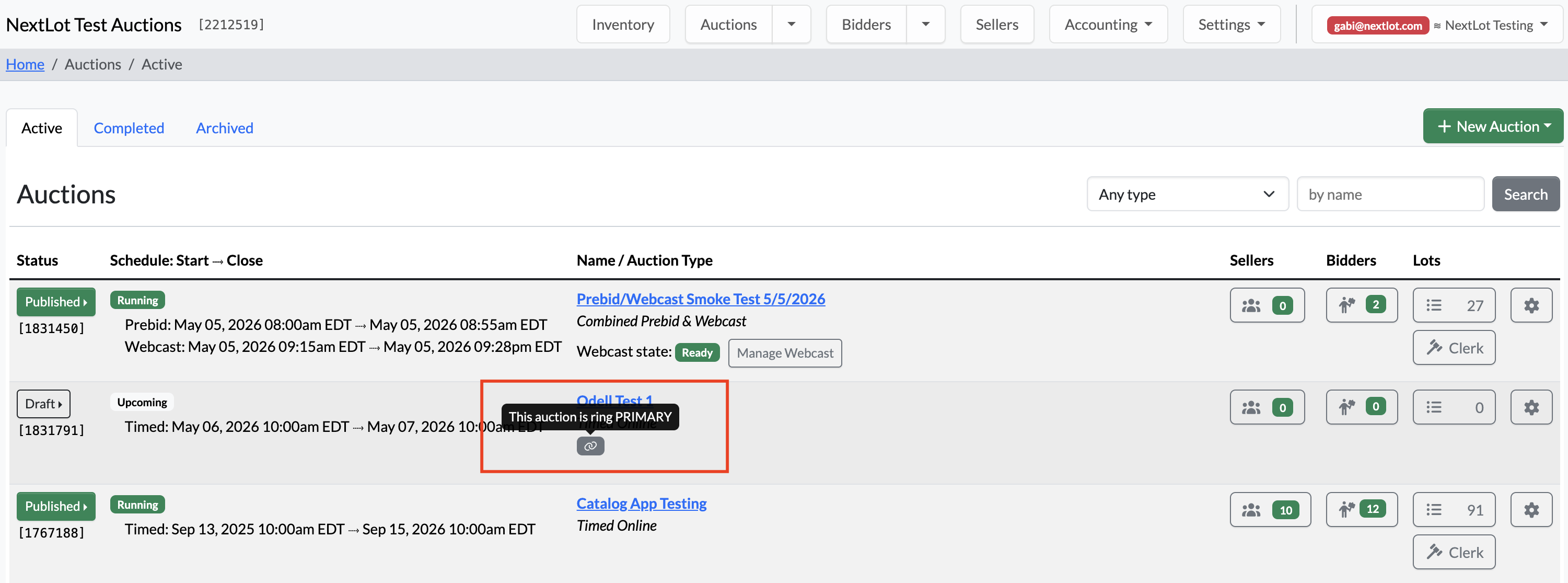
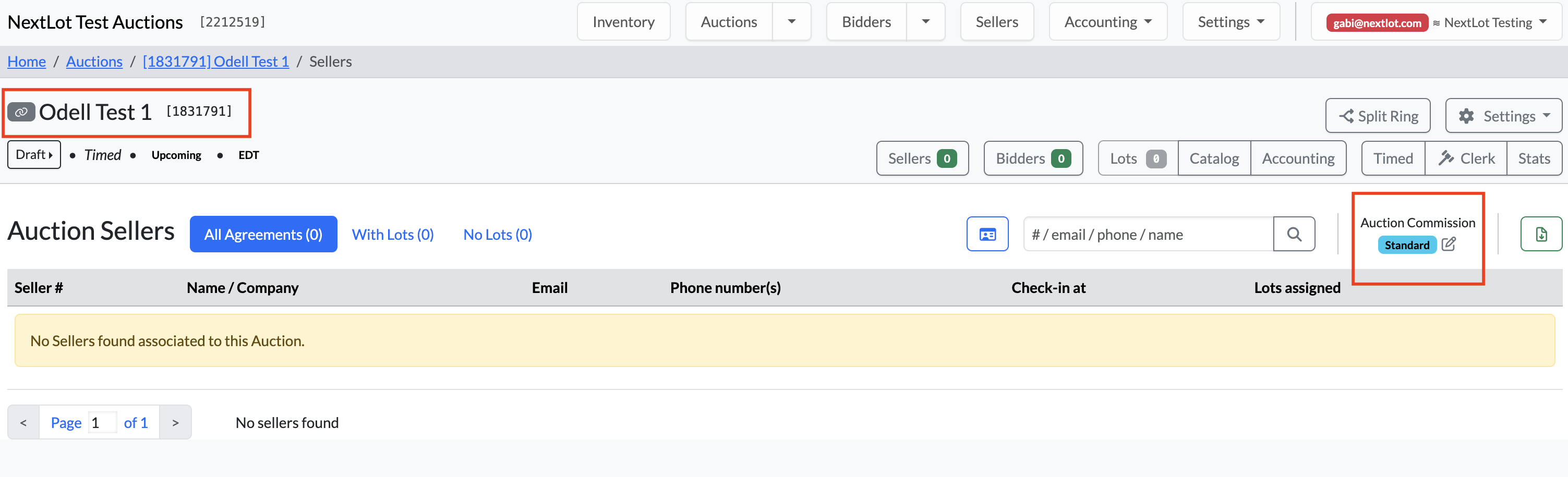
Now, when creating a secondary auction and linking it to a primary auction, the system will still allow you to select a commission structure during auction creation. However, once the auction is created and linked, the default seller commission structure from the primary auction will automatically override any commission structure set on the newly linked auction.
Please see example and workflow below.
.png?width=1312&height=831&name=Screenshot%202026-05-05%20at%204.41.53%20PM%20(2).png)